
3D Maps
Explore terrain from every angle with 3D Maps, and use 3D Exaggeration to amplify subtle elevation changes. Headed somewhere with spotty service? 3D works offline, too.
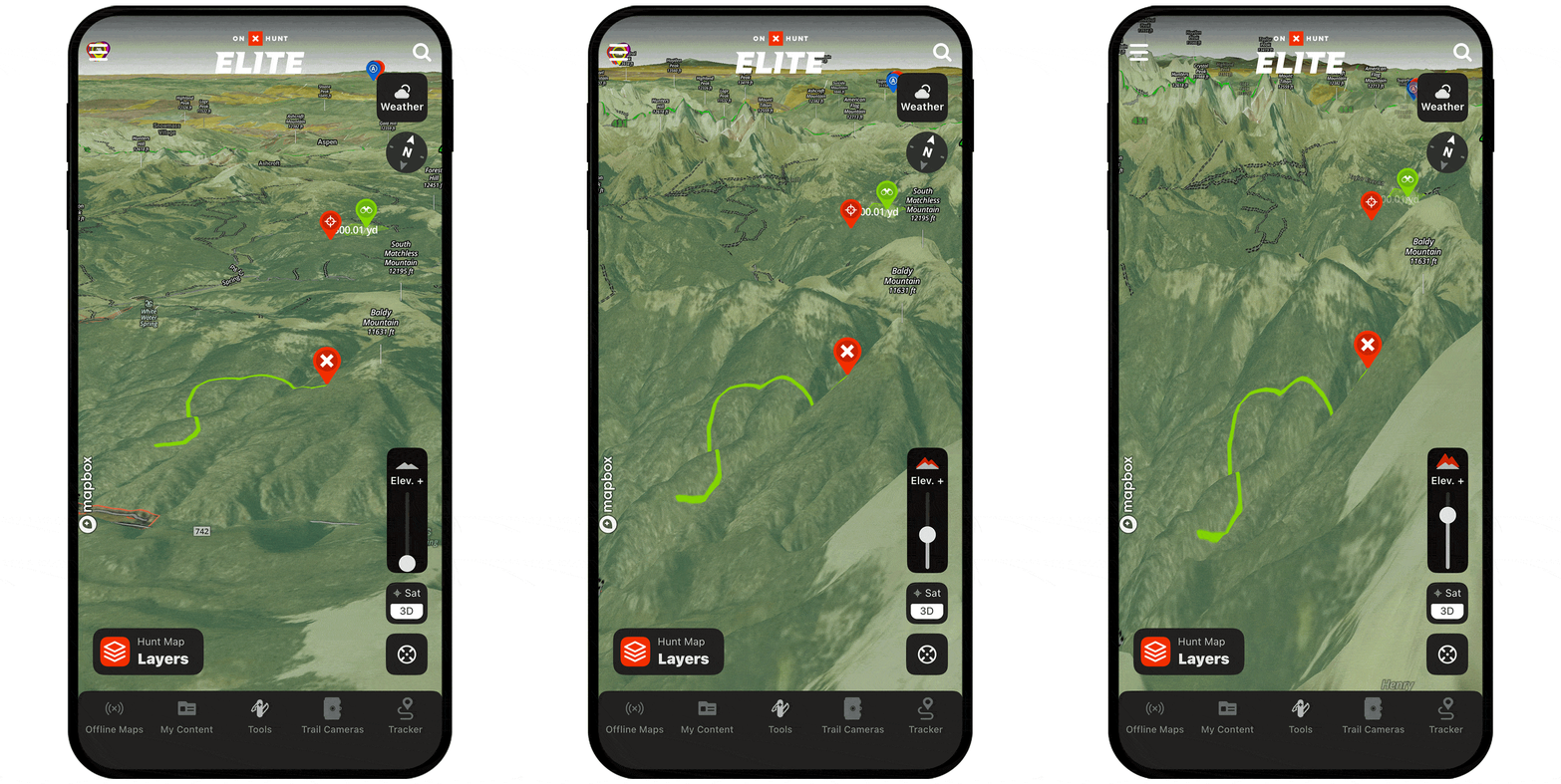
3D Maps Tutorial
Expand each block to learn how to enable 3D Maps and apply 3D exaggeration.
Turn on 3D Maps
Step 1: Tap the Basemaps menu.
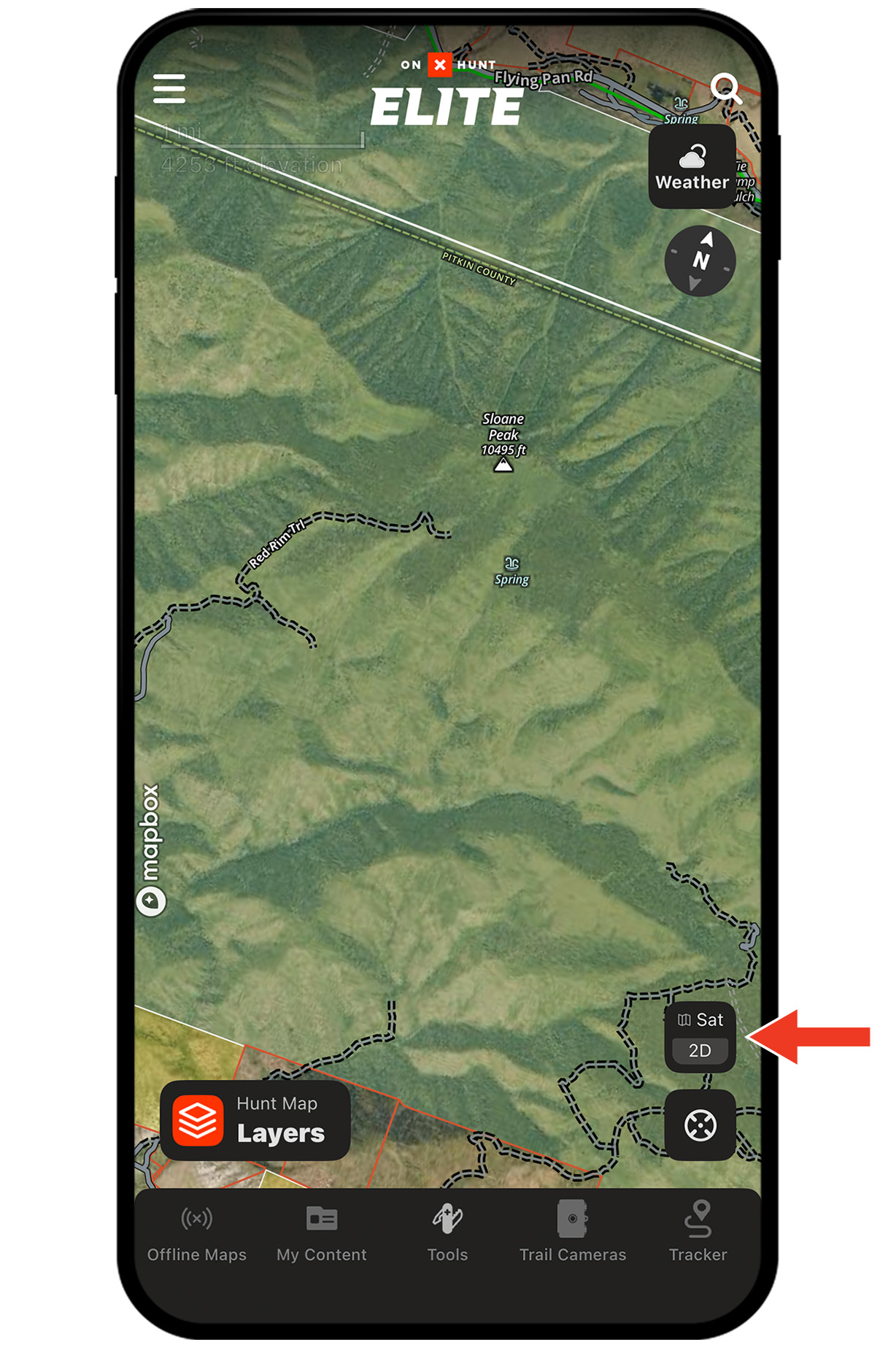
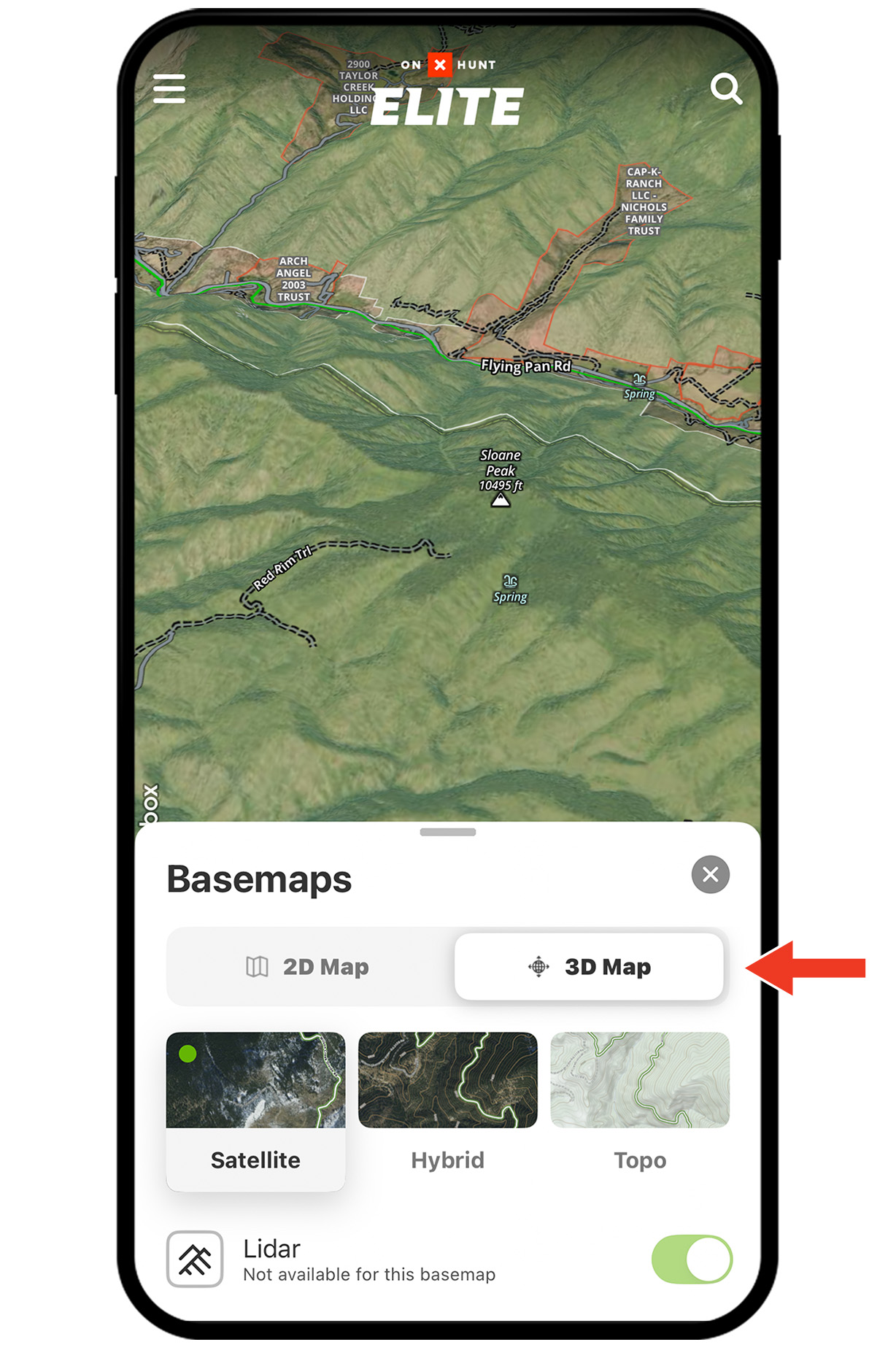
Step 2: Tap the 3D tab.
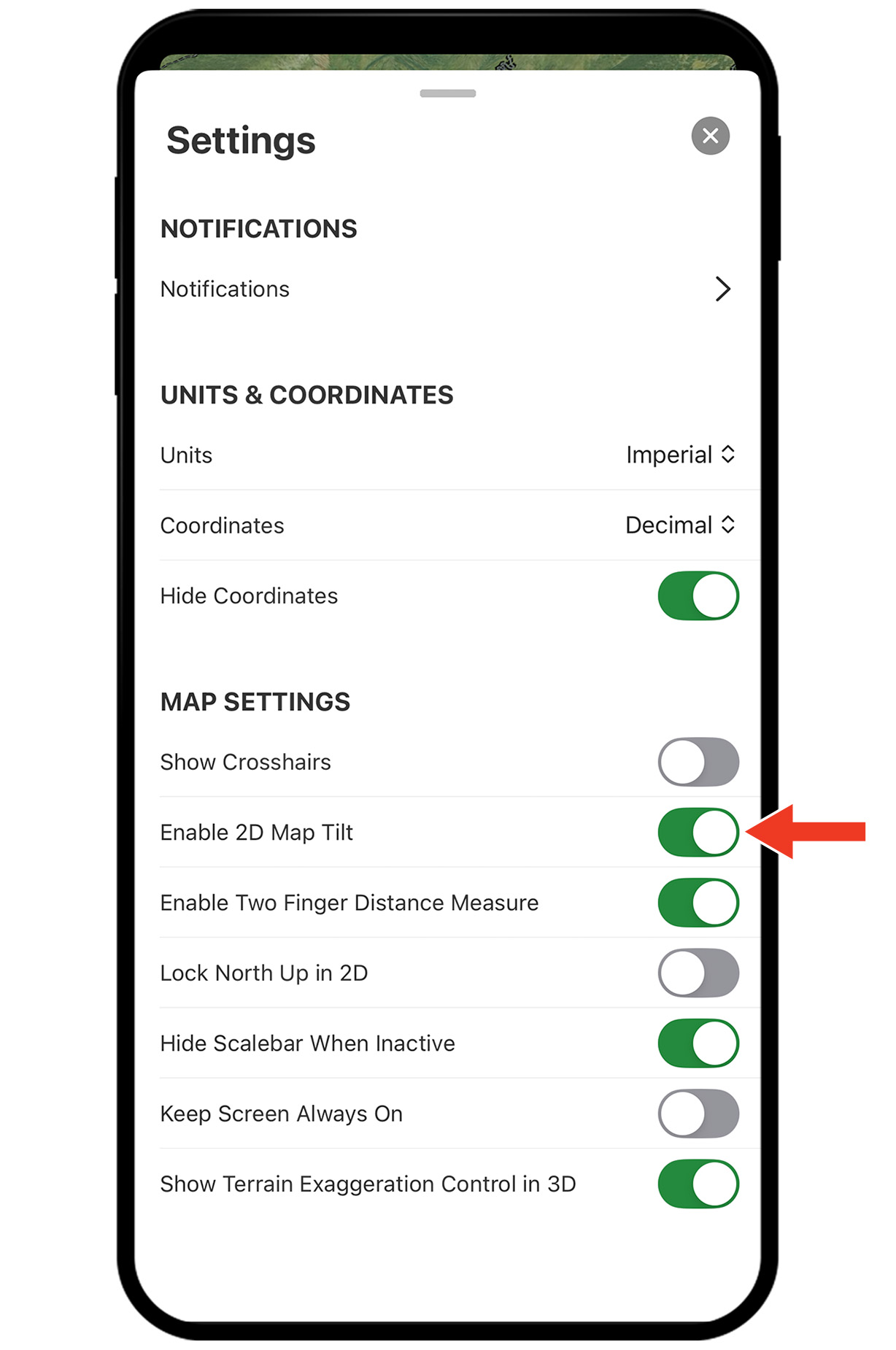
Tip: You can also turn on 3D Maps by placing two fingers on the map and swiping upward. If that doesn’t work, check your settings:
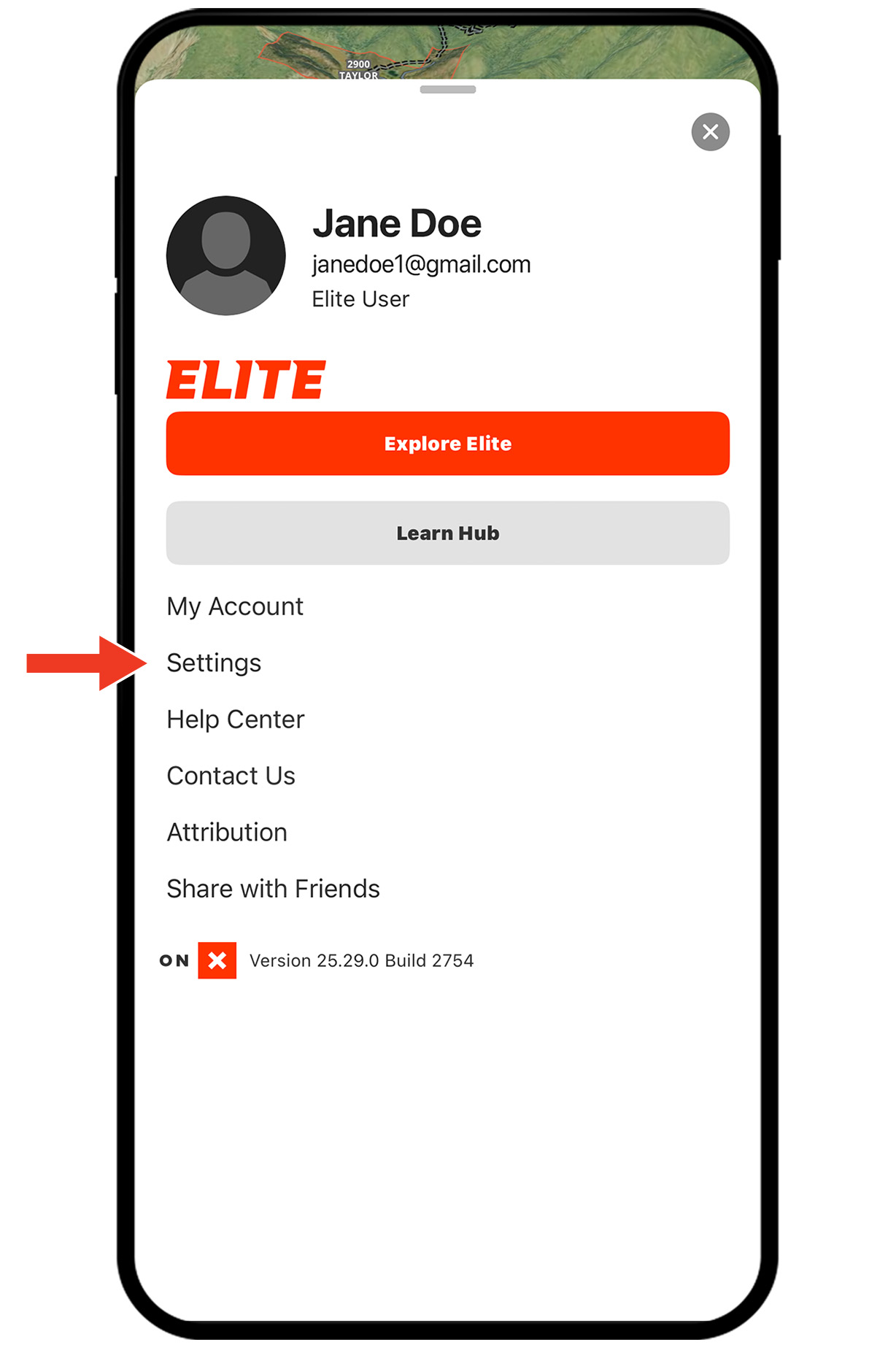
Settings Step 1: Tap the menu icon.
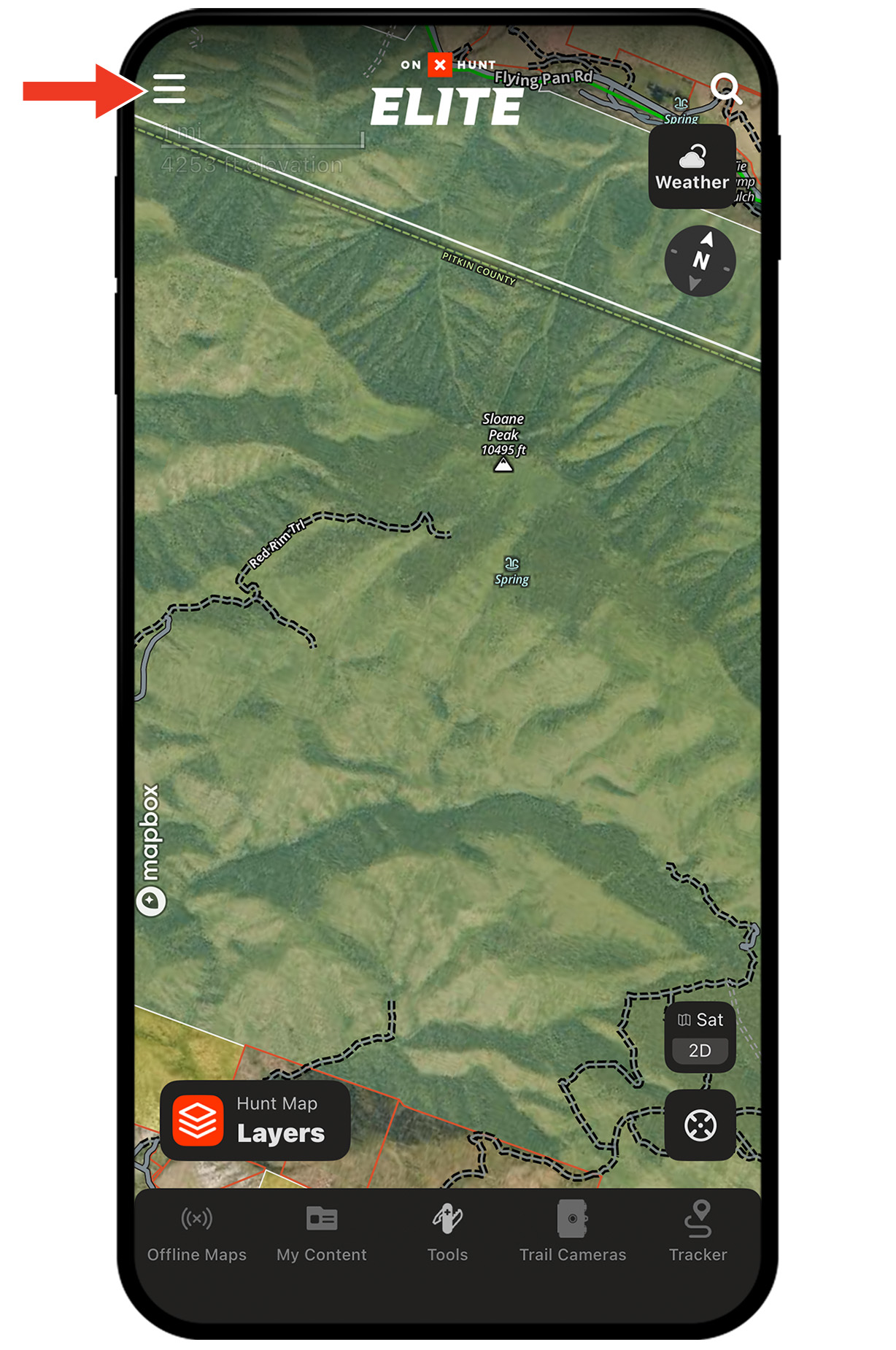
Settings Step 2: Tap Settings.
Settings Step 3: Ensure Enable 2D Map Tilt is turned on (green).
Apply 3D Exaggeration
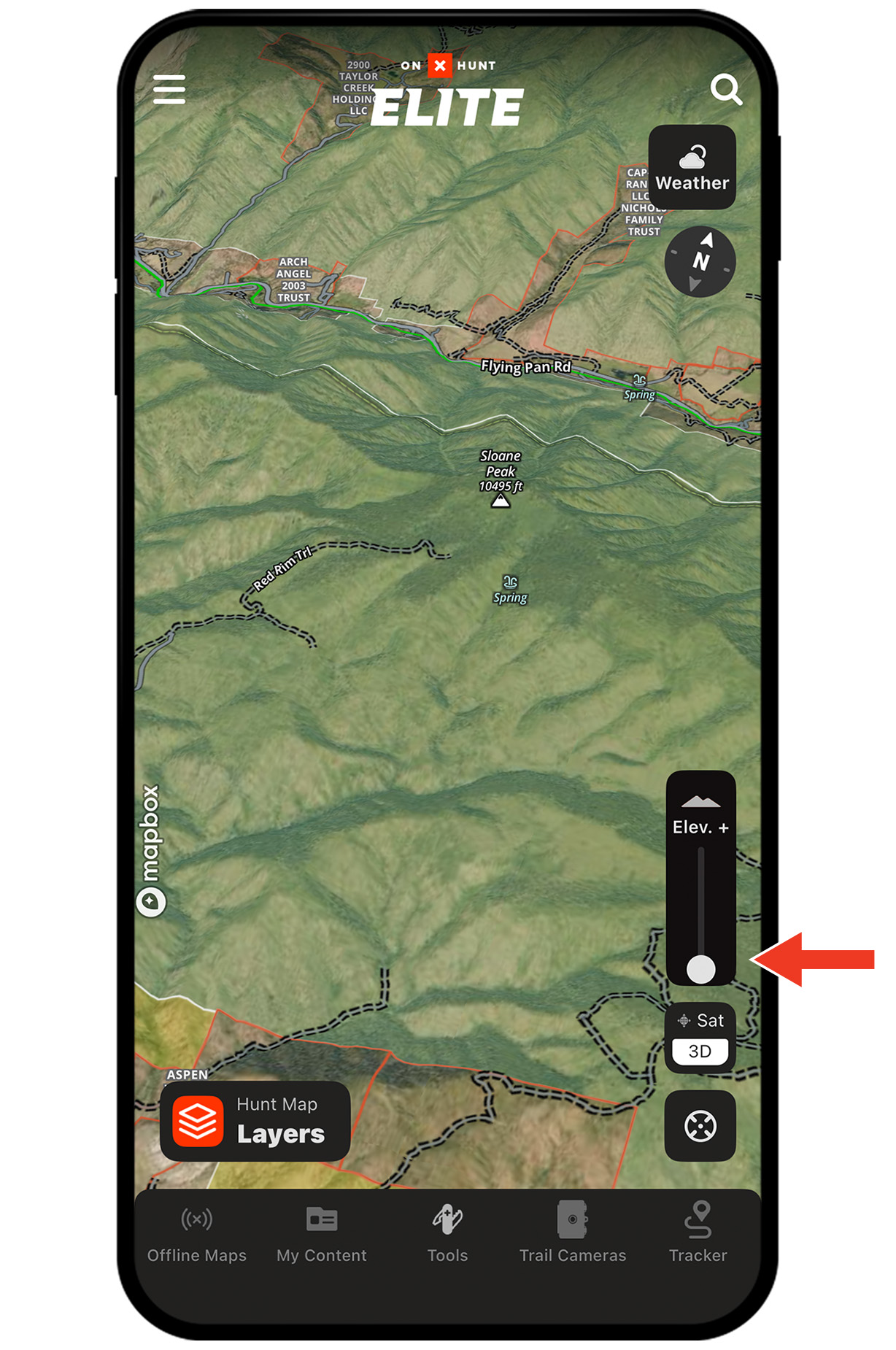
Step 1: With 3D Maps enabled, tap the “Elev. +” icon.
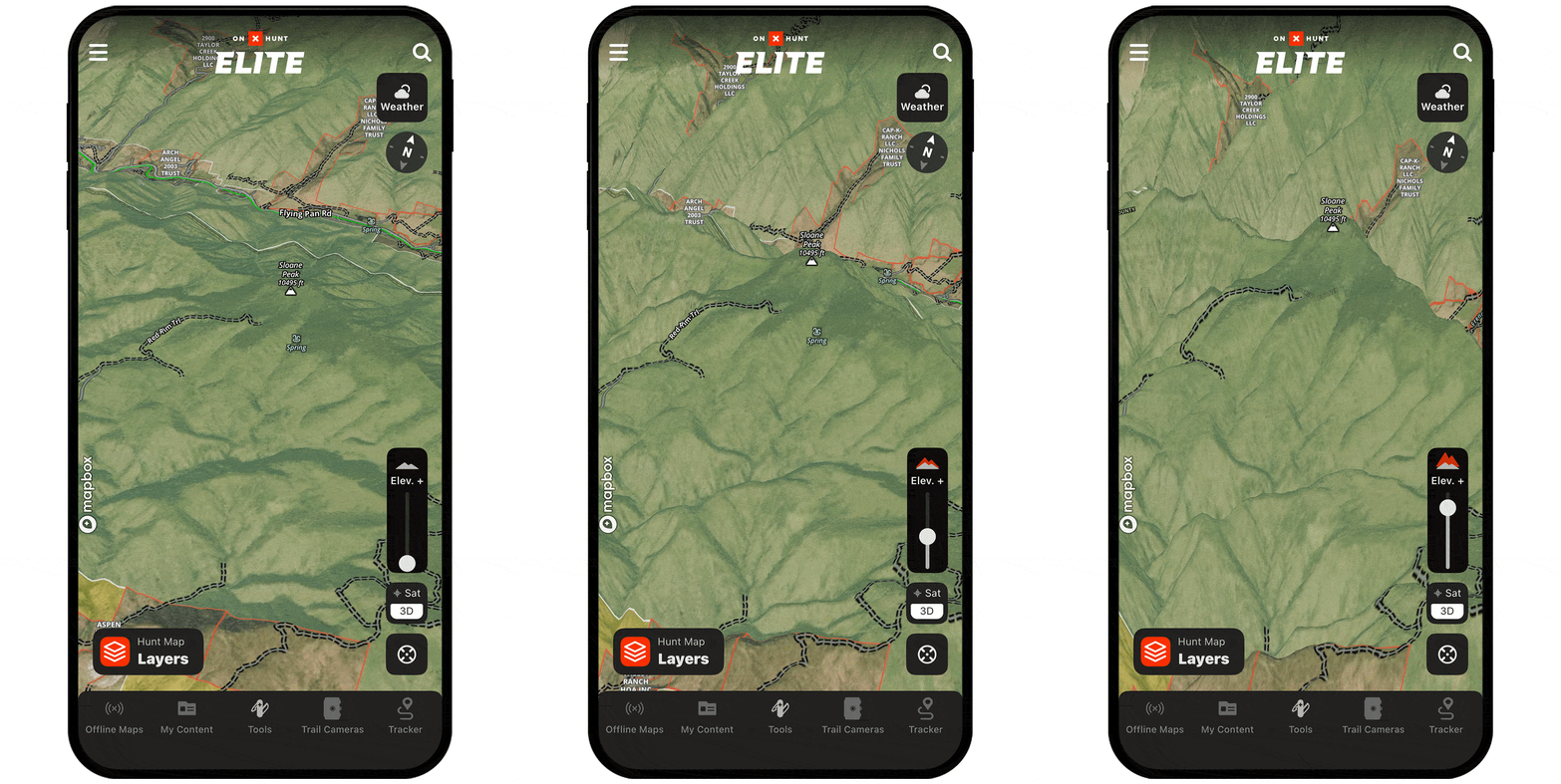
Step 2: Drag the slider up to amplify elevation changes on the map.
Unlock 3D Maps
See every nook and cranny. Purchase a Membership to access 3D Maps.

Use 3D Maps even when you lose service.
3D Maps are available offline. Be sure to download Offline Maps before you head out.
3D Use Cases
Explore ways to use 3D Maps to improve your hunt.