
Wind & Weather
onX Hunt doesn’t just tell you the weather—it tells you your weather.
Tap any spot on the map for hyper-local forecasts that account for terrain features like elevation, slope aspect, and water effect. Whether you’re deciding which stand has the best wind, packing for a multi-day backcountry hunt, or setting up a decoy spread, onX’s Wind and Weather tools deliver accurate forecasts for exact locations.
Wind & Weather Tutorial
Expand each block to learn how to use Wind and Weather features.
View Current Conditions and Forecasts
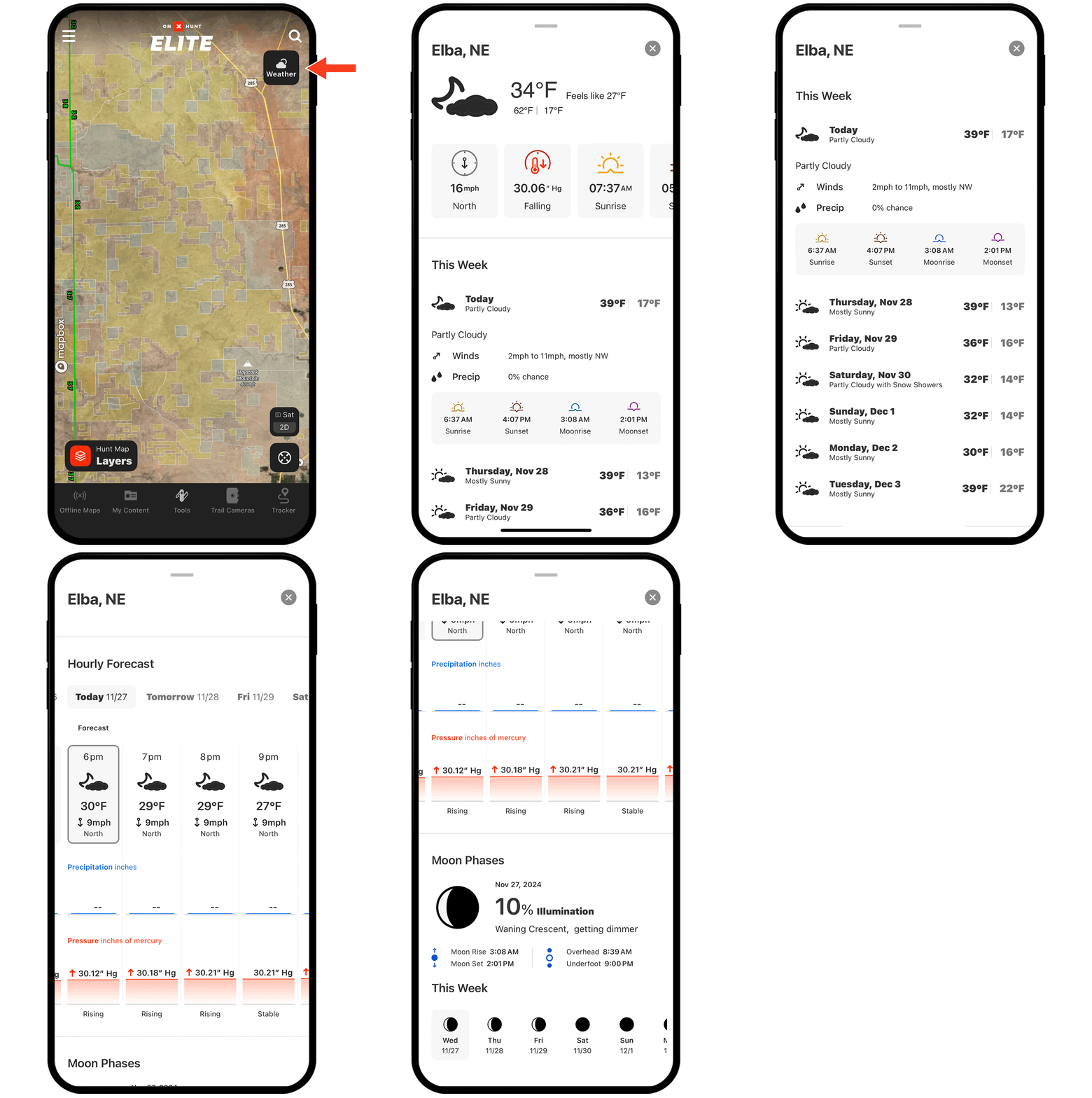
Step 1: Tap the Weather button on the right-hand side of the screen (or tap anywhere on the map and select the Weather tab in the info card that appears).
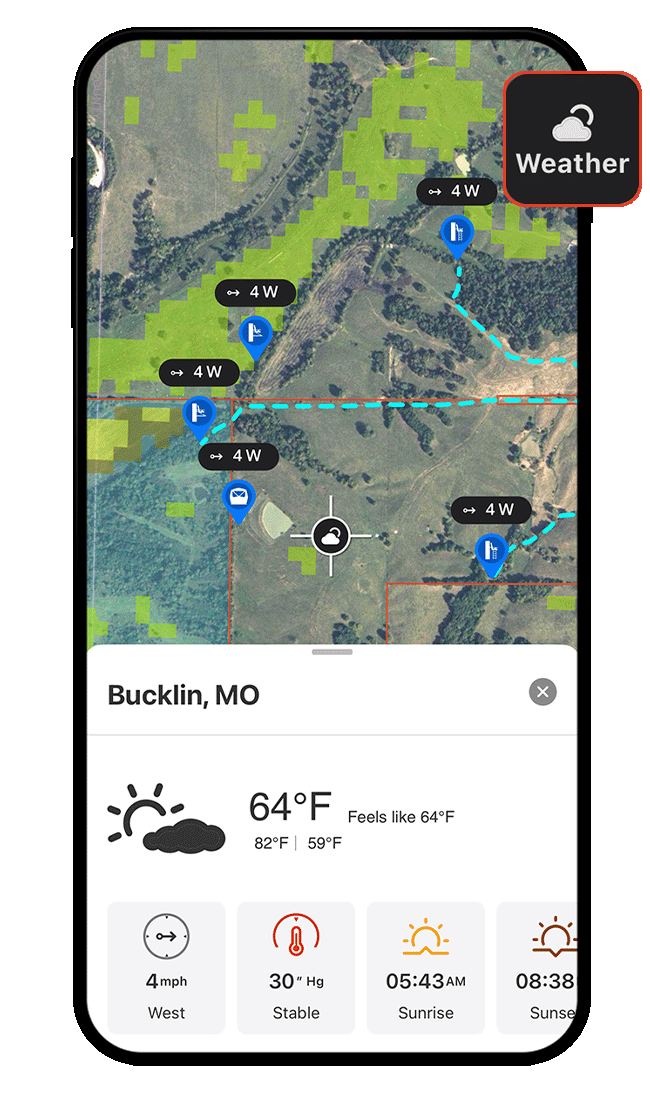
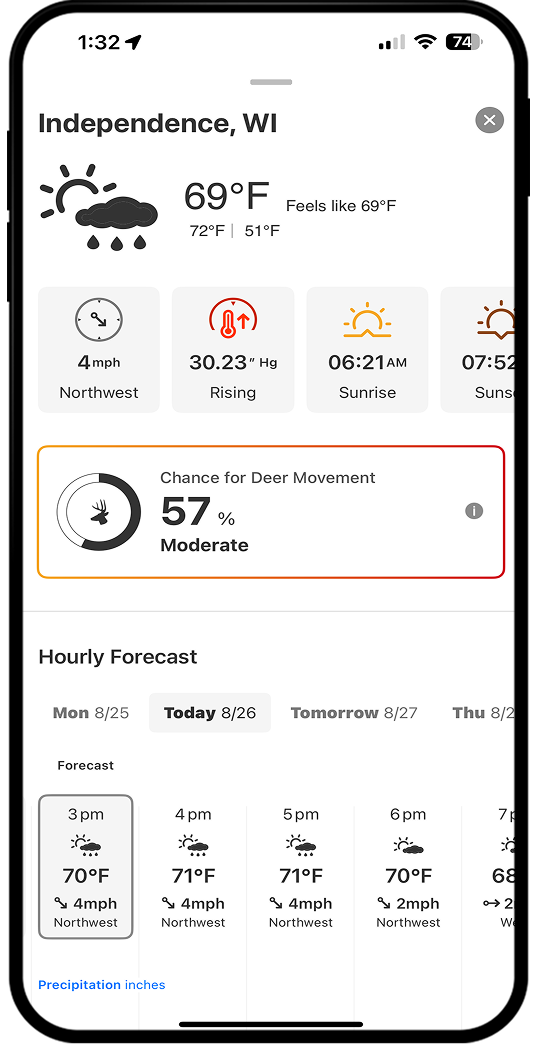
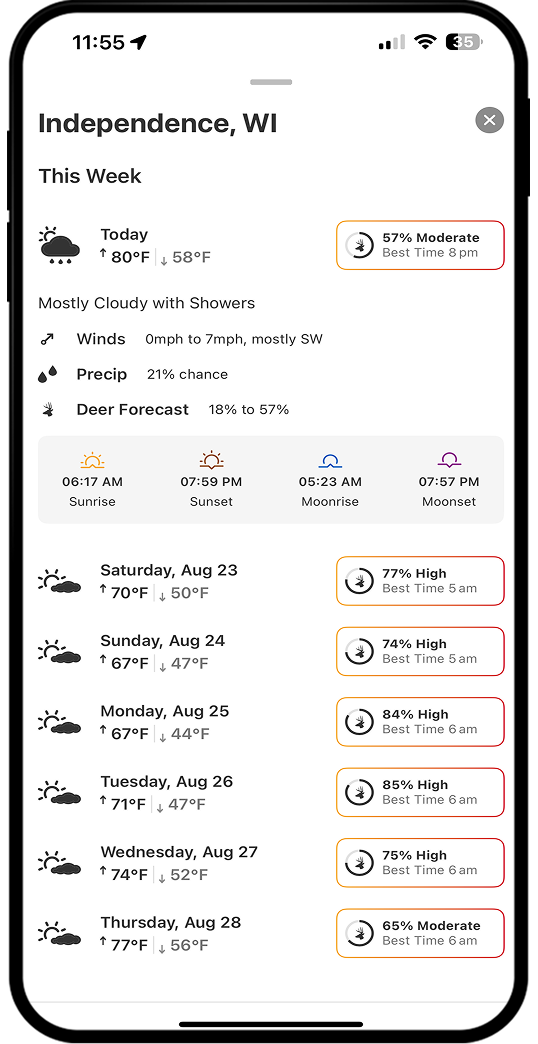
Step 2: View current temperature, highs and lows, wind speed and direction, hourly and daily forecasts, and sunrise/sunset times. Elite Members also have access to Deer Movement Forecast, which predicts the chance of deer activity for a given location.
View Current or Optimal Wind Speed and Direction
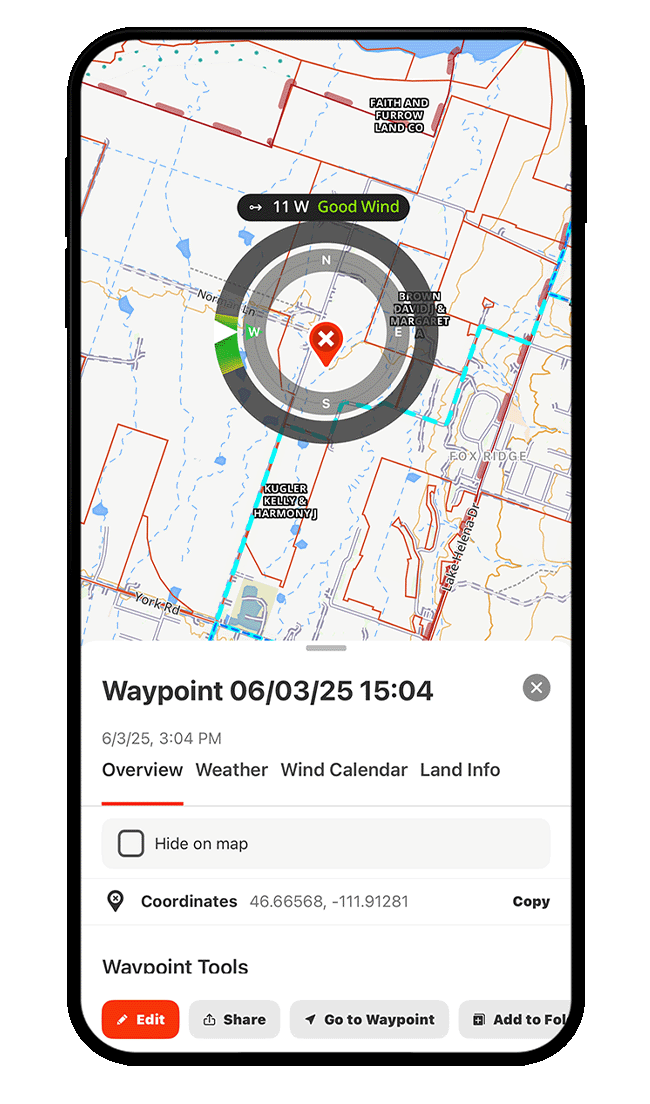
Step 1: Tap a Waypoint, drag the information card toward the top of your screen to expand the details, and select Wind Direction.
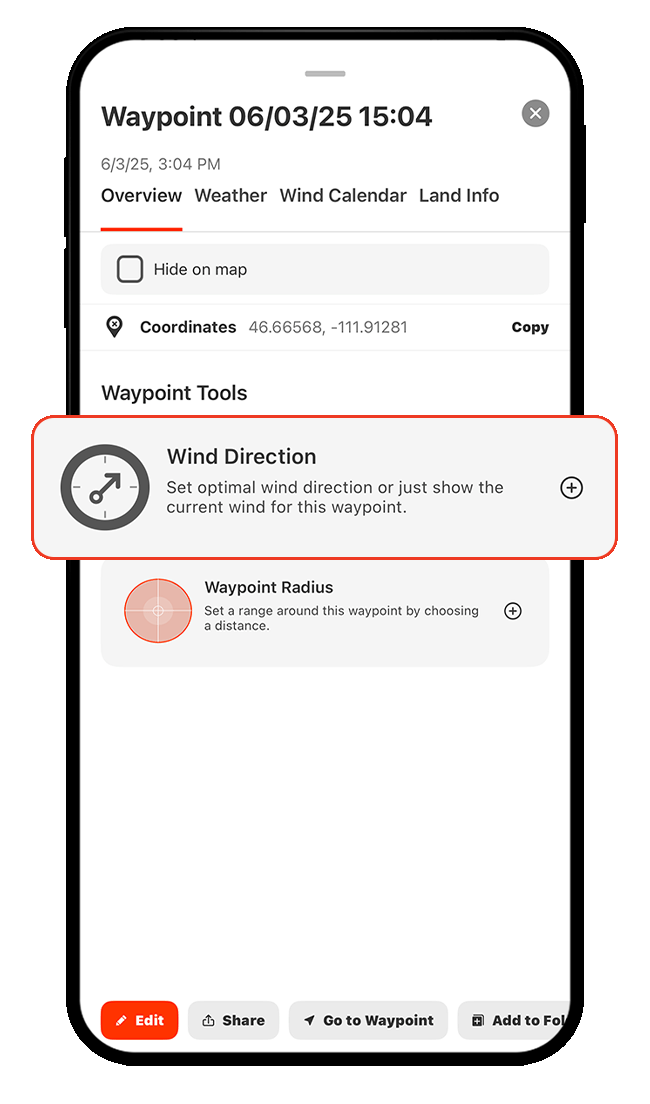
Step 2: Choose whether you want to view the current wind speed and direction (Show Current Wind) or your preferred wind speed and direction (Set Optimal Wind).
If you choose Show Current Wind, tap Apply to see real-time wind data on the map.
If you choose Set Optimal Wind, continue to Steps 3-4 to customize your ideal wind conditions.
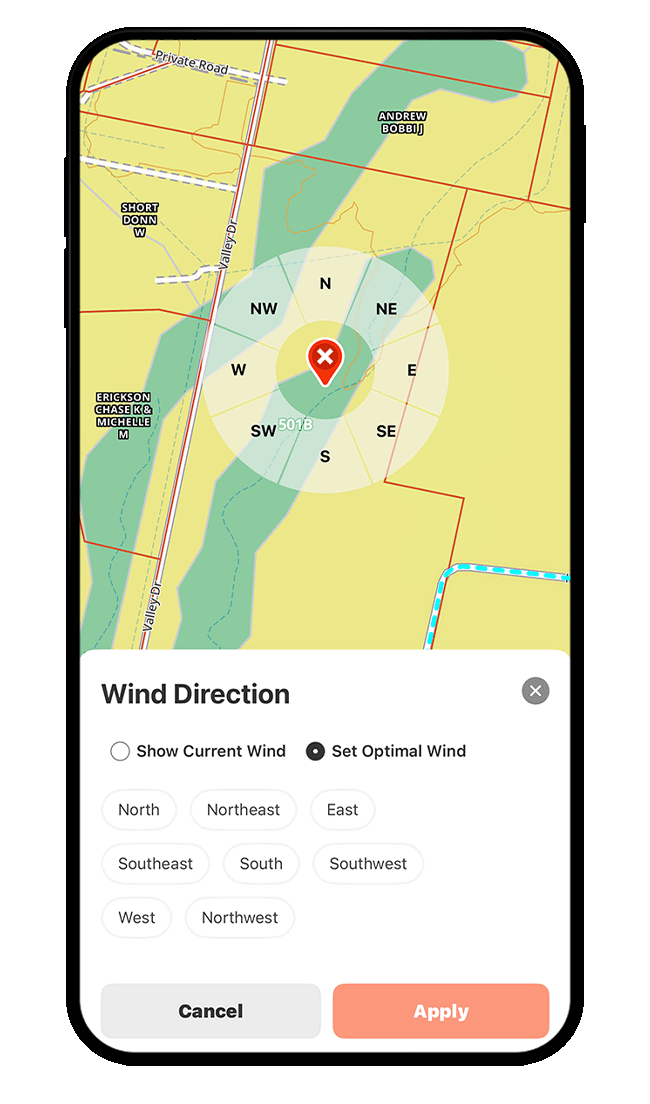
Step 3: To set Optimal Wind, tap the wind direction(s) best suited for that location. Remember, wind direction refers to the direction the wind is coming from.
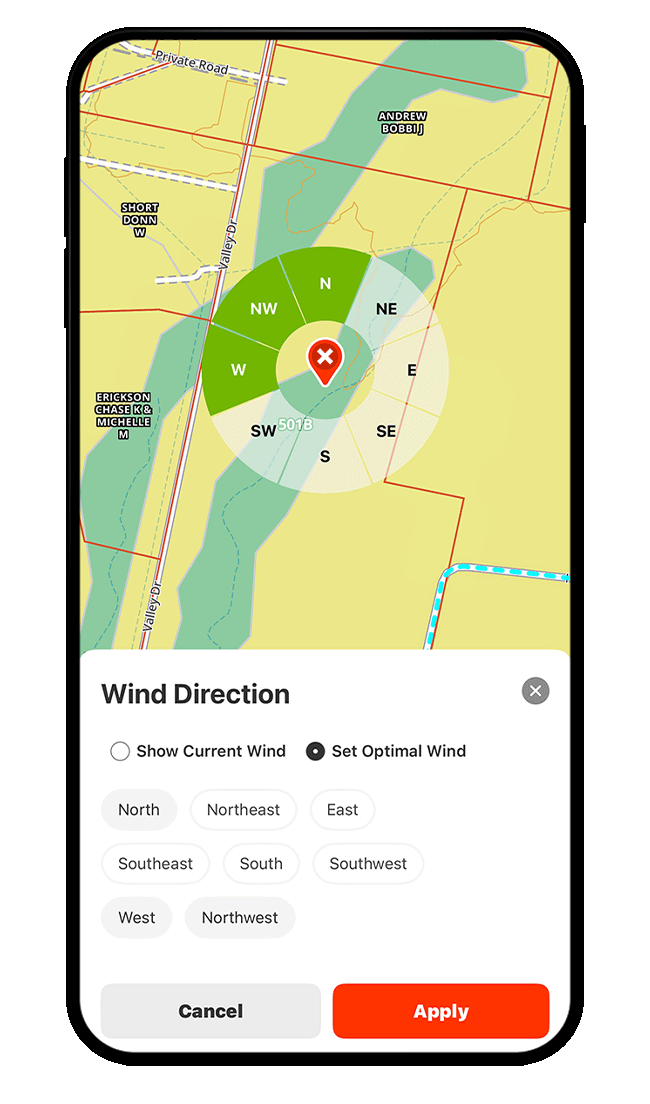
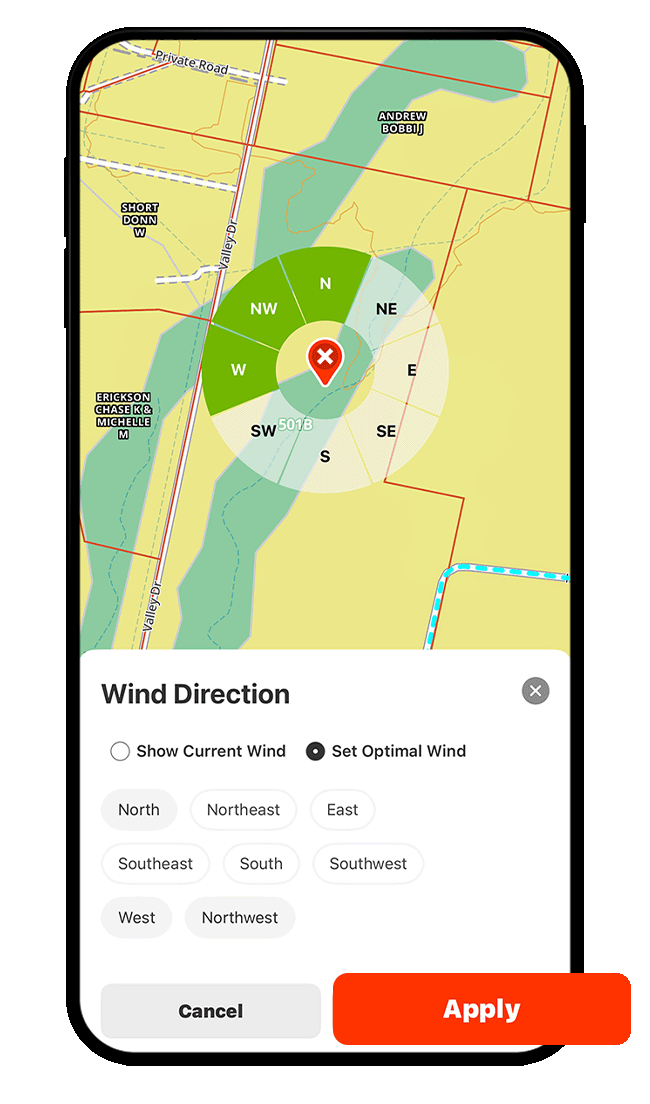
Step 4: Tap Apply to view real-time wind direction and speed for the location, along with a color-coded indicator—green for good, yellow for okay, and red for bad—based on the wind preferences you set in the previous step.
Compare Wind Details Across Locations
Once you’ve established wind settings for more than one Waypoint, you can compare wind speeds and directions across locations.
Step 1: Tap on a Waypoint, choose the Wind Calendar tab, and select Compare Wind.
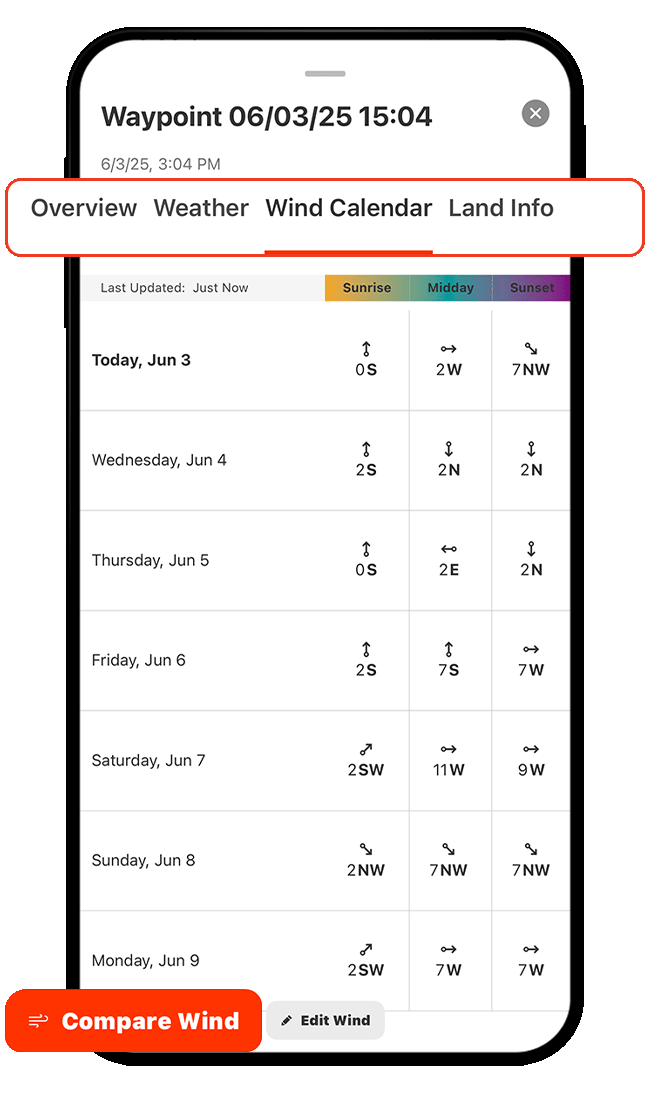
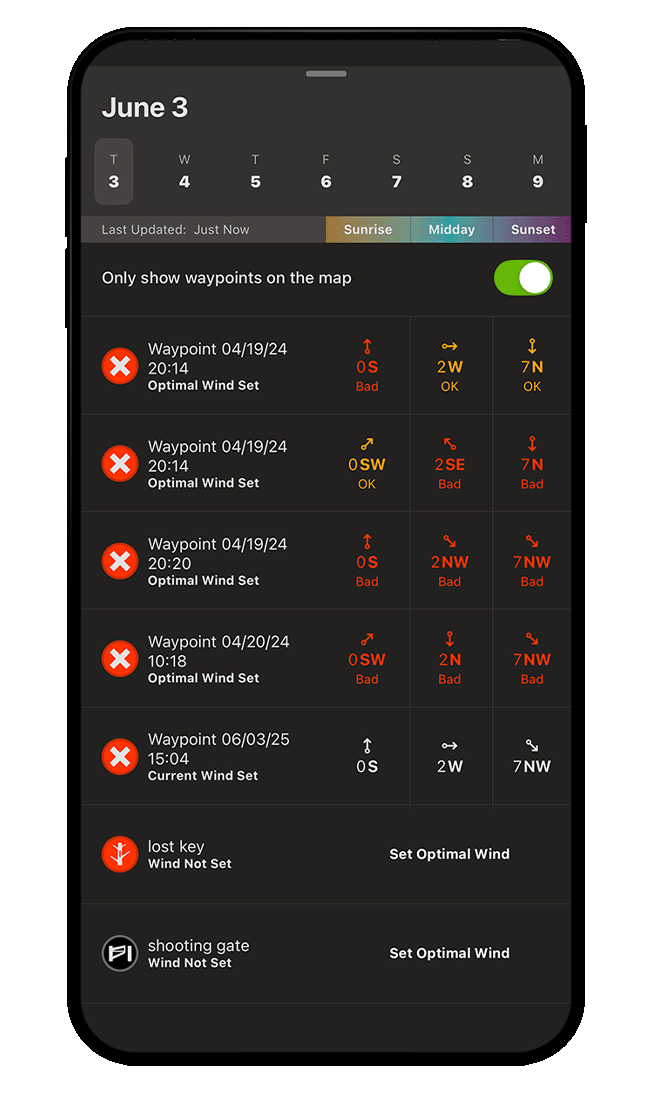
Step 2: Scroll through the Waypoint list to find locations with the best wind conditions over the next seven days, broken down by time of day.
To limit results to Waypoints currently visible on the map, make sure the toggle is green (as shown below).
If a Waypoint doesn’t have wind settings, tap Set Optimal Wind to define ideal conditions so it’s included in future comparisons.
View Precipitation Radar
Step 1: Tap Hunt Map Layers.
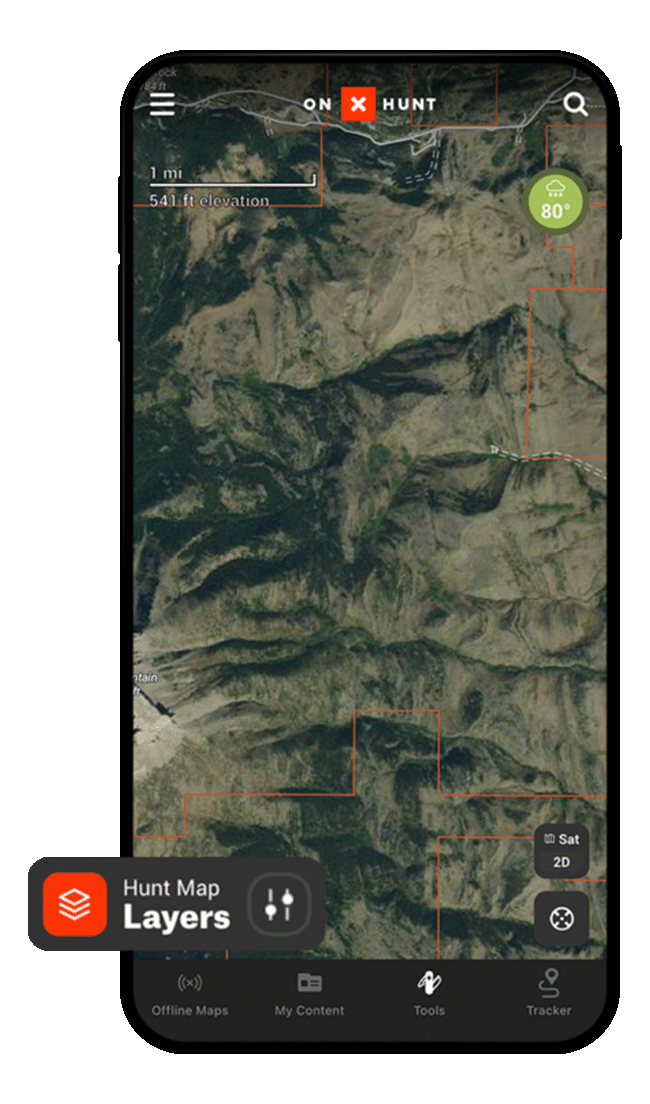
Step 2: Tap Current Conditions, and then toggle on Precipitation Radar.
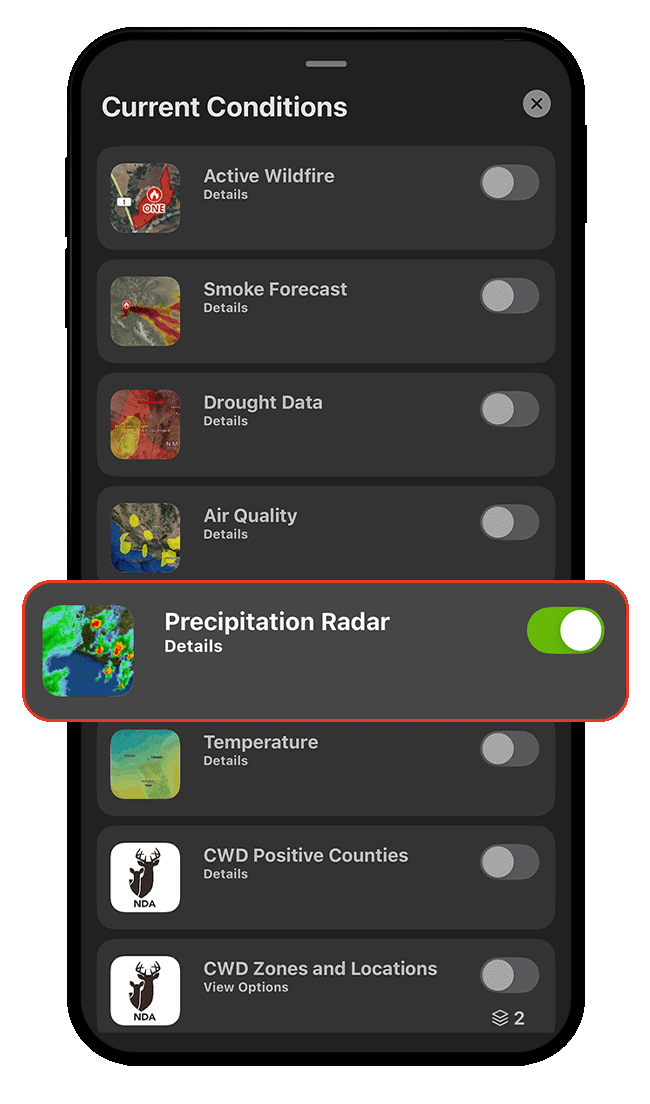
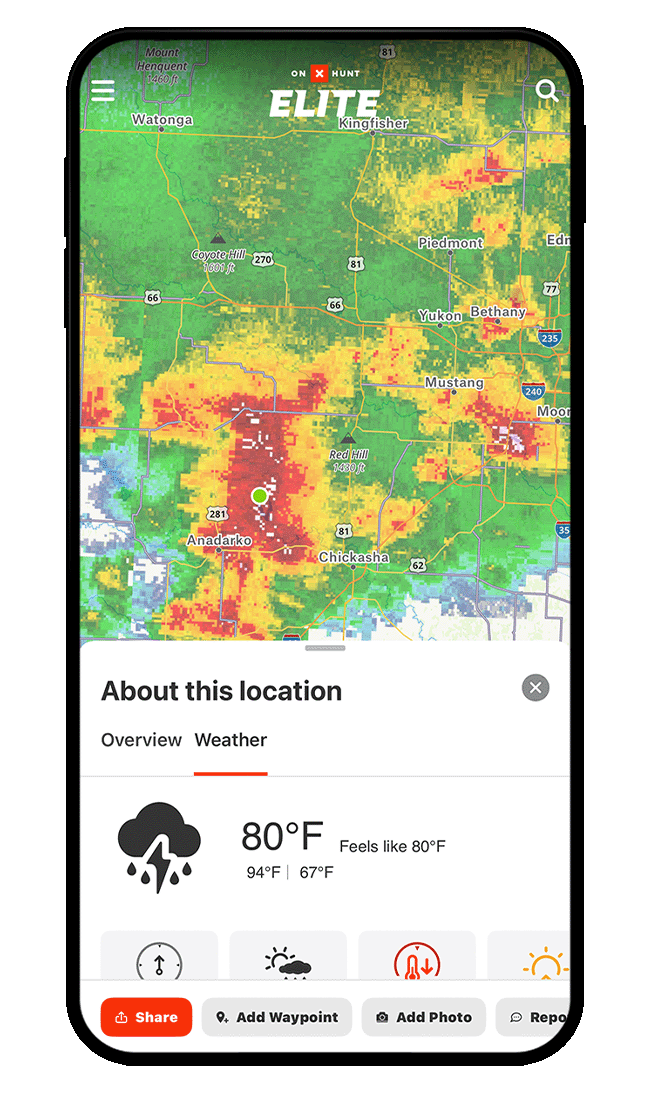
Step 3: Pan over the map to view precipitation radar over any location. Tap on any location, then tap the Weather tab for details.
View Temperature Gradient
Step 1: Tap Hunt Map Layers.
Step 2: Tap Current Conditions, and then toggle on Temperature.
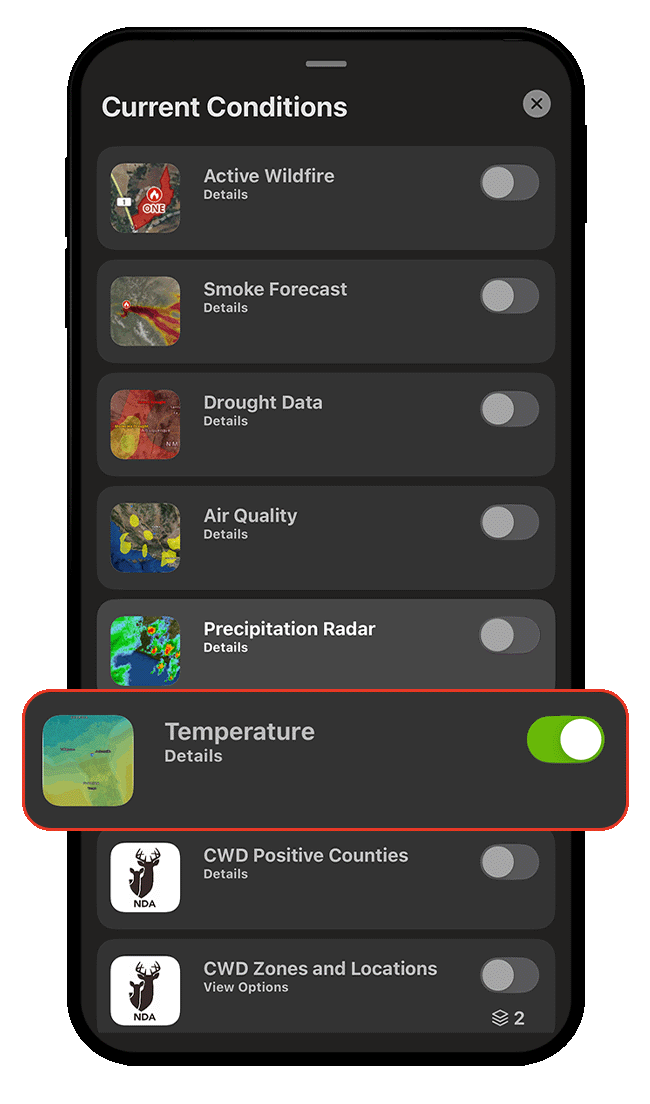
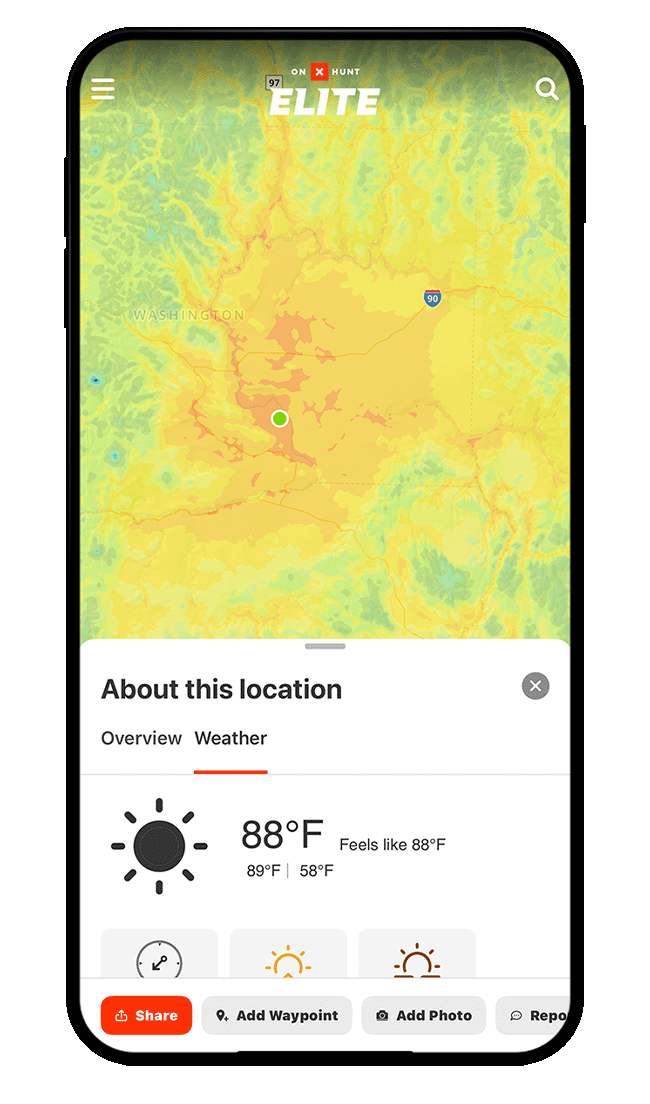
Step 3: Pan over the map to view the color-coded temperature gradient. Tap on any location, then tap the Weather tab for details.
Wind & Weather Use Cases
Explore ways to use Wind and Weather information to improve your hunt.


Explore More Capabilities

Trail Camera Integration
Sync and manage all your trail camera locations, details, and photos in one place.

Deer Movement Forecast
Understand the odds of increased deer activity on your hunt.
Rut Calendar
Review expected rut timing for your hunting location, deer behavior in each phase, and top tactics
Whitetail Insights
Know when to hunt with cameras, weather, deer movement, and rut intel on one screen.