
Trail Camera Integration
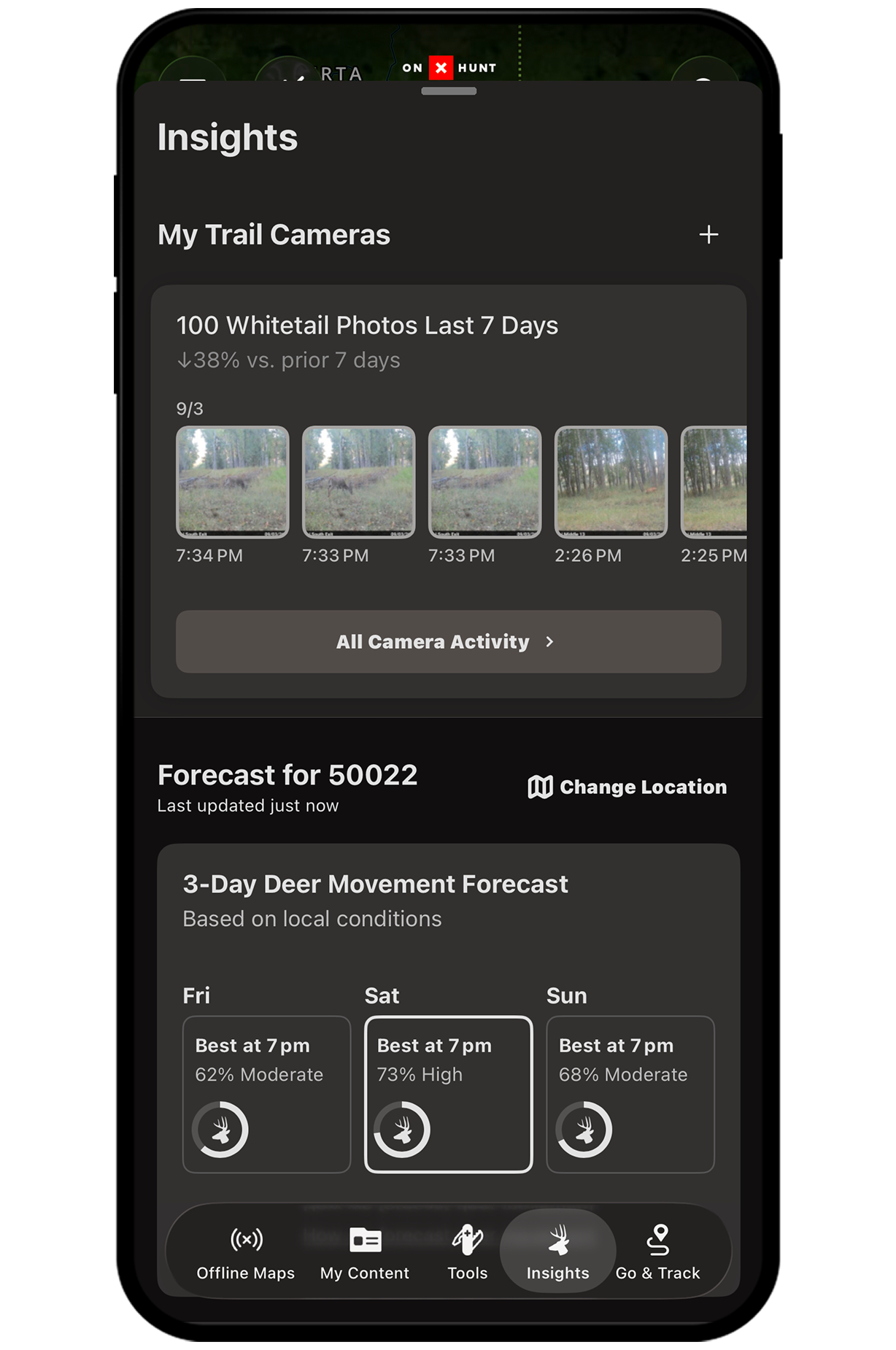
Did you know you can connect Moultrie, Bushnell, Browning, and Covert cameras to your onX Hunt App?
In a few taps, every trail cam photo is automatically added to your map, pinned to exact locations, with deer-only notifications and centralized photo management and sharing.
Supported Models
– Moultrie: Moultrie Edge 2/Edge 2 Pro and newer.
– Browning: Cellular models compatible with the Strike Force Wireless App (excluding BTC-DWPS-ATT, BTC-DWPS-VZW, and BTC-4G-RLDC, which are not GPS-capable).
– Bushnell: Cellular models compatible with the Bushnell Trail Cameras App.
– Covert: Cellular models compatible with the Covert Wireless App.
Trail Camera Integration Tutorial
Learn how to sync compatible trail cameras with onX Hunt, enable deer-only alerts, and share photos.
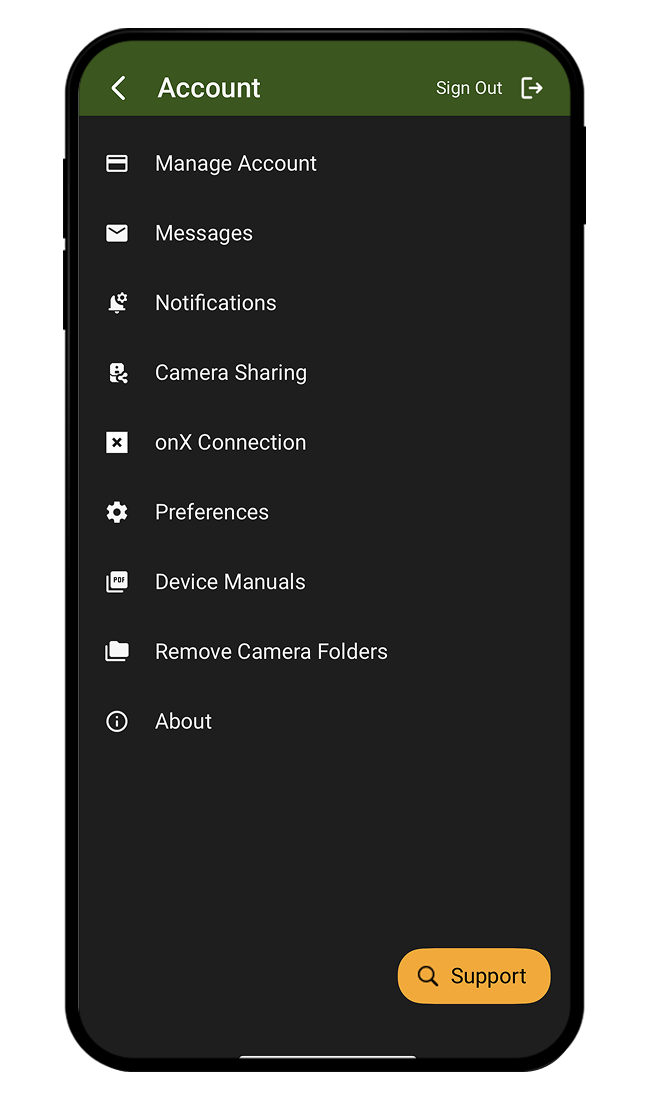
Connect Compatible Trail Cameras to onX Hunt
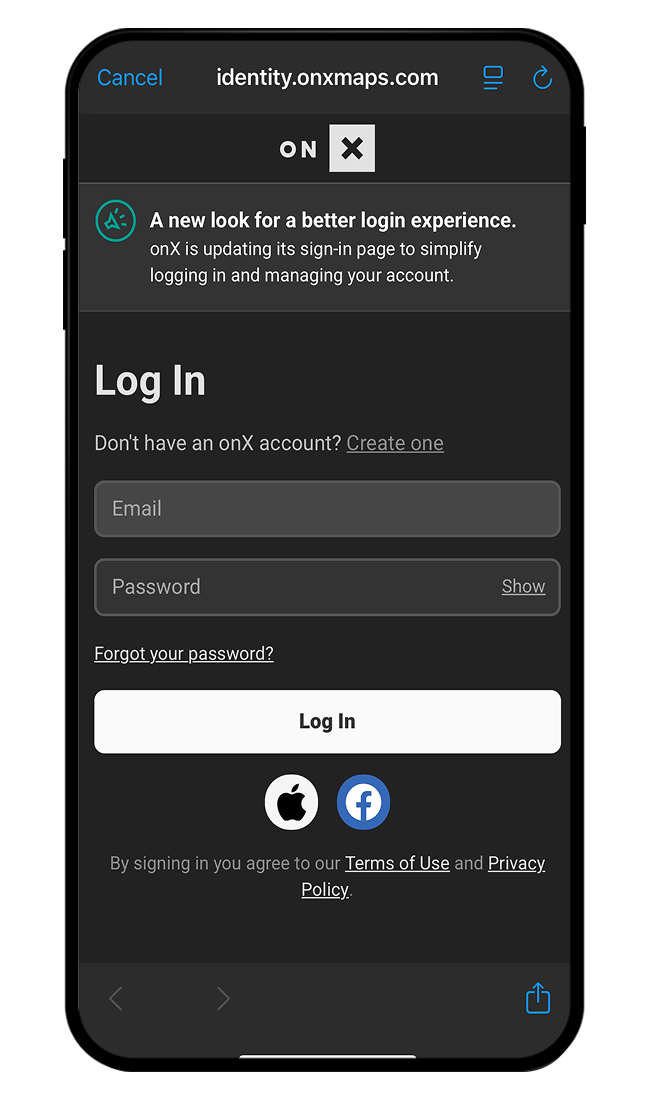
Step 2: Follow the login prompts to verify your onX Hunt account.
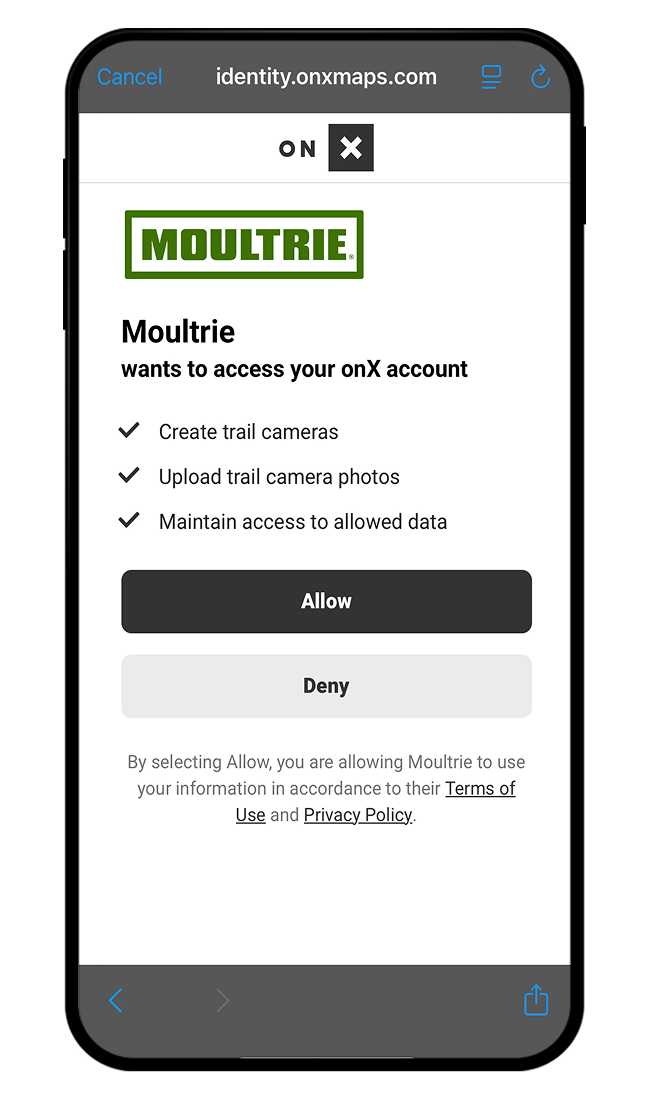
Step 3: Depending on the trail camera app you’re using, you may be prompted to give access permissions. Tap Allow to grant access (for illustrative purposes, Moultrie is shown below).
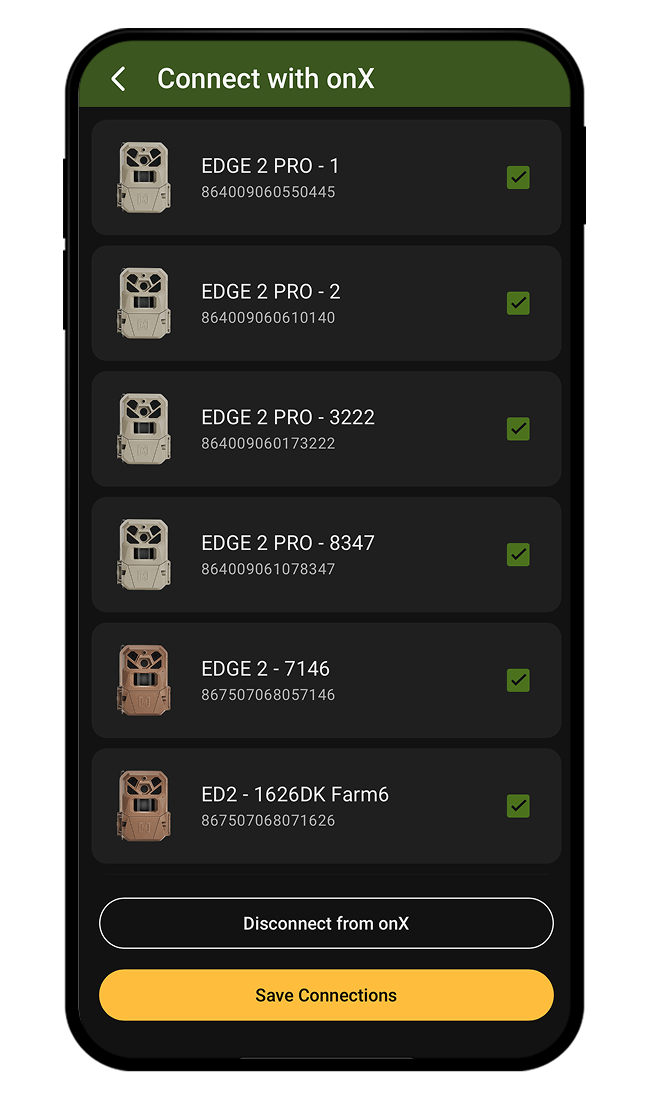
Step 4: Select the camera(s) you want to integrate with onX and choose Save Connections (Moultrie), Done (Bushnell), or, if using Browning or Covert, simply confirm the cameras you want synced are toggled and close out of the app.
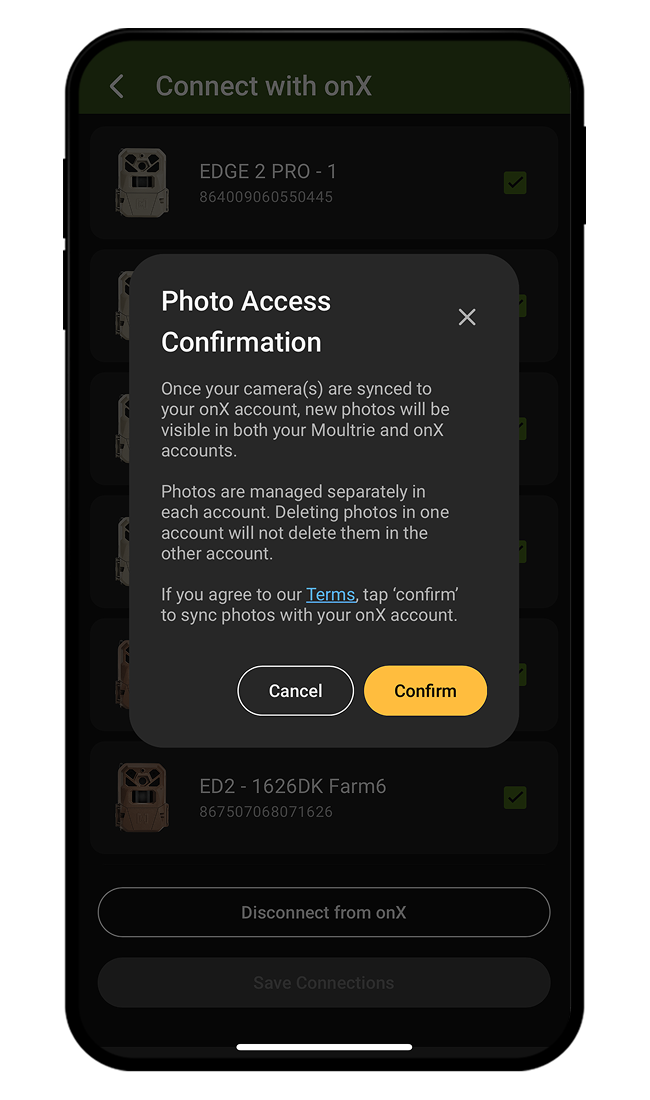
Step 5: Depending on which trail camera app you’re using, you may need to complete a final step to Confirm the integration (for illustrative purposes, Moultrie is shown below).
Turn on Deer-Only Notifications
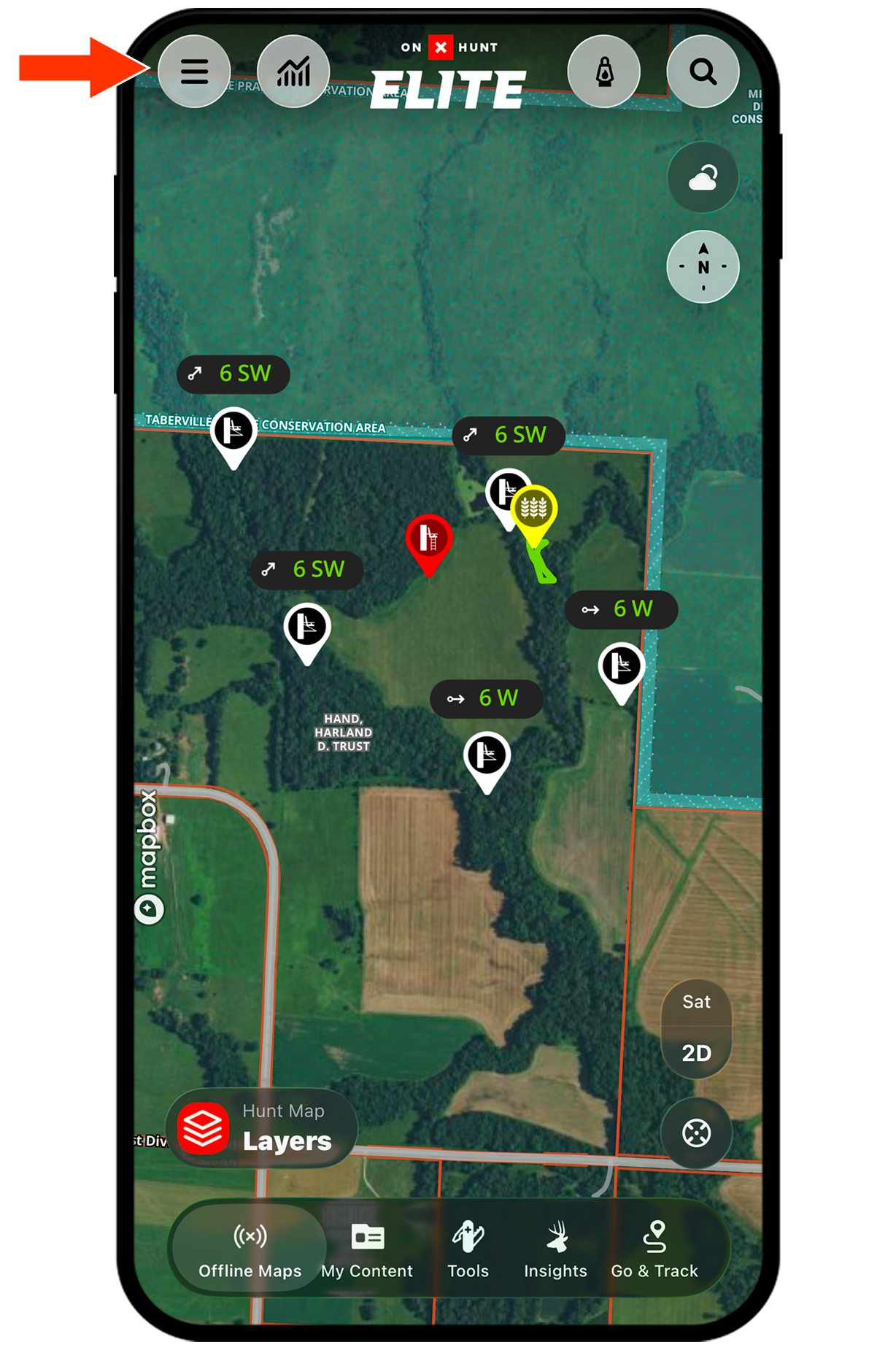
Step 1: Tap the Settings menu.
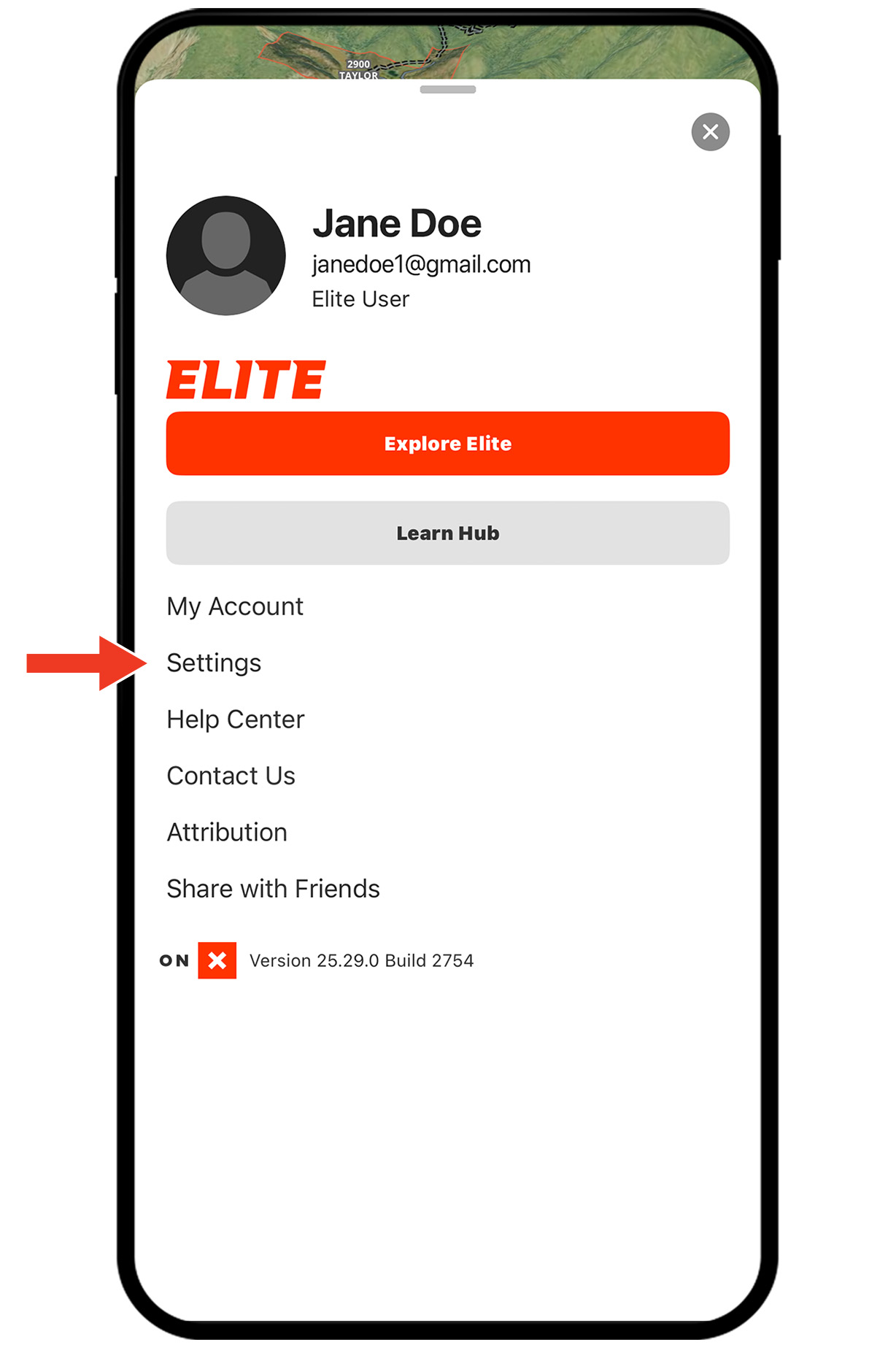
Step 2: Tap Settings.
Step 3: Under NOTIFICATIONS, tap Notifications.
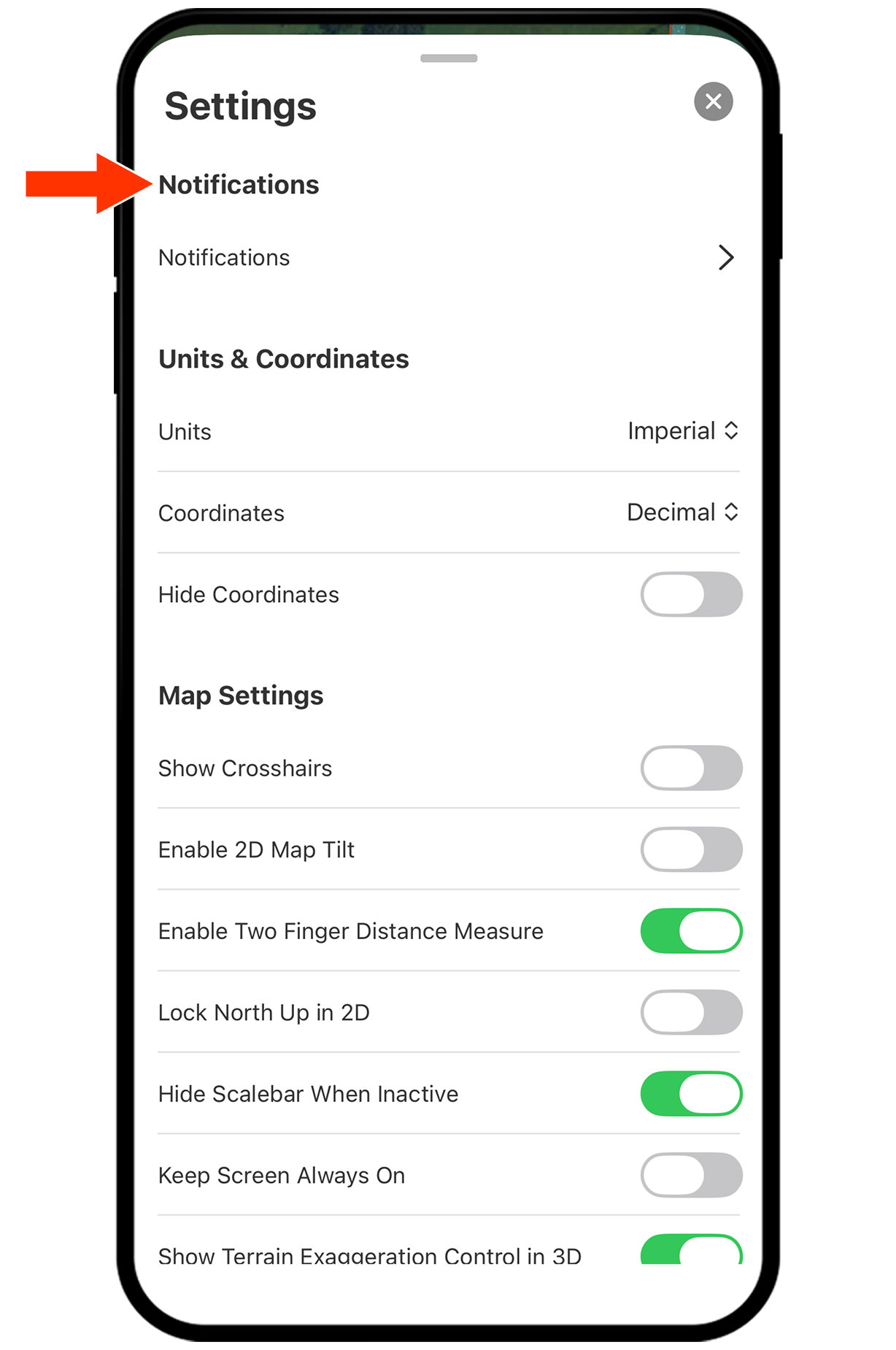
Step 4: To see only deer photos, ensure the toggle next to “when my cameras capture white tailed deer photos” is green.
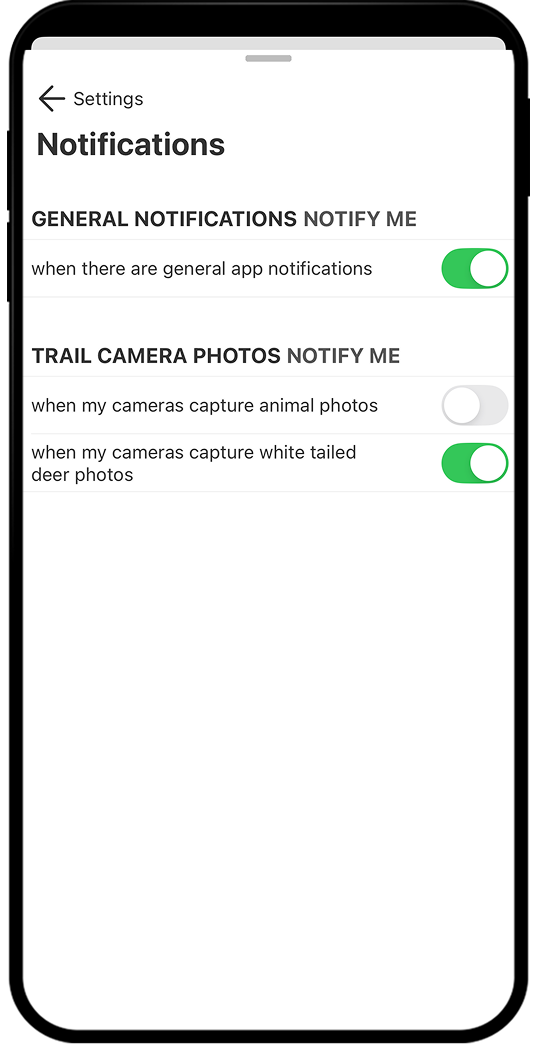
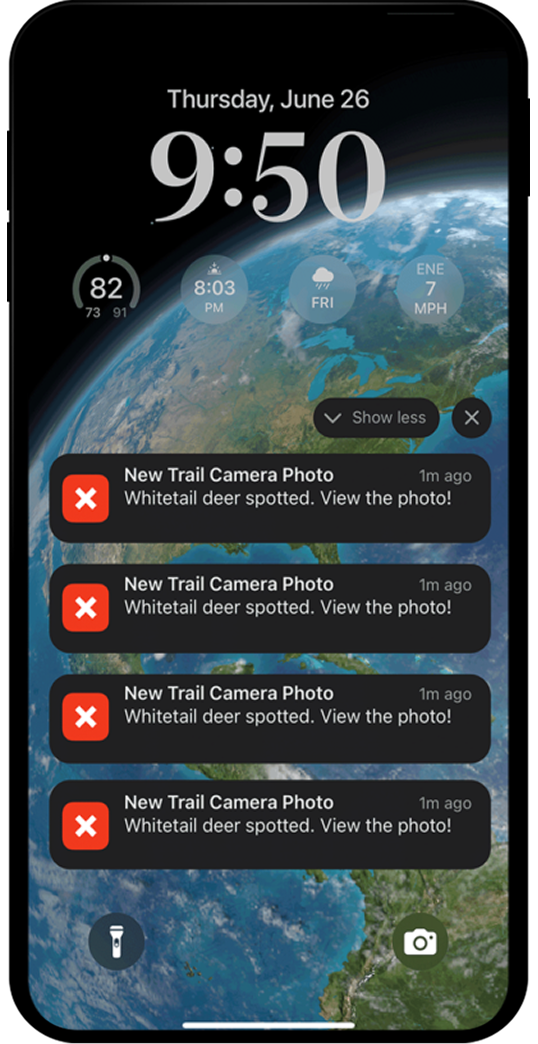
Step 5: You’ll now only be alerted when your trail cameras detect deer photos.
Share Photos
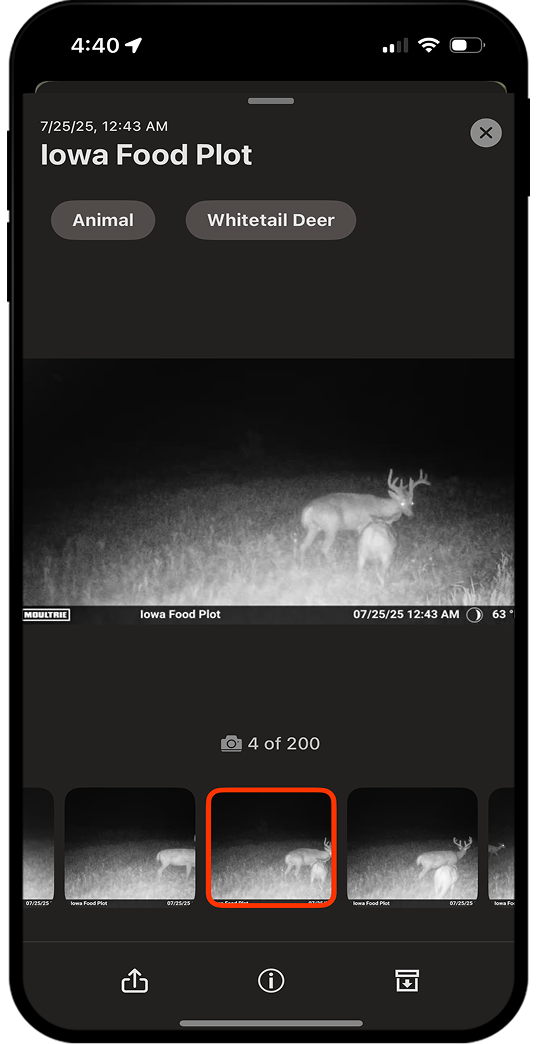
Step 1: Tap any Trail Camera icon on the map.

Step 2: Tap the Photos tab.
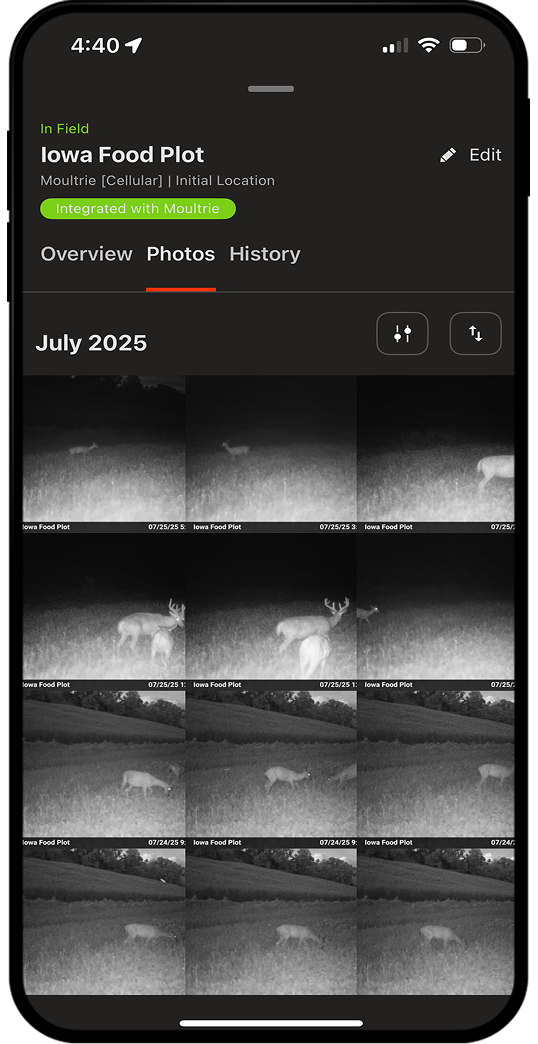
Step 3: Select the photo(s) you want to share, then tap the Share icon.
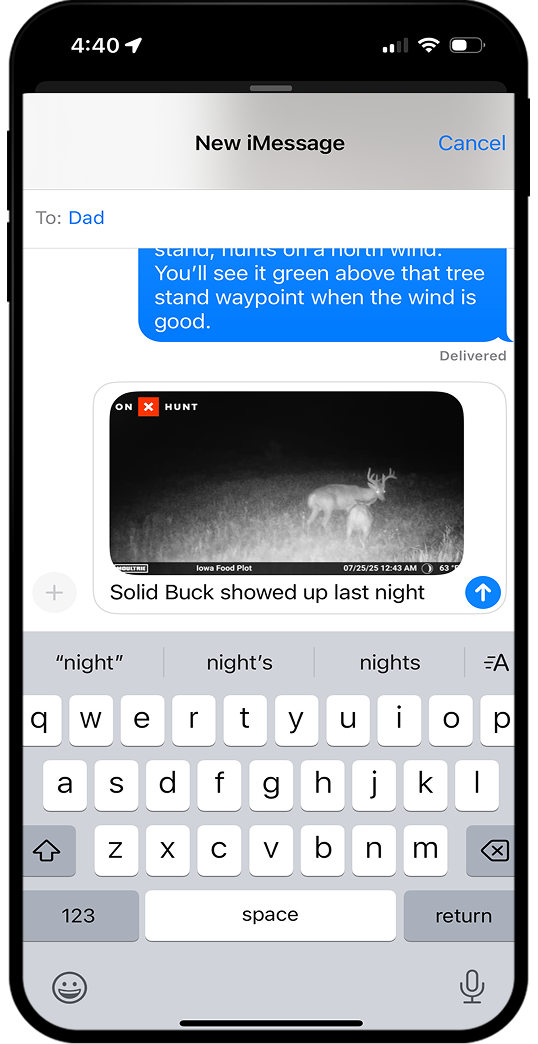
Step 4: Choose your preferred delivery method (e.g. text, email) and share the stoke with those in-the-know.

What’s Next?
Once you’ve integrated your trail cameras, icons for each trail camera will appear on the map.
If your trail camera has GPS enabled, the icon will appear exactly where that camera is placed. If GPS is not enabled, the icon will be dropped on your current location, and you can manually move the icon to the appropriate location.
You’ll now begin receiving images from your trail camera(s) directly within the Hunt App. And, if you’re an Elite Member, you’ll also get Trail Camera Analysis insights to help you understand deer movement patterns.
No cell cam? You can still take advantage of onX Hunt’s trail camera capabilities by uploading SD card images.
Explore More Capabilities
Trail Camera Analysis
Chart deer movement patterns by wind direction and speed, time of day, and season.

Deer Movement Forecast
Understand the odds of increased deer activity on your hunt.

Wind & Weather
View weather forecasts, wind conditions, and more.
Rut Calendar
Review expected rut timing for your hunting location, deer behavior in each phase, and top tactics