3D Maps for Turkey Hunting
Use 3D Maps and 3D Exaggeration to find listening locations, likely roost areas, and other terrain features that’ll improve your setup.
How-To
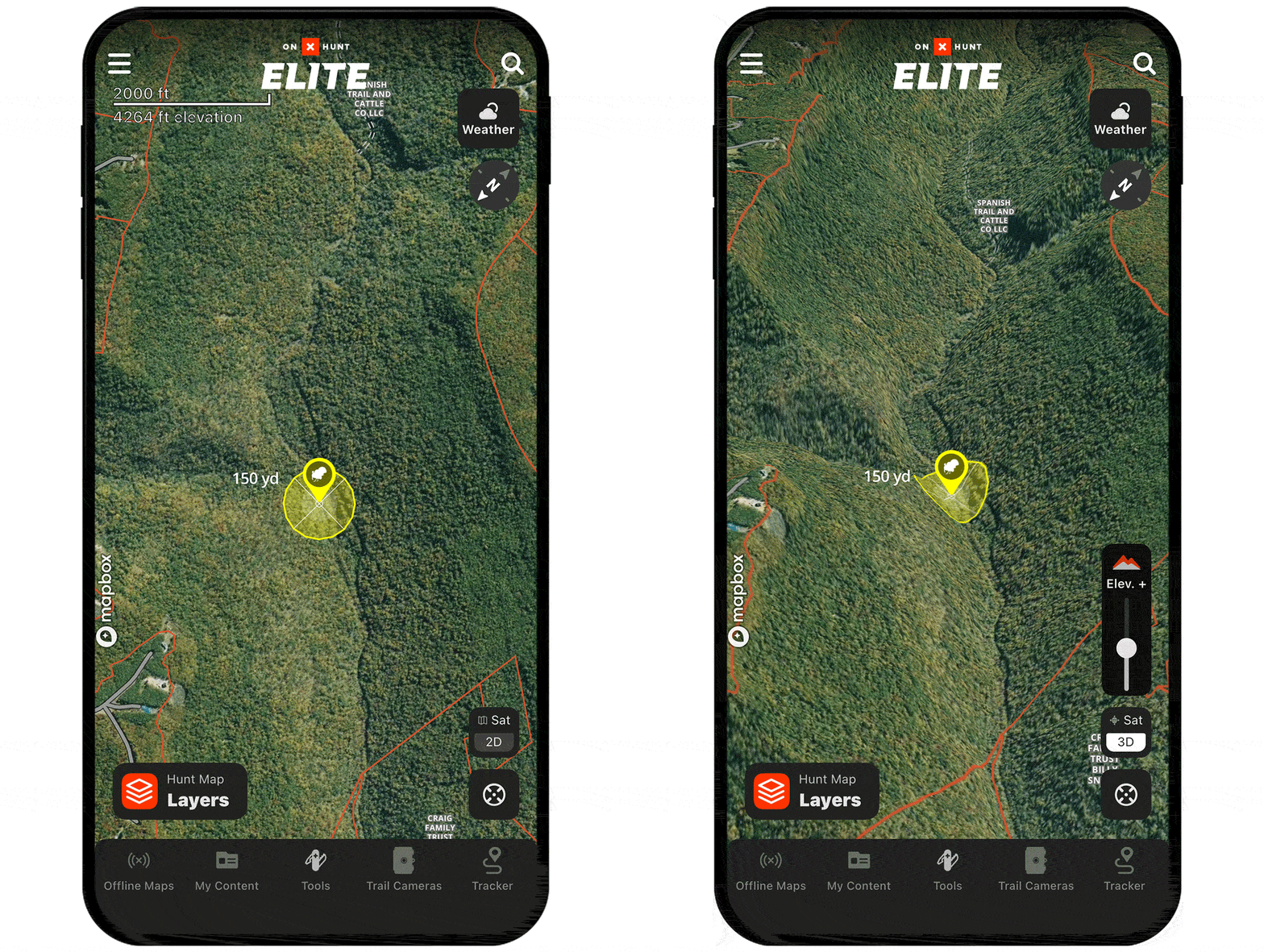
Turn on 3D Maps
Step 1: Tap the Basemaps menu.
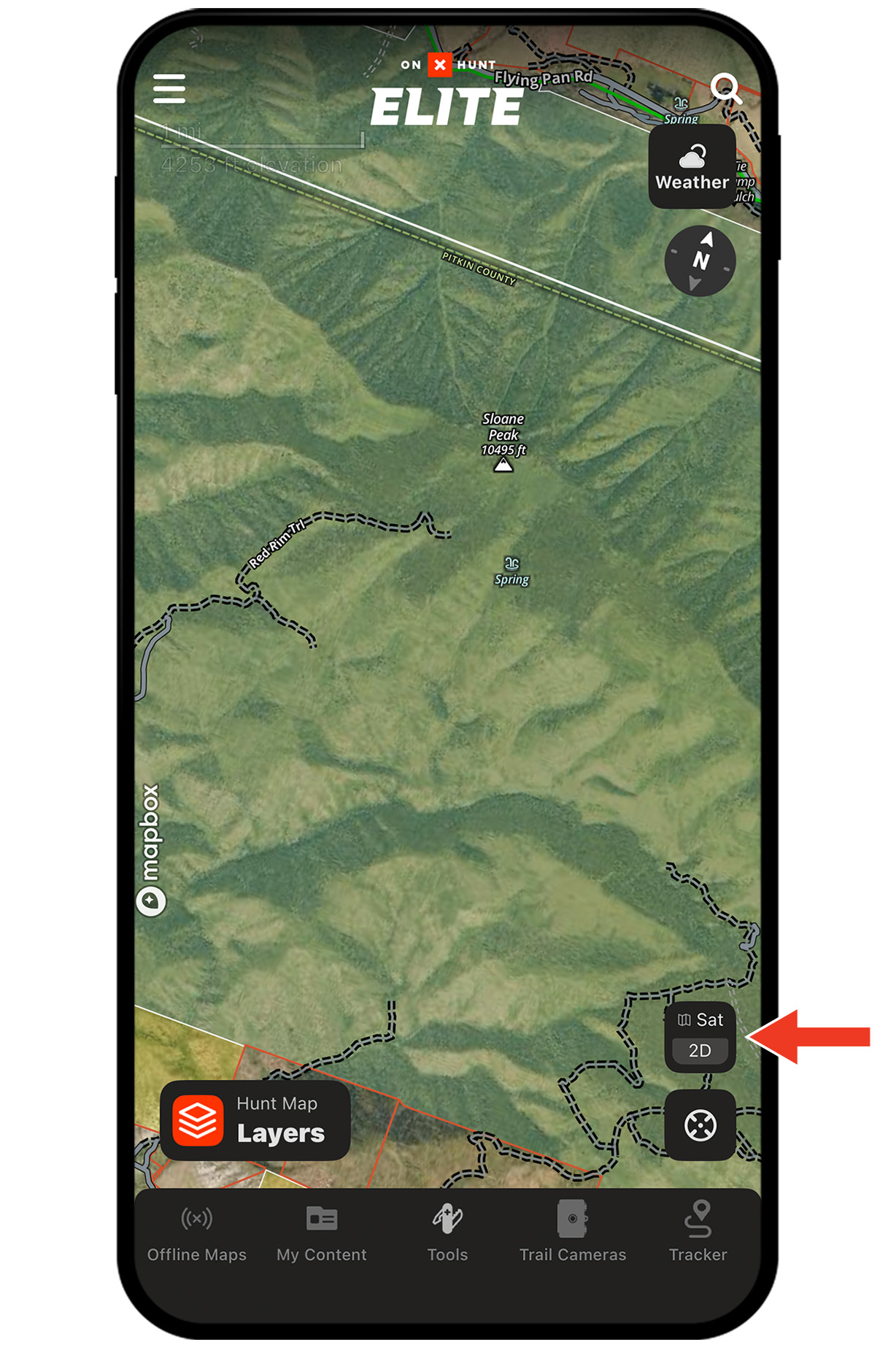
Step 2: Tap the 3D tab.
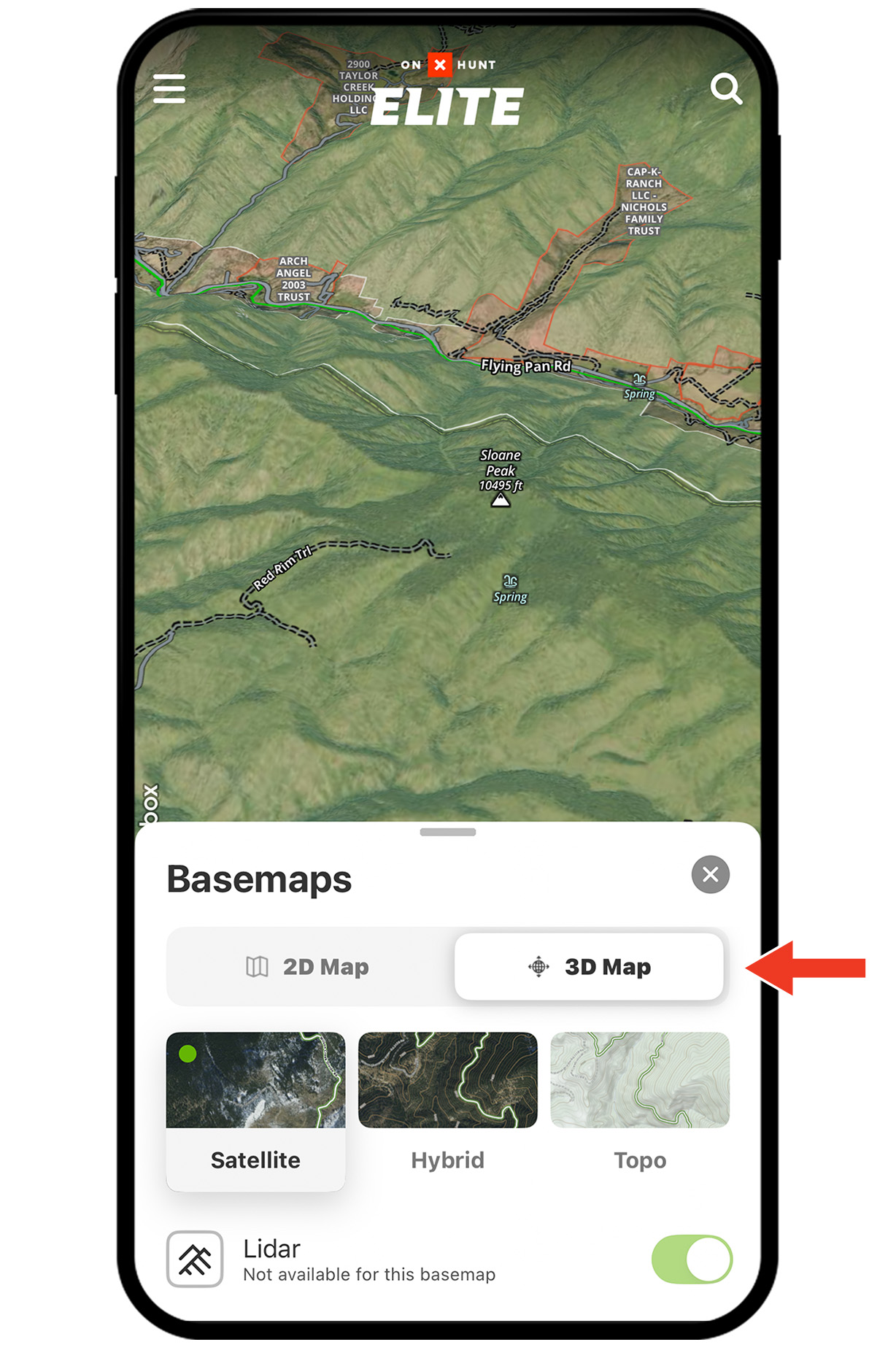
Tip: You can also turn on 3D Maps by placing two fingers on the map and swiping upward. If that doesn’t work, check your settings:
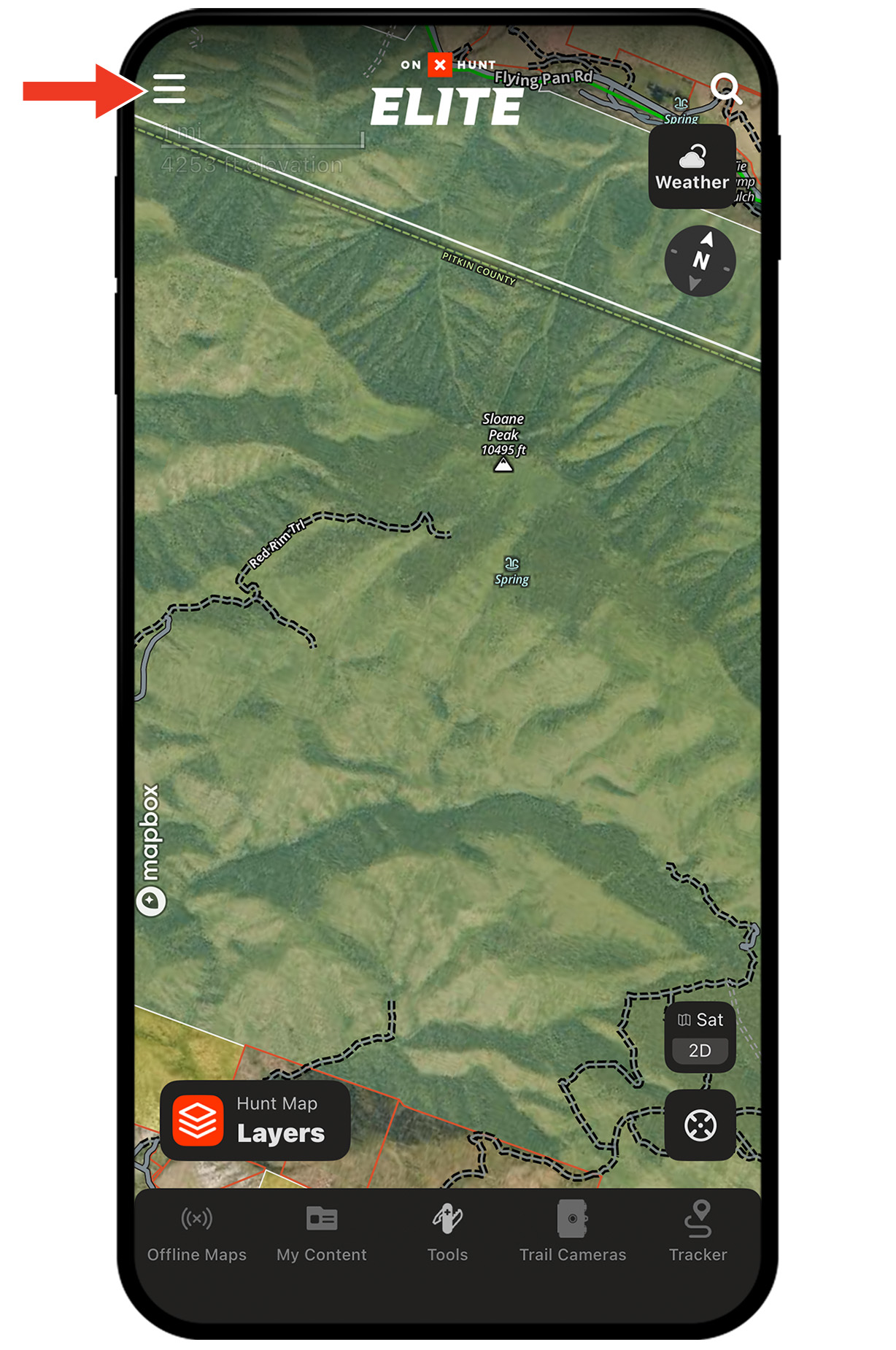
Settings Step 1: Tap the menu icon.
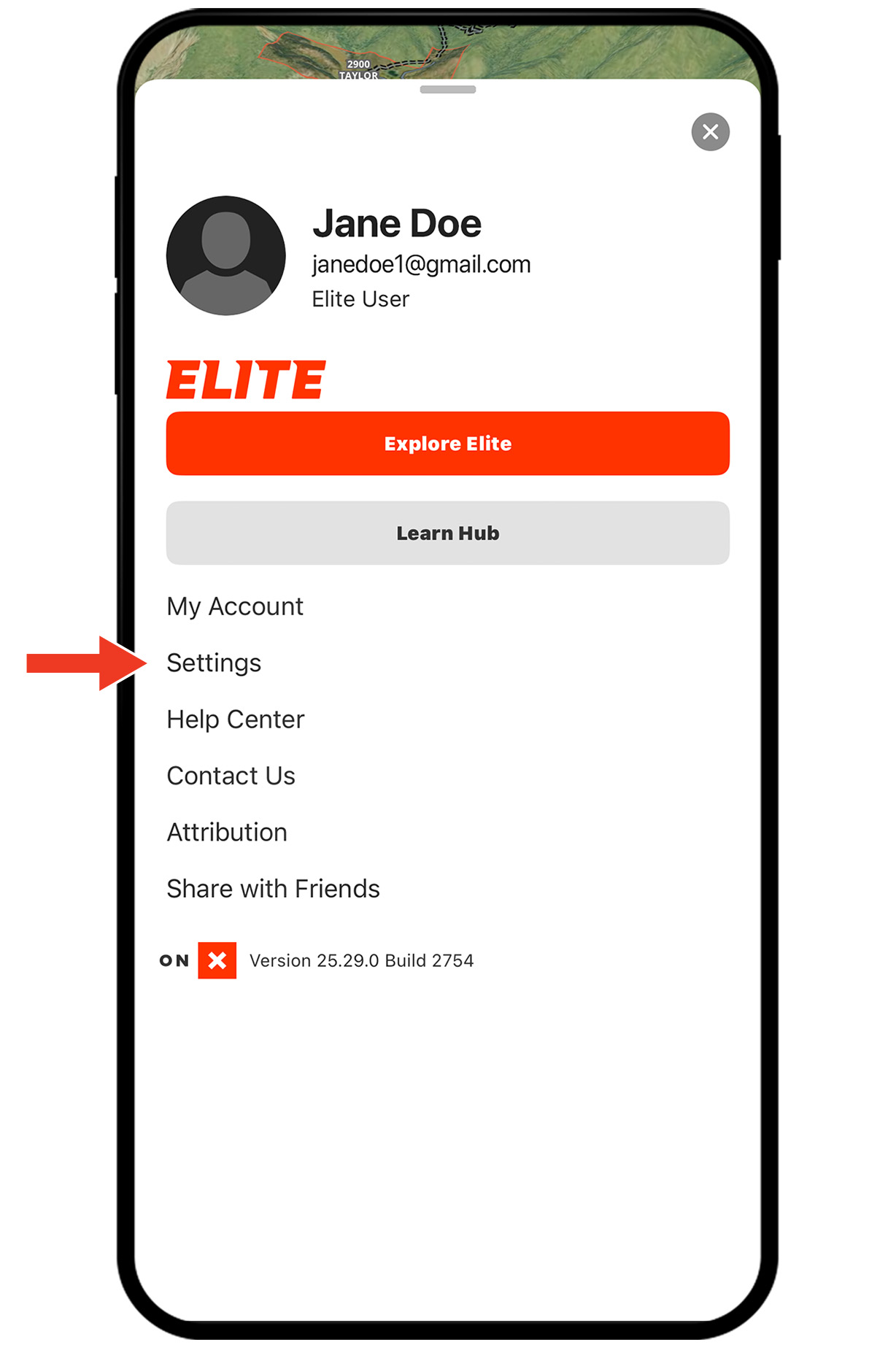
Settings Step 2: Tap Settings.
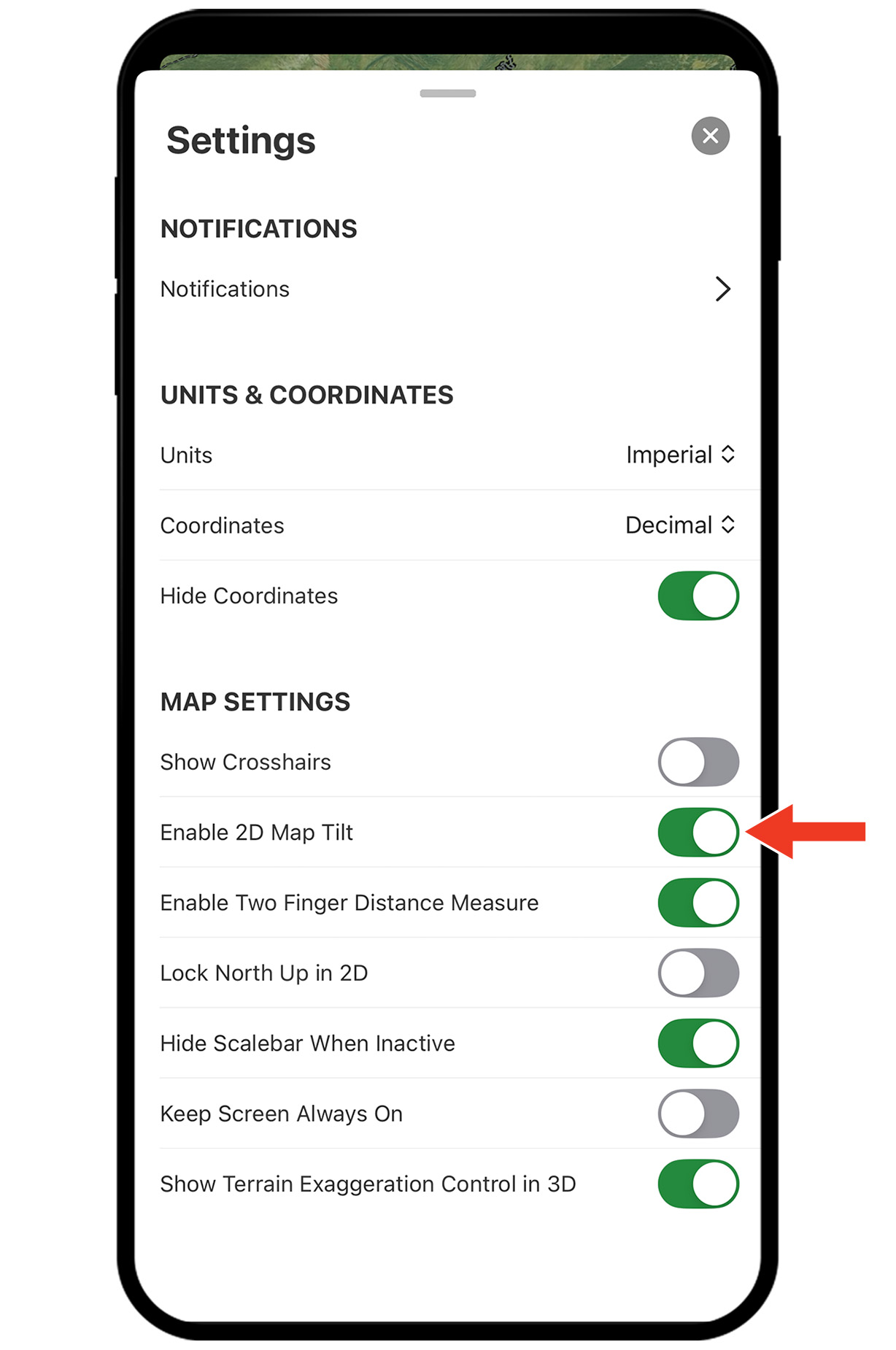
Settings Step 3: Ensure Enable 2D Map Tilt is turned on (green).
Apply 3D Exaggeration
Step 1: With 3D Maps enabled, tap the “Elev. +” icon.
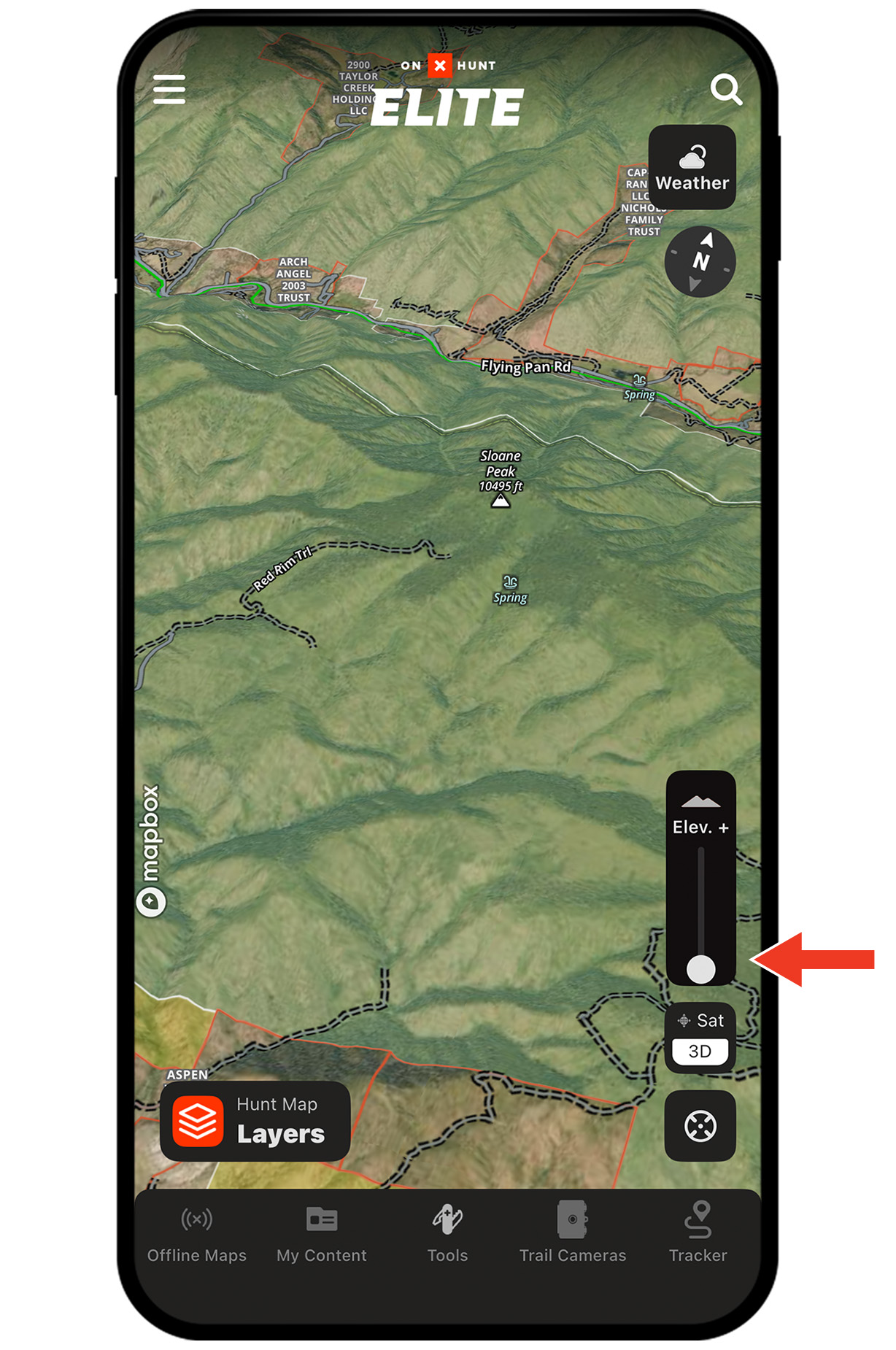
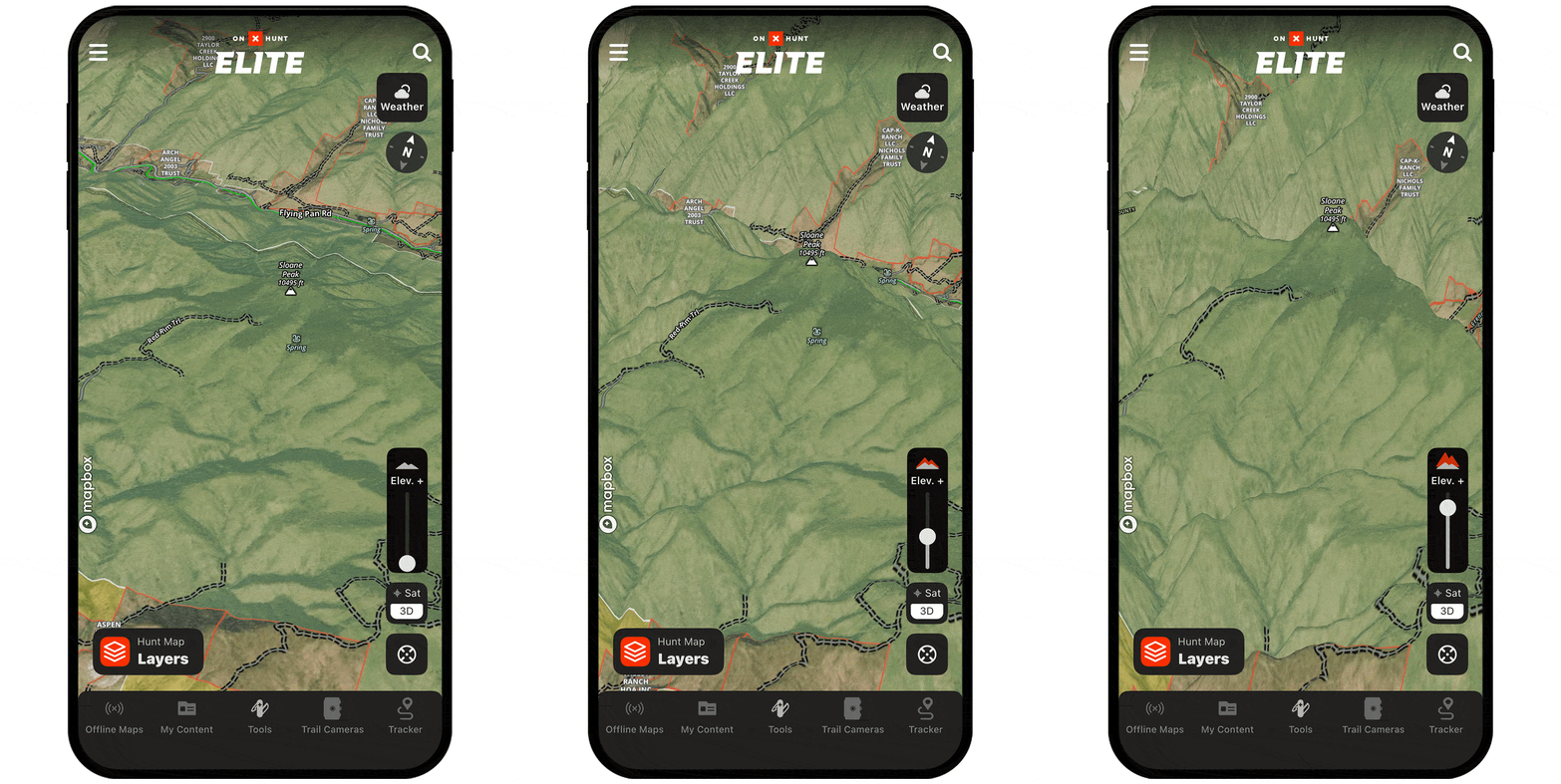
Step 2: Drag the slider up to amplify elevation changes on the map.
Use Cases
Find listening locations.
Use 3D Exaggeration to identify subtle high spots, ridges, or knobs that give your ears an advantage during fly down. These high point posts help you hear distant gobbles and pinpoint roosts across drainages or timber.
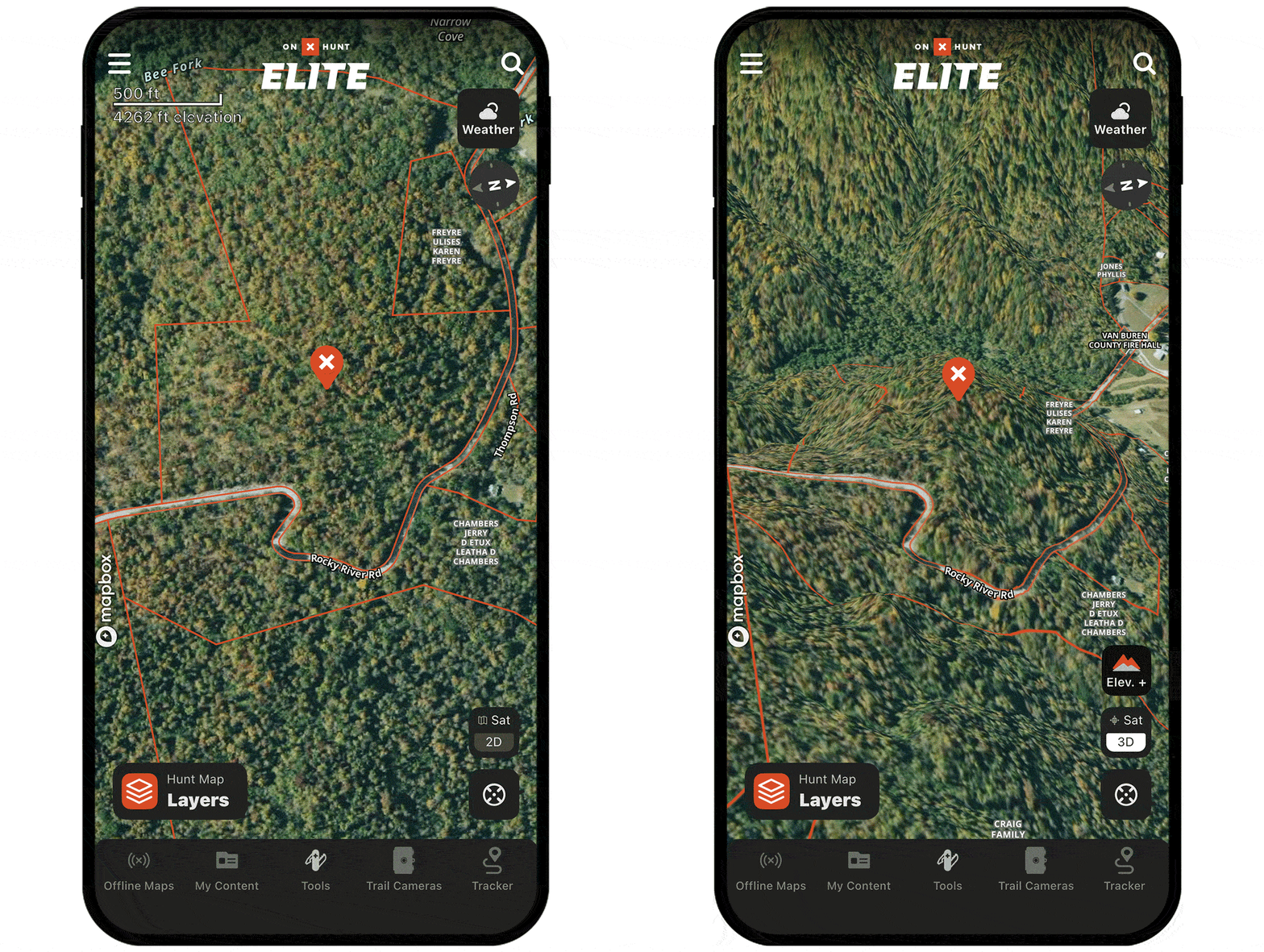
Avoid terrain that can hang up a tom.
3D Exaggeration reveals hidden ditches and hollows that can halt a gobbler’s approach and kill your setup. When choosing where to set up, use 3D Exaggeration to confirm there’s clean terrain between you and the bird, improving your odds of successfully calling a tom in.
Unlock 3D Maps
Purchase a Premium or Elite Membership for full access.

See the land like you’re there.
Eliminate terrain surprises.
Predict turkey movement.