Tracker
Tracker records your steps in real-time on the map so you know where you’ve been and where you need to go. Once you’ve saved your Track, you can share it with hunting partners.
Tracker Tutorial
Expand each block to learn how to record, trim, and share tracks.
Record a Track
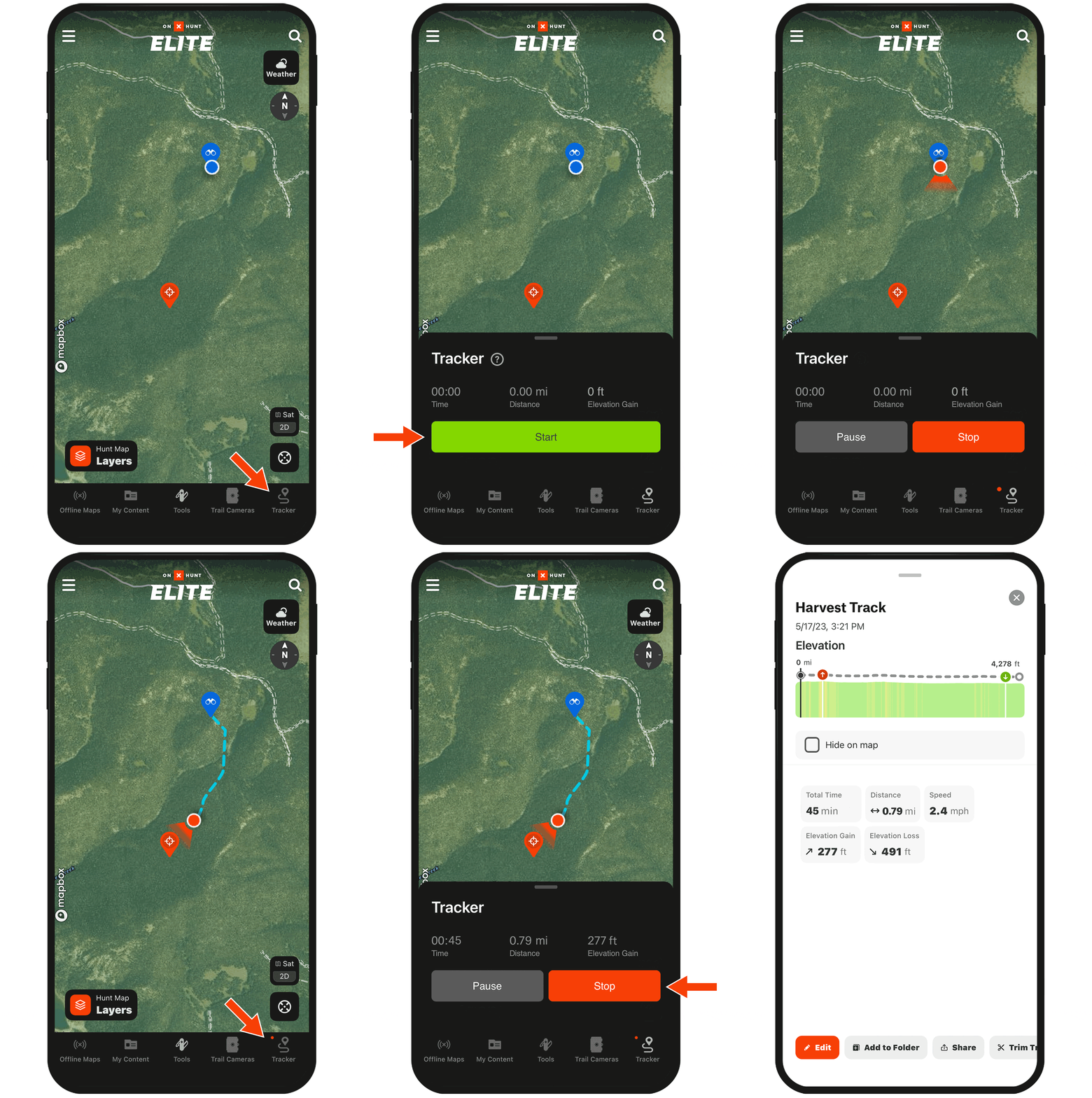
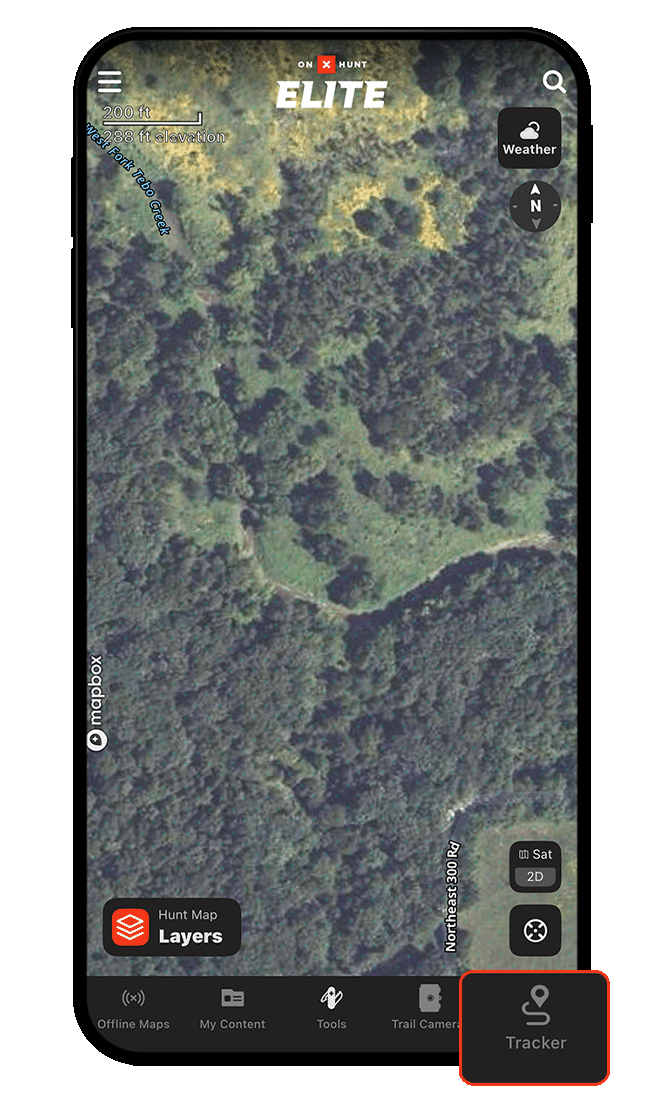
Step 1: Tap “Tracker” at the bottom of your screen.
Step 2: Tap “Start” to begin recording your path.
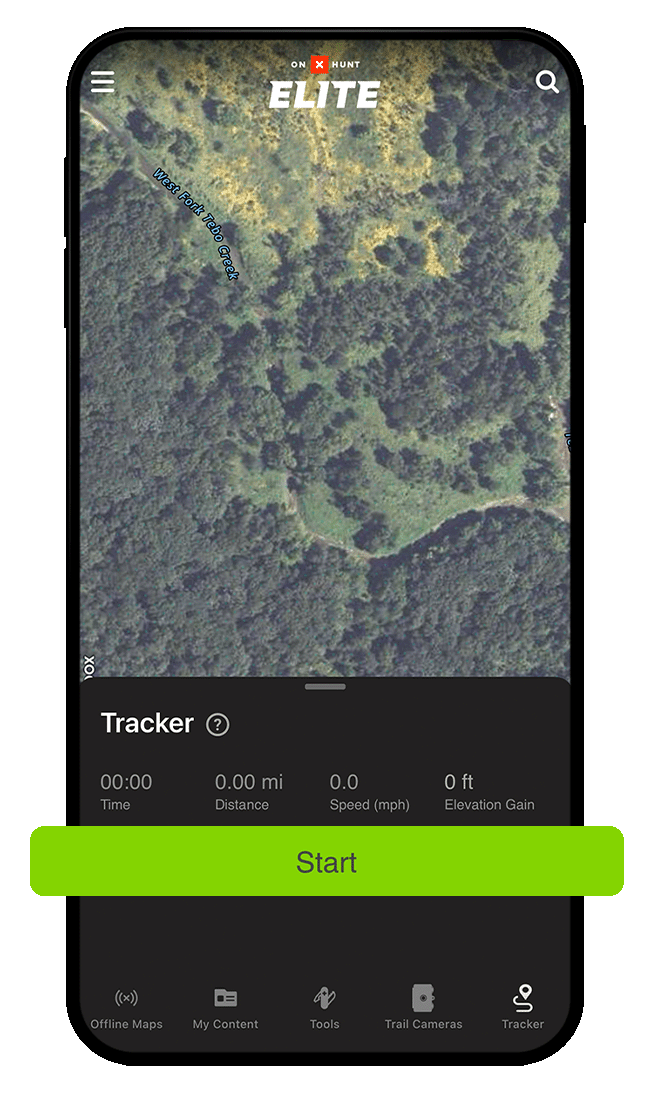
Step 3: As you move through the landscape, Tracker records your path in a blue-dashed line, along with real-time trip data, including duration, distance, speed, and elevation gained.
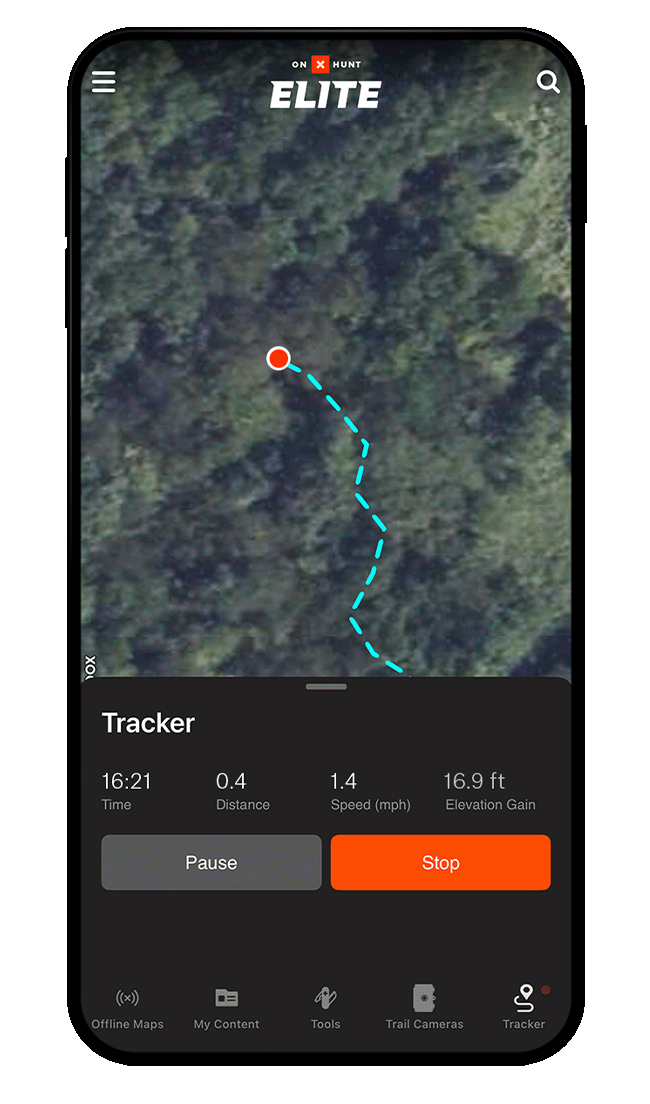
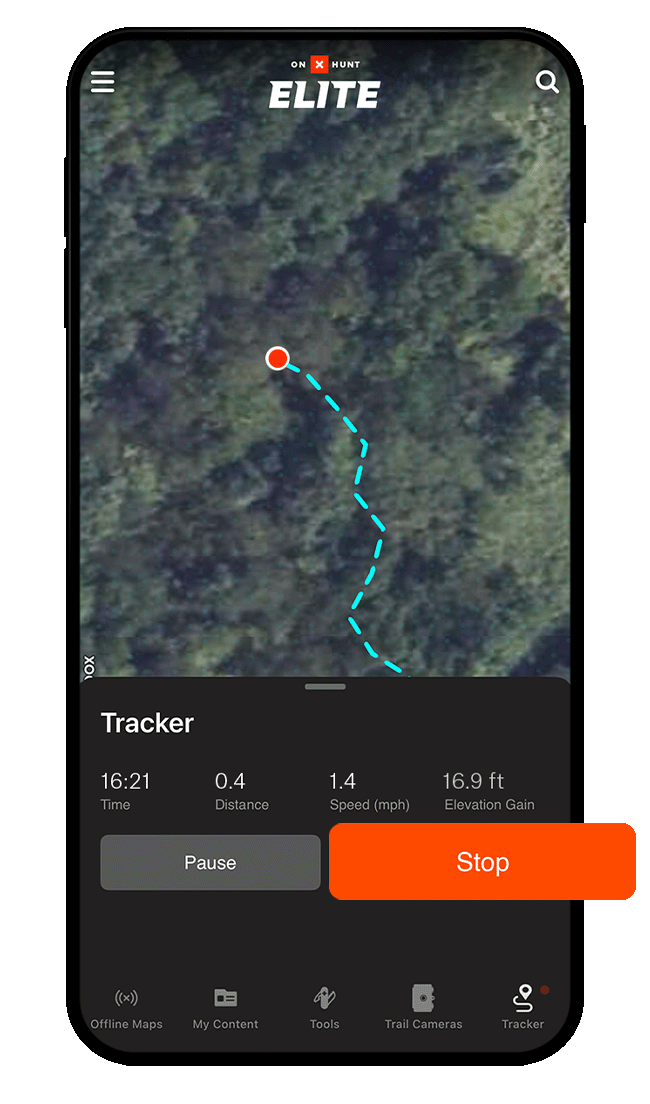
Step 4: Tap “Stop” to stop recording your track.
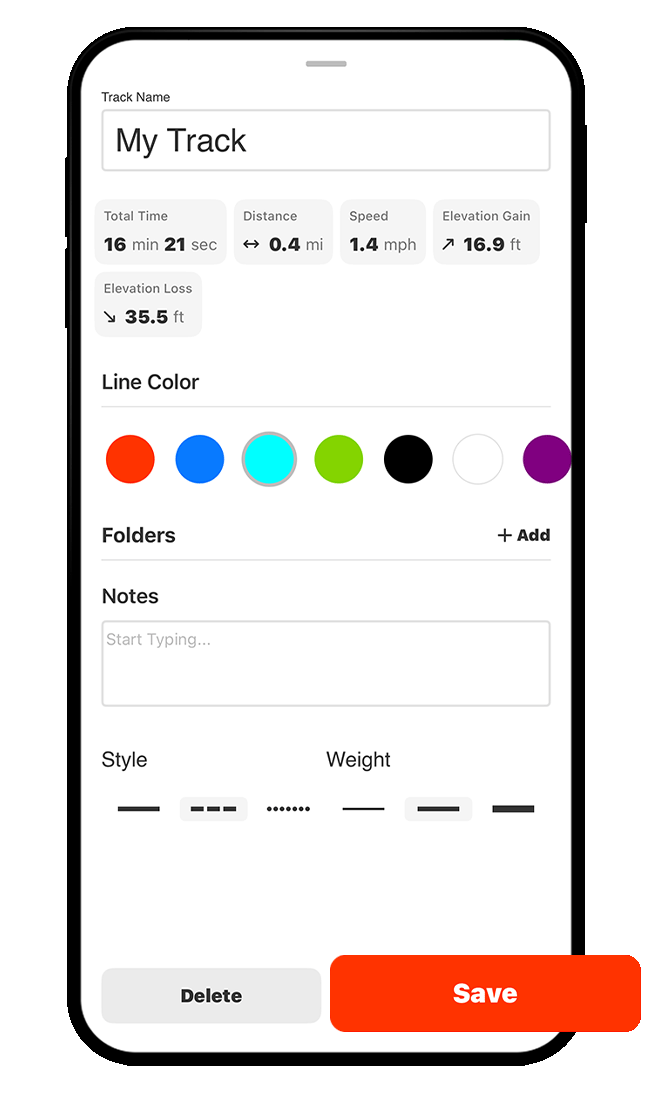
Step 5: Once you stop recording a track, you’ll have the option to make several customizations: You can rename your track, choose a different line color, change the weight and style of the track, add your track to a folder, and/or make notes to recall details later on.
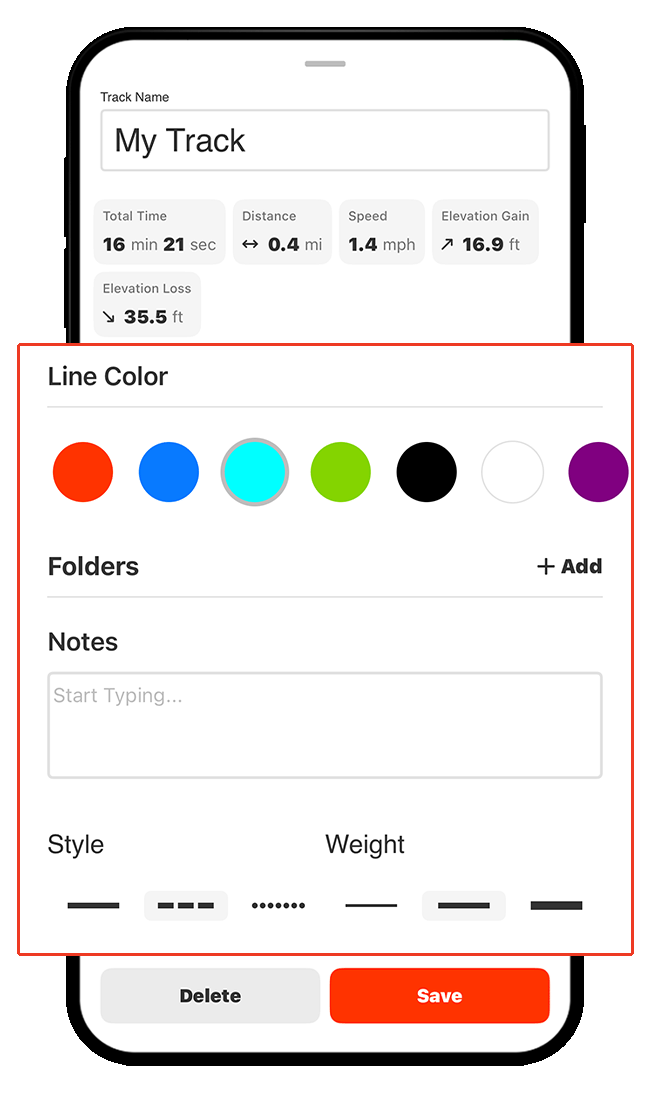
Step 6: Tap “Save” to save your track to the “My Content” area.
Trim a Track
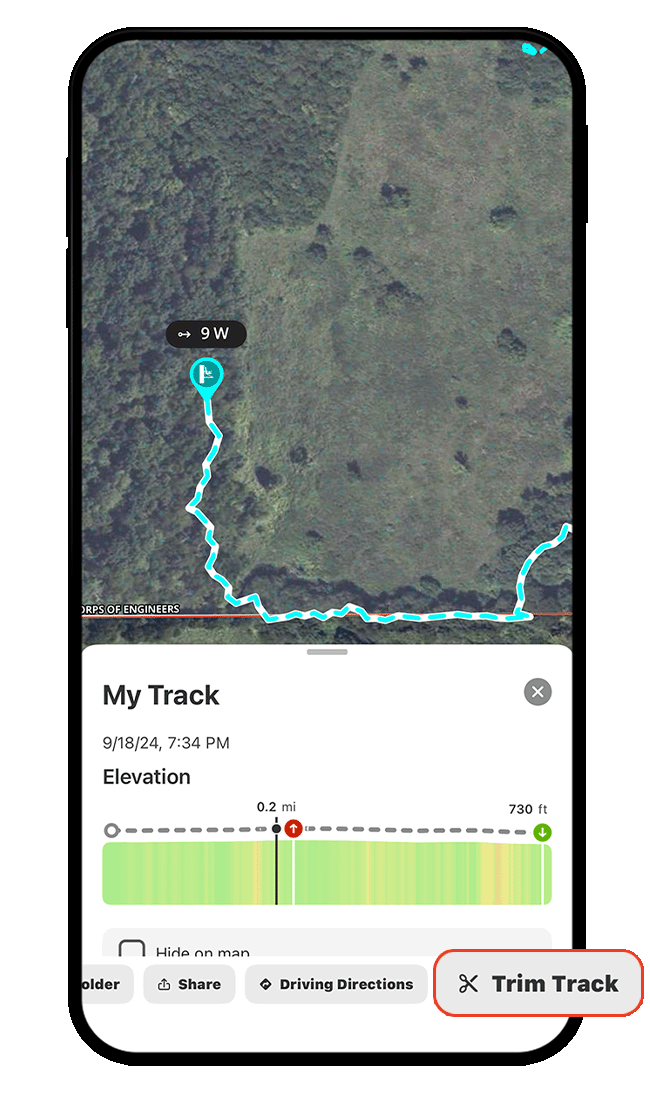
Step 1: Tap any Track to open the menu, scroll the bottom buttons to the right, and tap “Trim Track.”
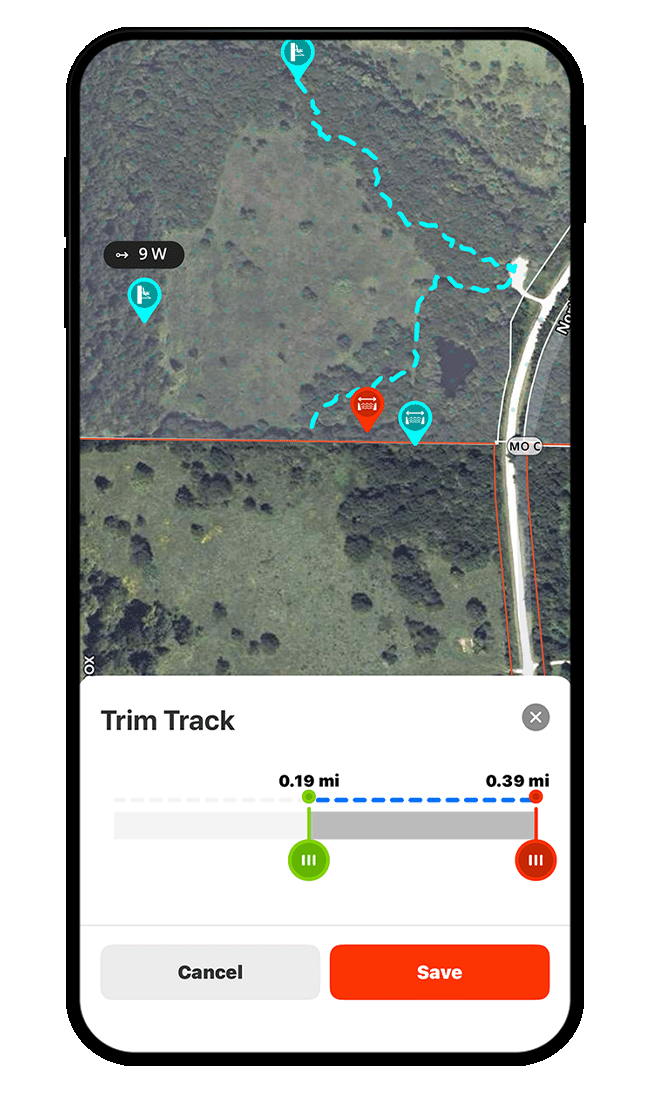
Step 2: Use the left-hand slider to trim the beginning of the track. Use the right-hand slider to trim the end of the track. Tap “Save” to save your trimmed track.
Share a Track
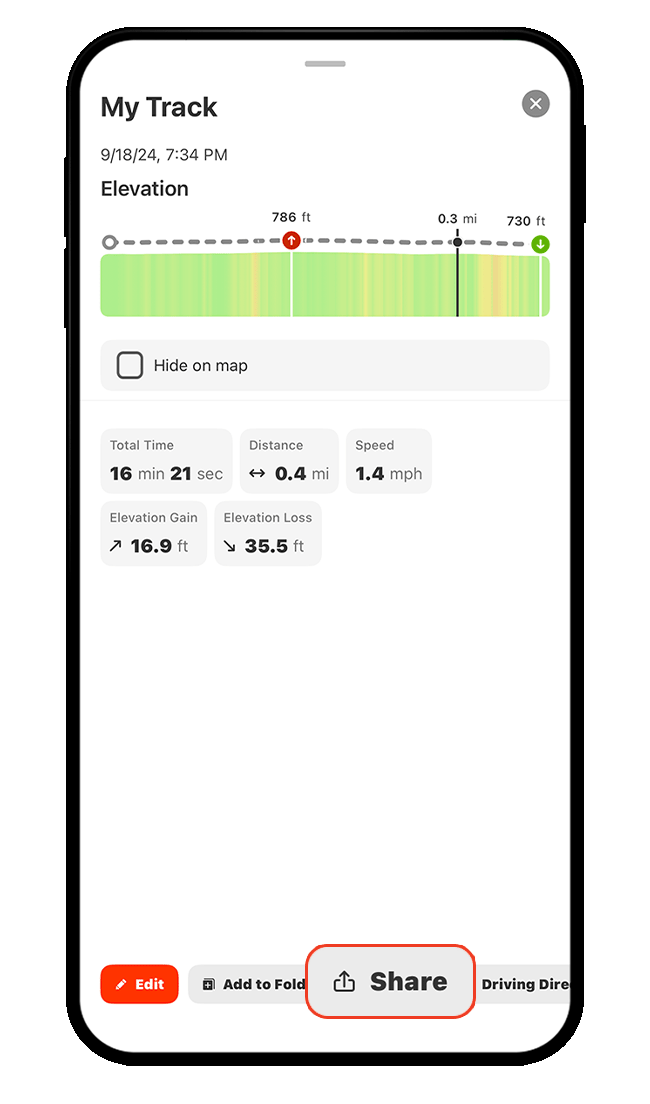
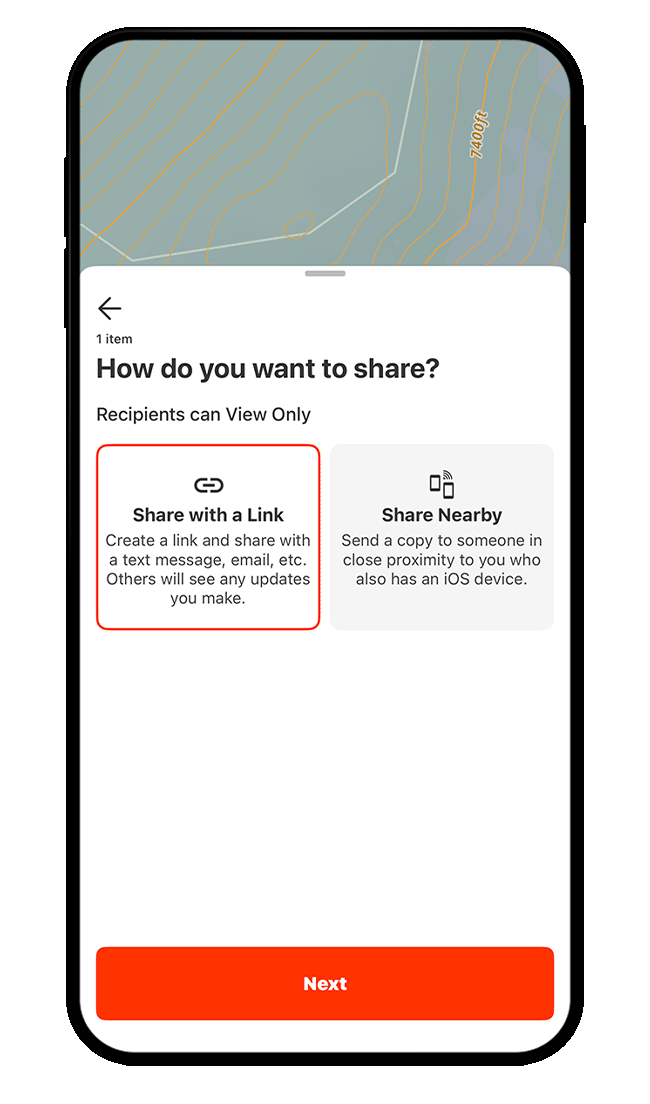
Step 1: Tap a Track to open the menu, then tap “Share.”
Step 2: Choose your preferred way to share your Track and then tap “Next.” Choose “Share with a Link” to send your track to others via text or email. Choose “Share Nearby” to share your track to nearby devices of the same kind (iPhone to iPhone or Android to Android) via Bluetooth, especially useful when offline.
View and Manage Track Details
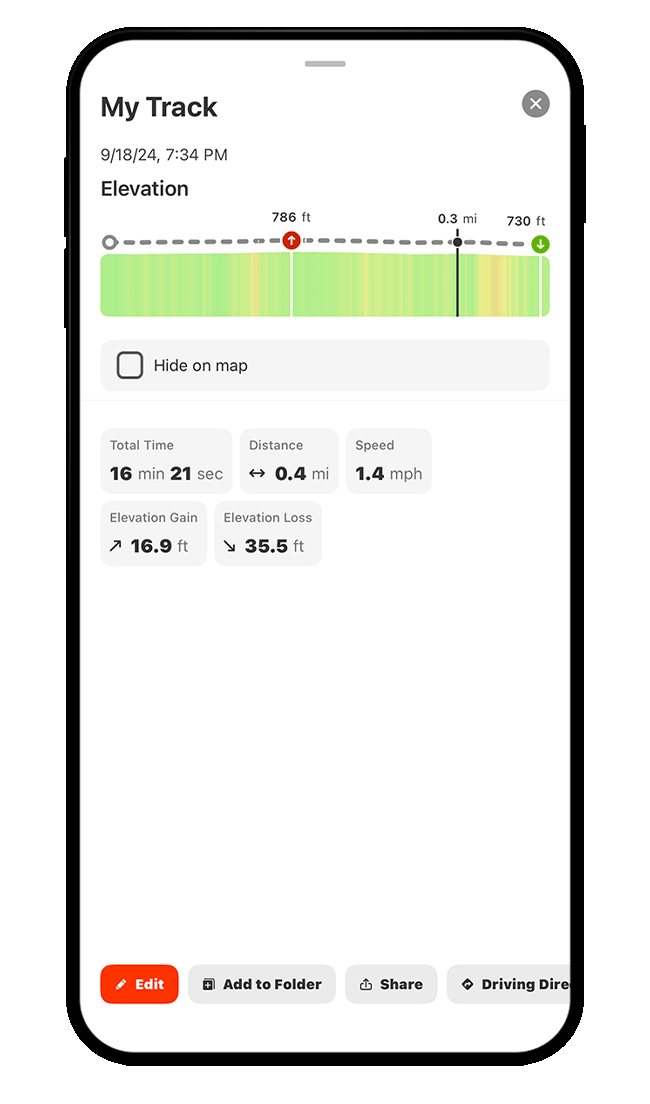
When you tap any Track on the map or open a Track via “My Content,” you’ll see the Track’s elevation profile, along with trip details, including duration, distance, average speed, elevation gain, and elevation loss.
The bottom row of buttons allows you to edit your Track (e.g. rename the track, choose a different track color, etc.), add your Track to a folder for improved organization, trim your Track, export your Track, or delete your Track.
Start Tracking Today
Tracker is available to paid members. Purchase a Premium or Elite Membership for full access.
Tracker Use Cases
Explore ways to use Tracker to improve your hunt.