
Offline Maps
Offline Maps allow you to see the map and use your favorite map tools when outside cell service.
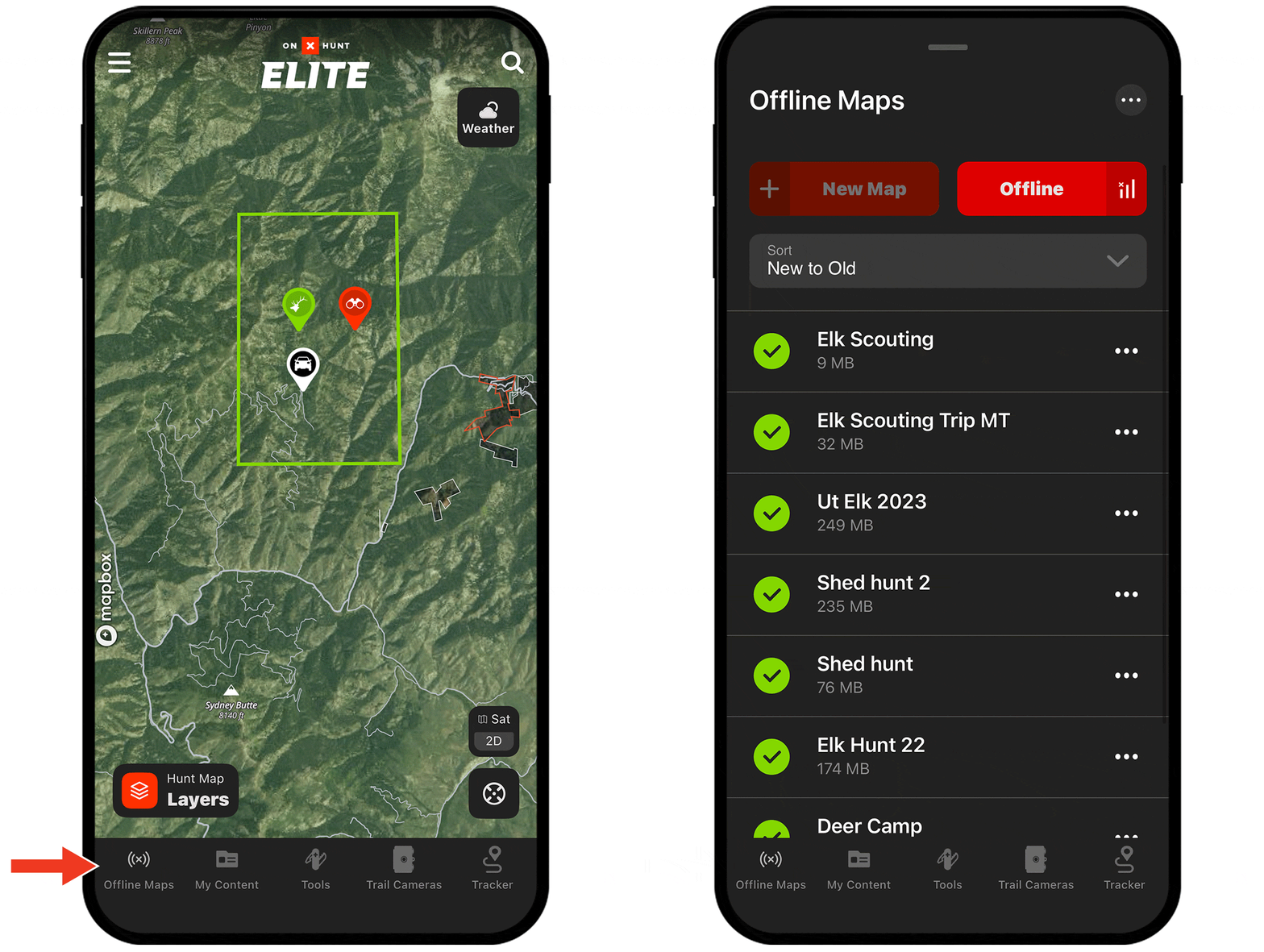
Offline Maps Tutorial
Expand each block to learn how to download, sync, and optimize Offline Maps.
Download an Offline Map
Step 1: Tap the “Offline Maps” button at the bottom of your screen.

Step 2: Tap “New Offline Map.”

Step 3: Pan to the area you’d like to save and select your preferred resolution. Tap “Next.”

Step 4: Type a map name into the field at the top of your screen.
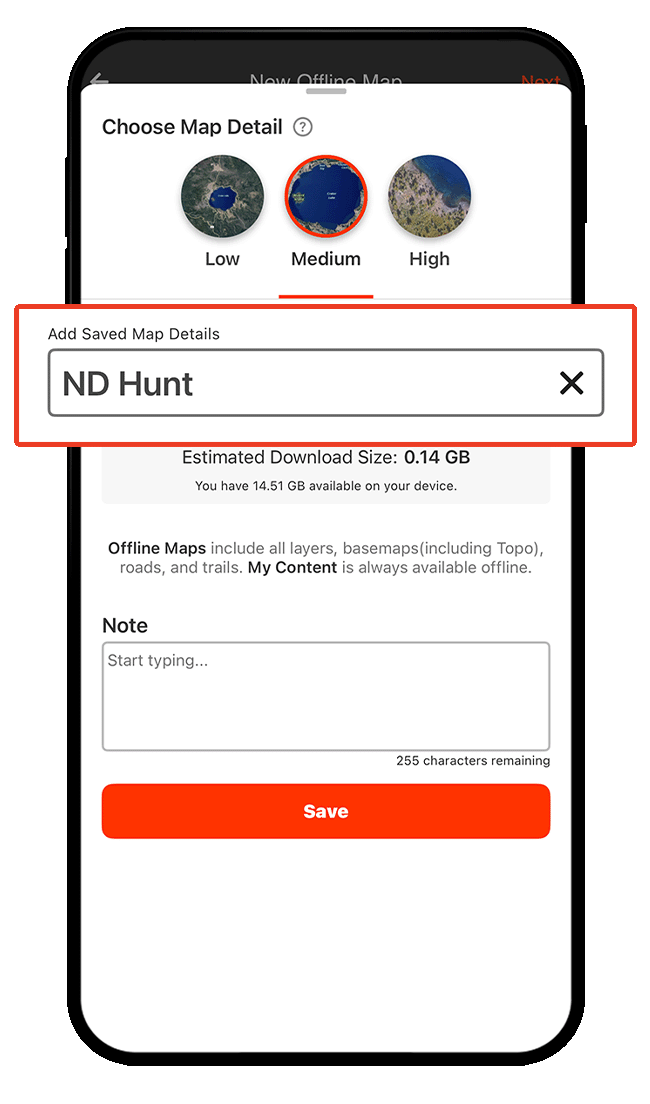
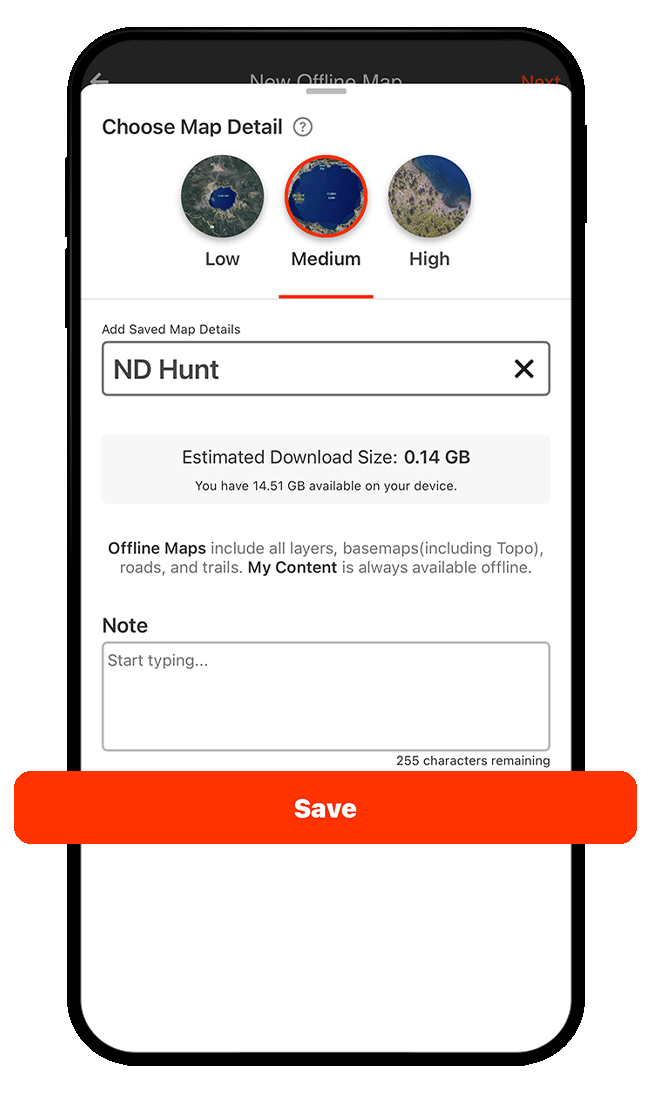
Step 5: Tap “Save.”
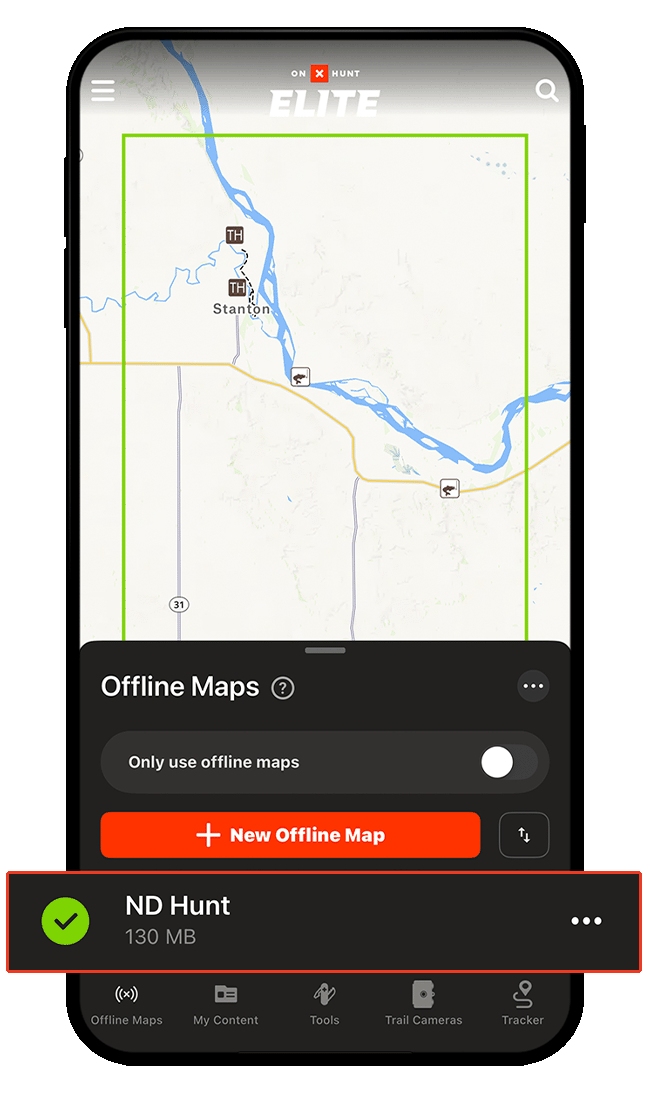
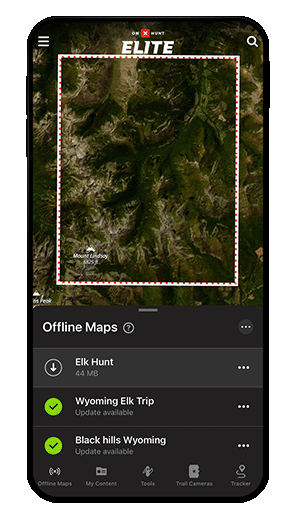
Step 6: When the save is complete, the green check mark next to the name of your Offline Map confirms the map has downloaded to your device (the solid green outline on the map also confirms the download—Offline Maps that aren’t downloaded to your device will be outlined in red dashes and will not have a green checkmark).
Desktop Users: Sync to Mobile
Offline Maps are device-specific, so your downloads will only be available on the specific device to which you saved them.
If you create an Offline Map on desktop, it will sync to your mobile device. When you open the App on mobile, you just need to tap the white download arrow next to your queued Offline Map to download it to your device.
Below, the “Elk Hunt” Offline Map is not downloaded to the mobile device yet. You can tell because there is no green checkmark, and because the rectangle representing the Offline Map area is shown in red dashes instead of a solid green line.
Save Battery in the Field
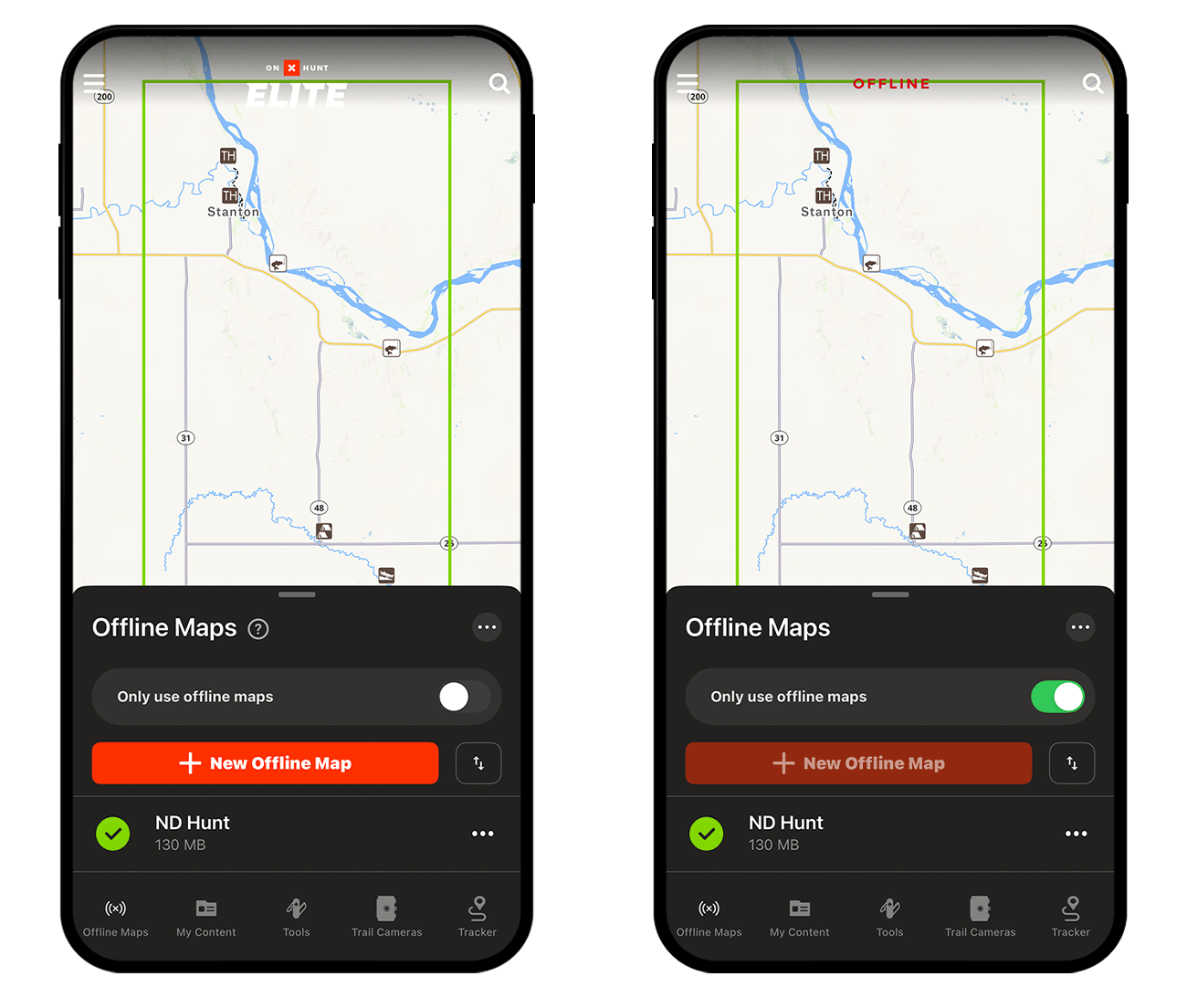
Once you’re in the field, tap the “Offline Maps” button, then toggle on “Only use offline maps.”
This helps prevent your phone from burning through battery searching for cell service that might not be available.
Turn on your phone’s Airplane Mode for additional battery saving.
Download Offline Maps Today
Offline Maps are available to paid members. Purchase a Premium or Elite Membership for full access.
Offline Maps Use Cases
Explore ways to use Offline Maps to improve your hunt.