
Route Builder

Route Builder allows you to plan how you’ll get to your hunting spot and how you’ll move in the field once you’re there.
Route Builder Tutorial
Expand each block to learn how to build, share, and export Routes.
Build a Route
*Elite-only capability.
Step 1: Tap Tools from the bottom menu.
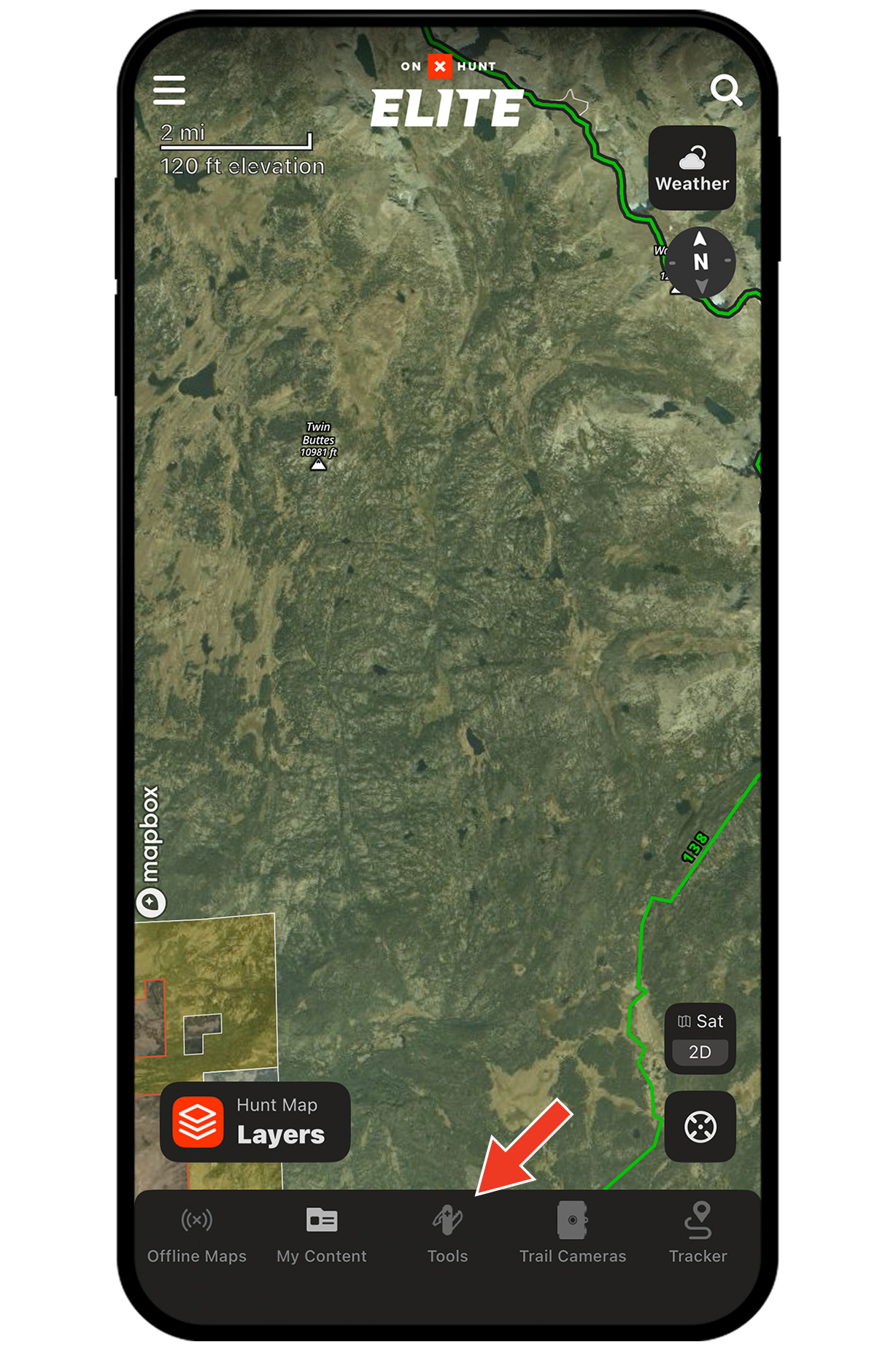
Step 2: Select Build Route.

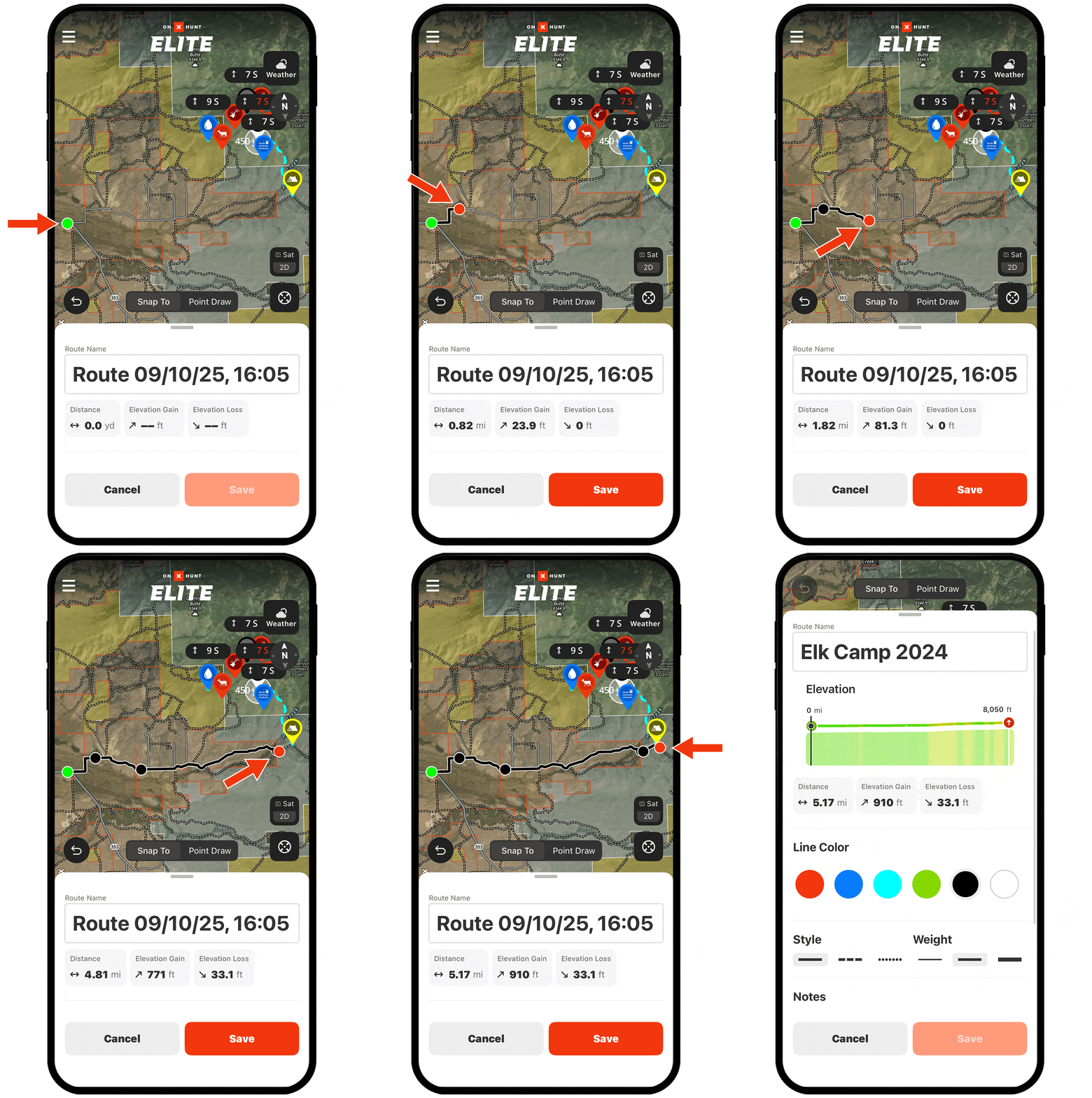
Step 3: Tap the map where you want your route to start.

Step 4: Tap along your route to add points. Choose Snap To for optimal auto-routing, or Point Draw for manual control. As you build your Route, you’ll see distance, elevation gain, and elevation details update in real time.
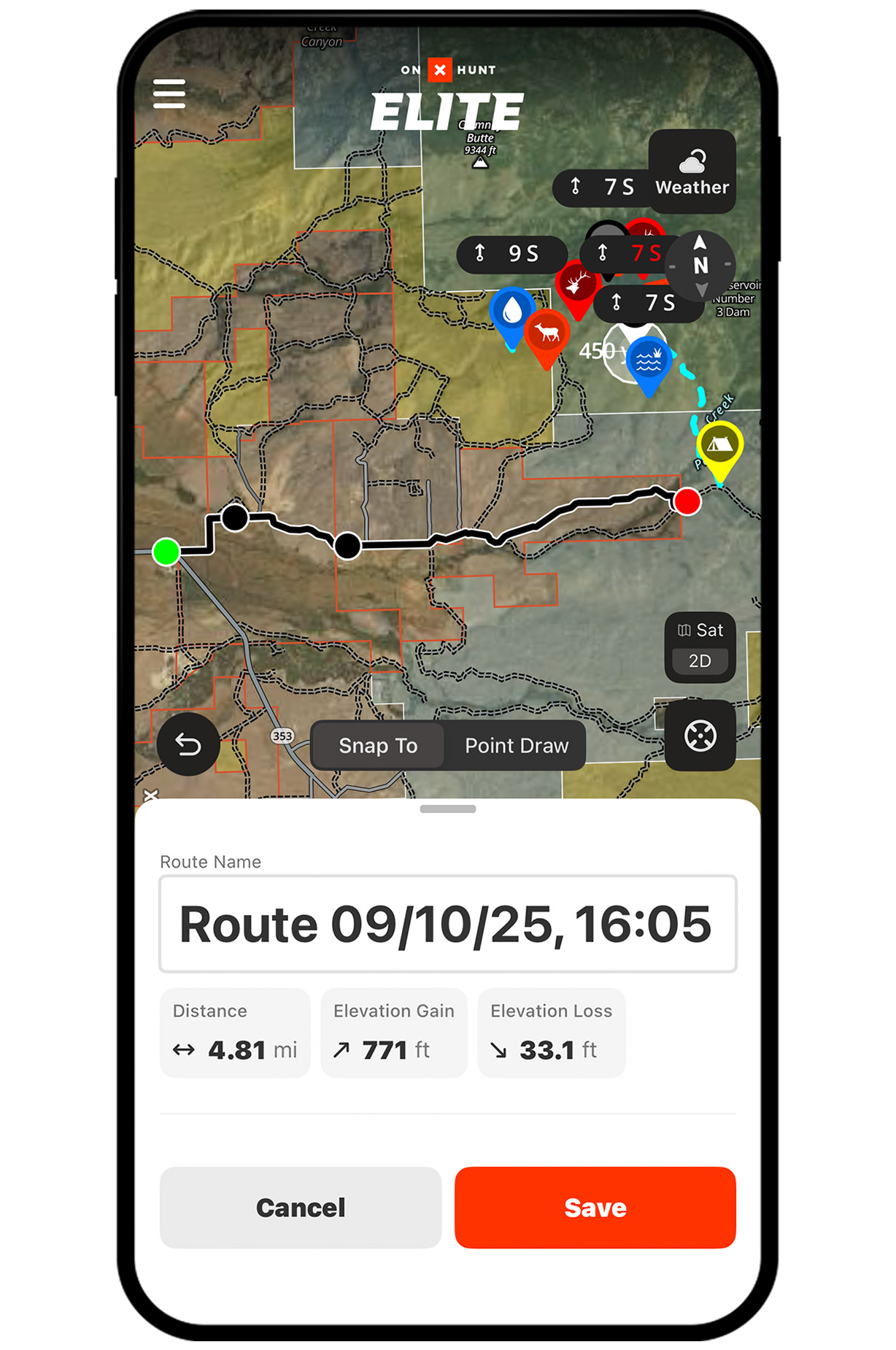
Step 5: Customize your Route name, color, line style, and weight. Tap Save.

Note: Access saved Routes by tapping them on the map or via My Content in the bottom menu.
Share a Route
*Elite-only capability.
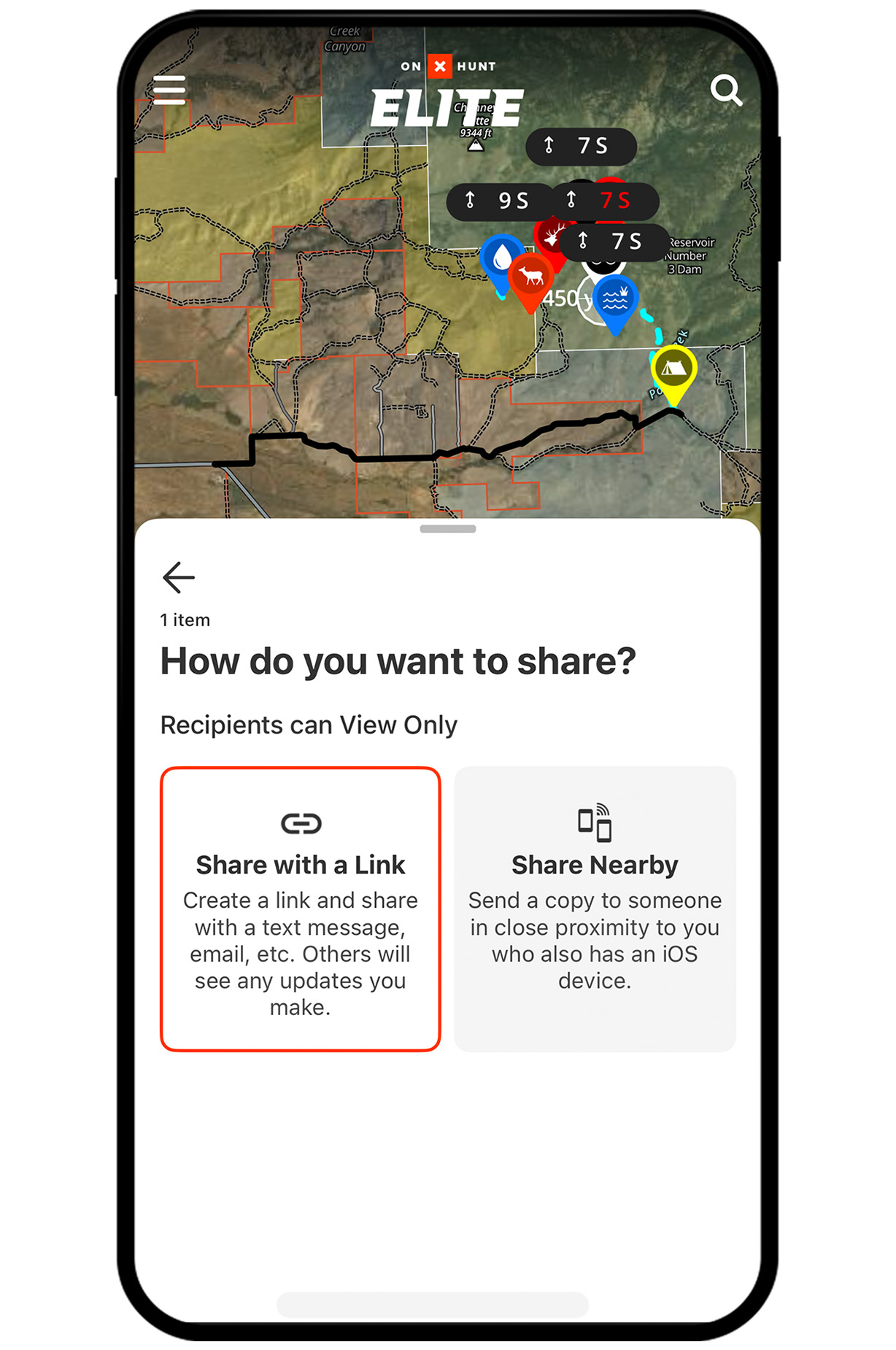
Step 1: Tap a Route, then tap “Share.”
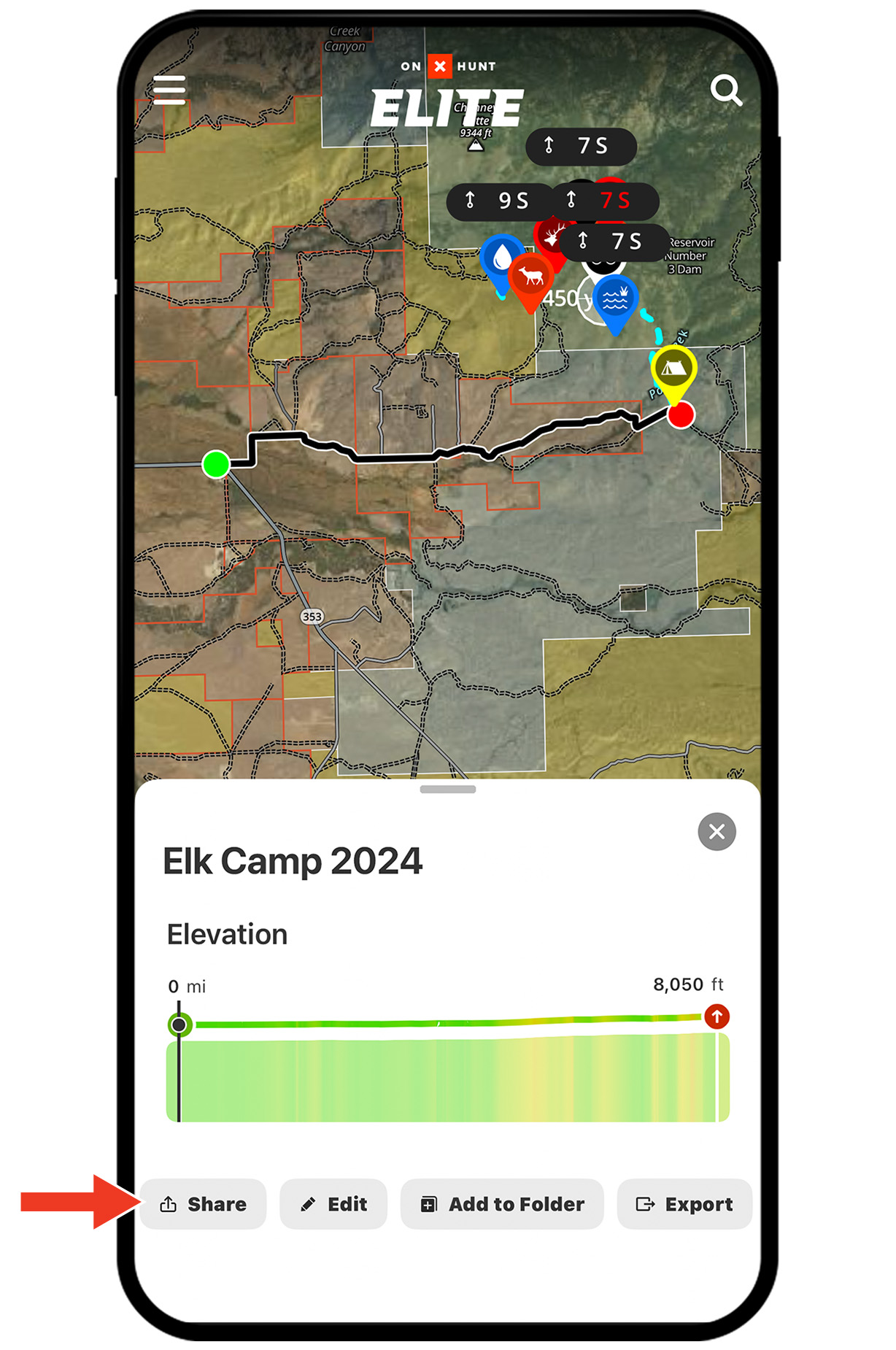
Step 2: Choose your preferred way to share your Route and then tap Next.
Choose Share with a Link to send your Route to others via text or email. Choose Share Nearby to share your Route to nearby devices of the same kind (iPhone to iPhone or Android to Android) via Bluetooth, especially useful when offline.
Export a Route
*Elite-only capability.
Step 1: Tap a Route, then tap Export.

Step 2: Choose your preferred export destination. You can text, email, save to files, or send to compatible apps—what you see will depend on what apps you have installed on your personal device.
Note: Mobile exports in GPX. For KML, use Webmap on desktop.
Start Building Routes
Route Builder is an Elite-only capability. Go Elite for advanced mapping tools, application season support, pro deals, and expert-led courses.