
Location Sharing
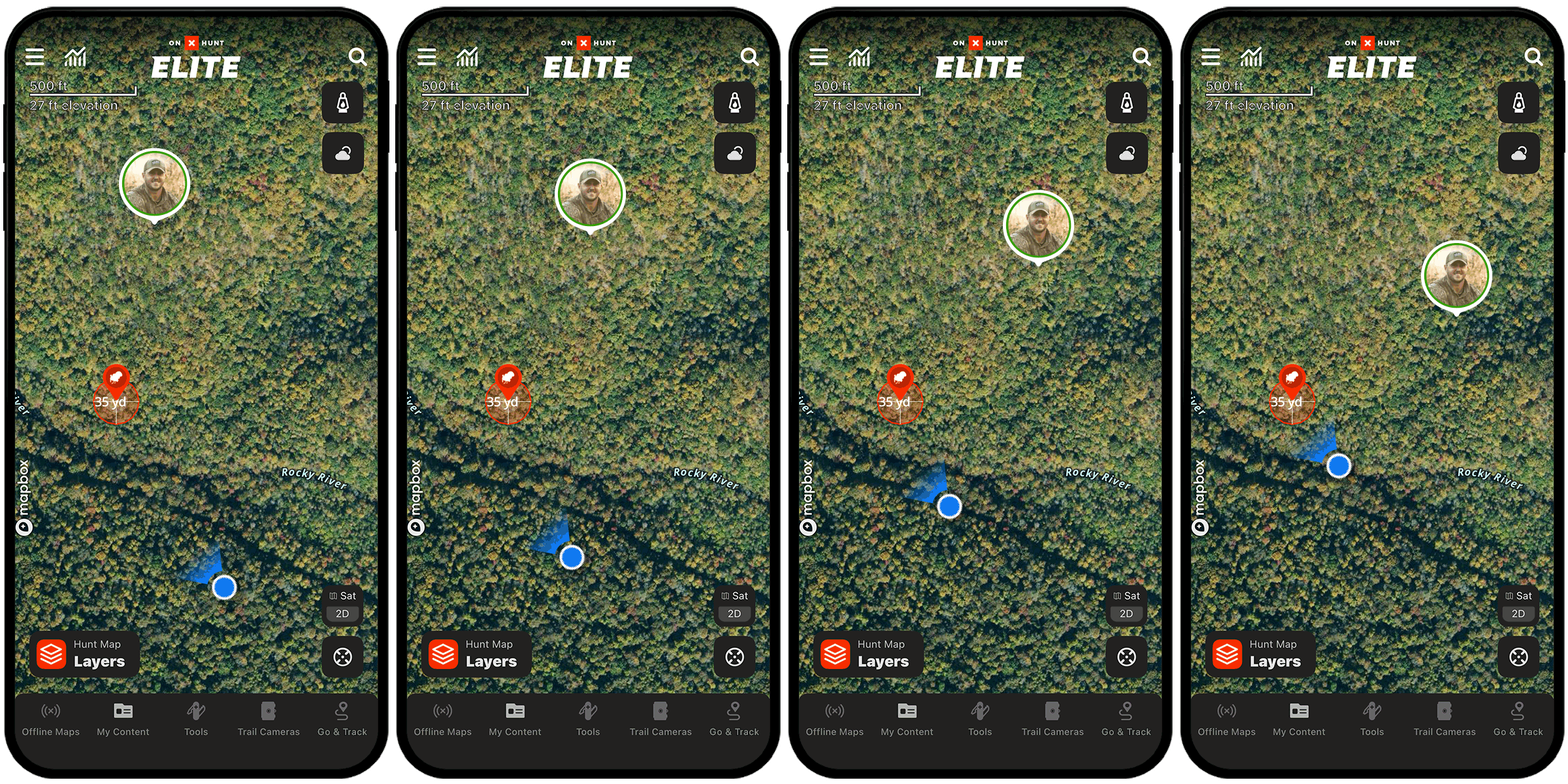
Location Sharing lets you and your hunting partners see each other’s live locations on the map. Split up, hunt your own plan, and regroup when it matters. Cellular service required. Here’s how to get started.
Location Sharing Tutorial
Expand each block to learn how to share your location with your group and join a session.
Initiate a Location Sharing Session
Step 1: Tap Go & Track at the bottom of your screen.
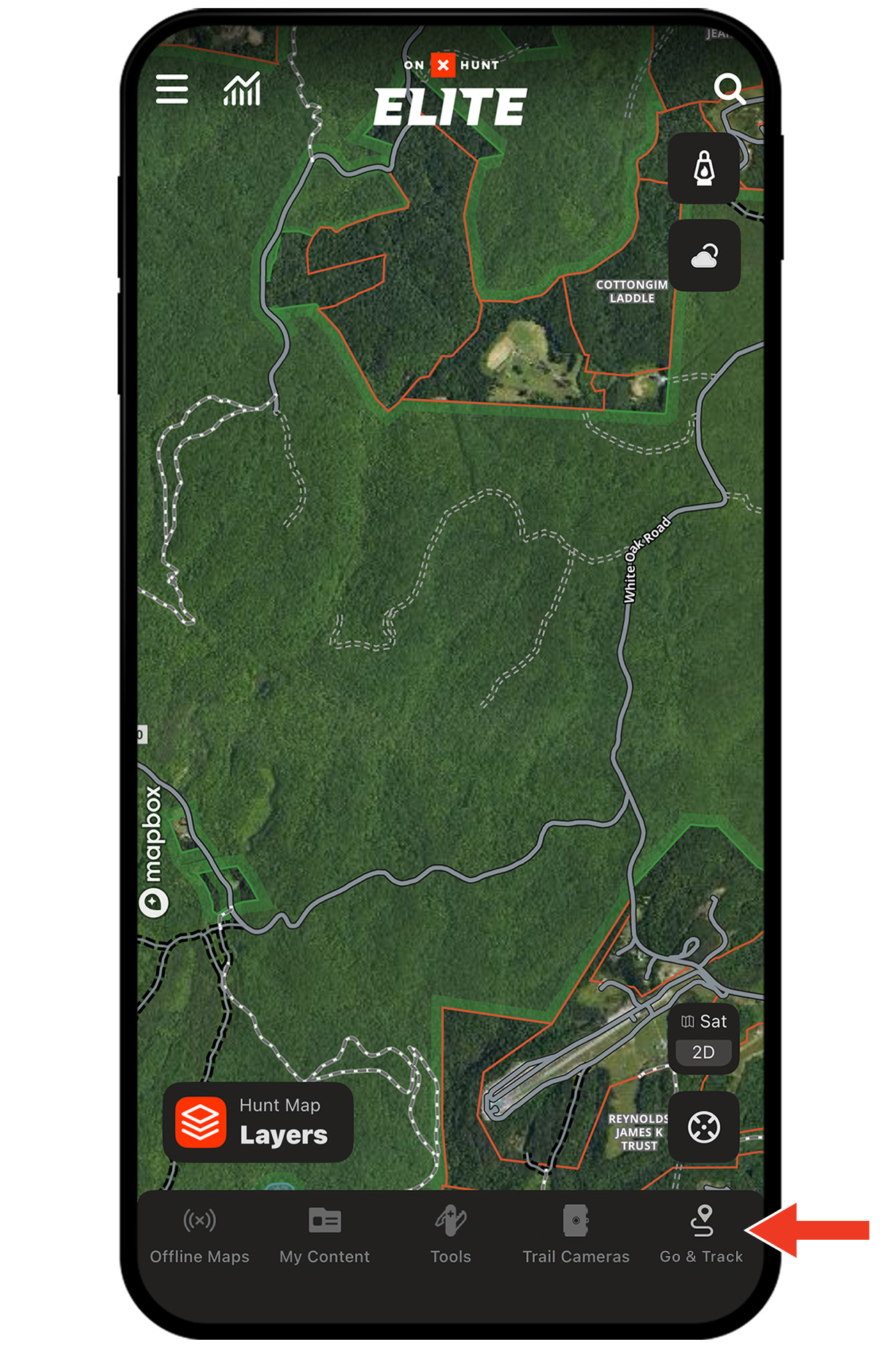
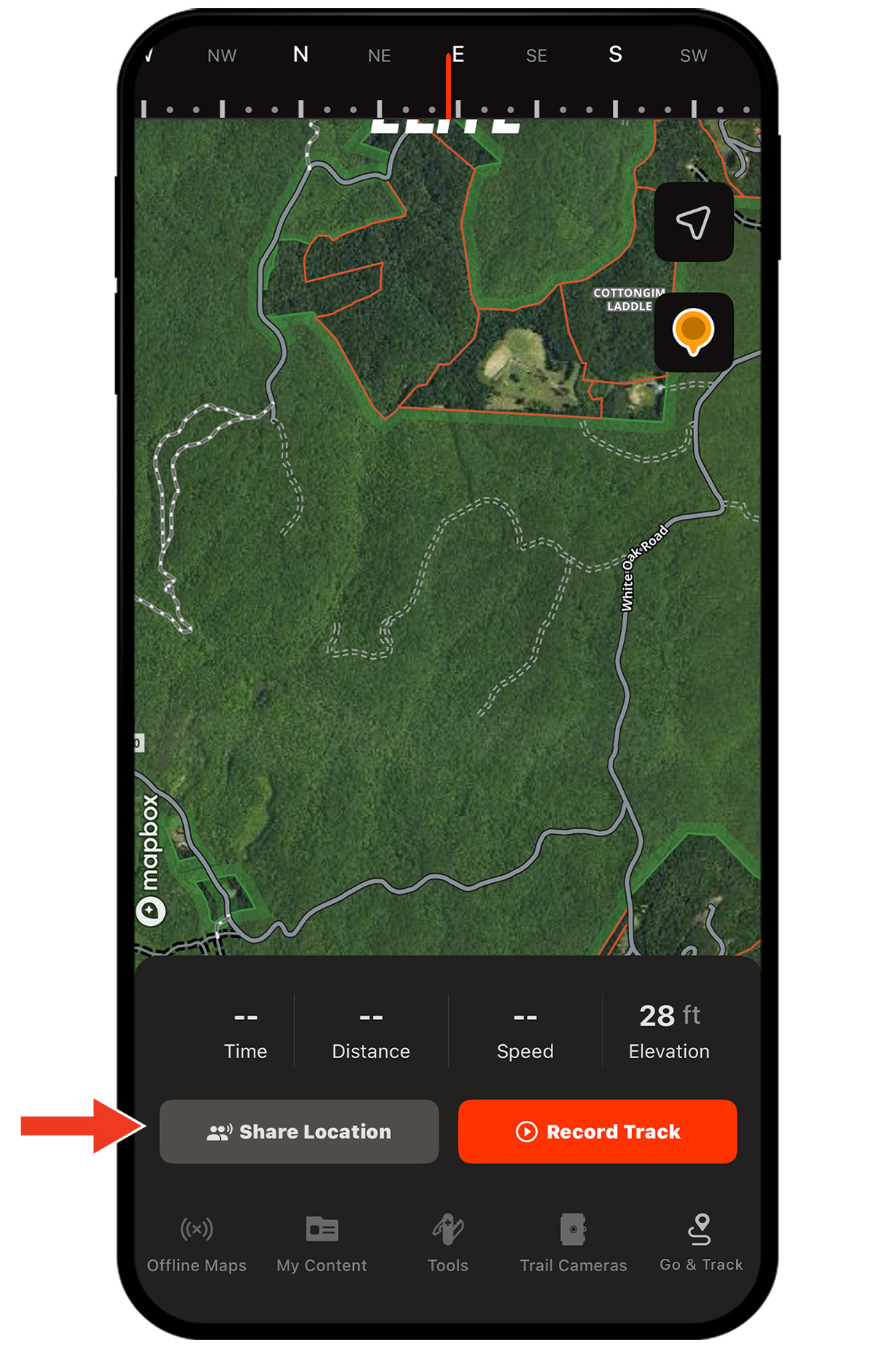
Step 2: Tap Share Location to initiate your session.
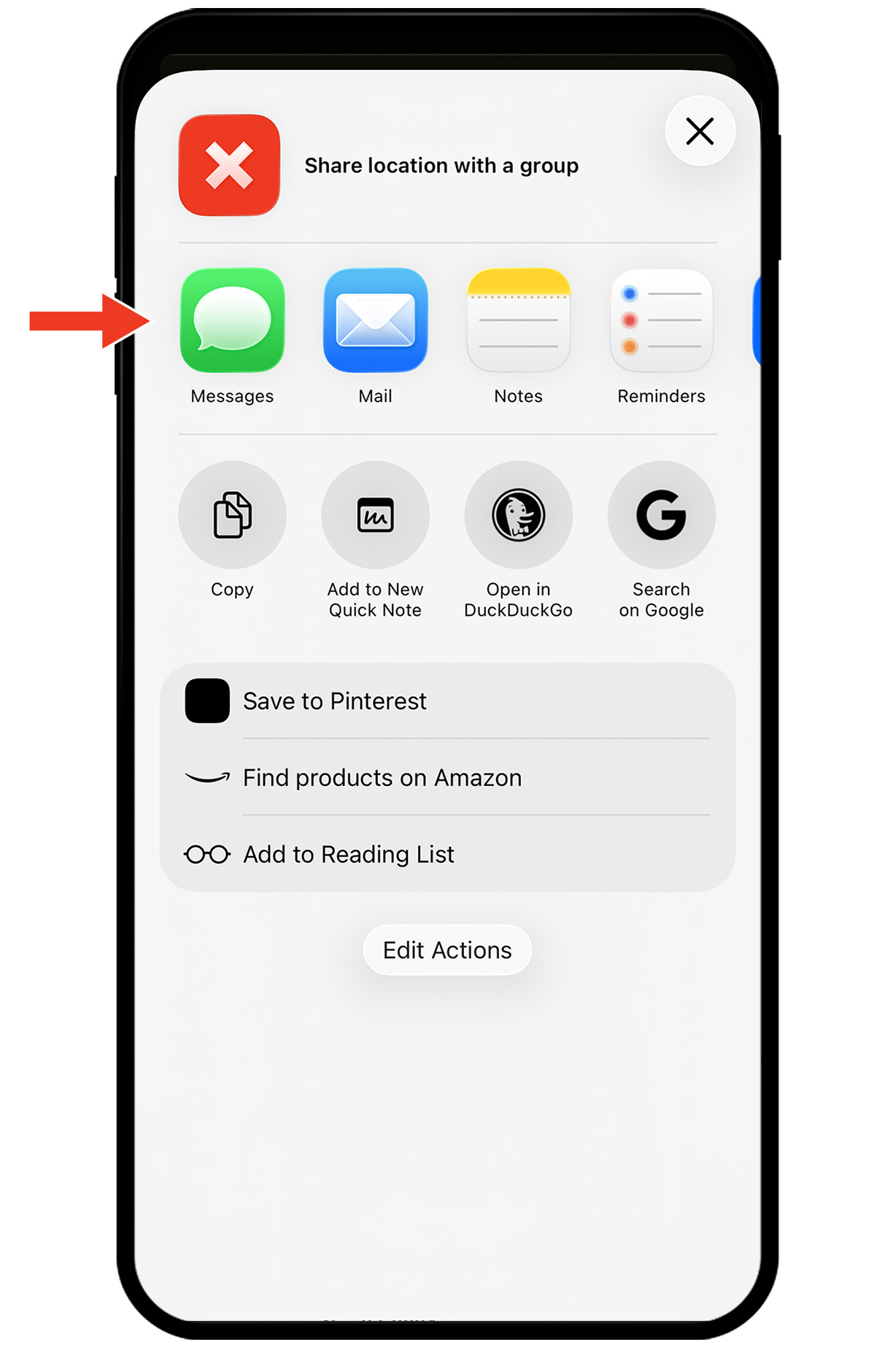
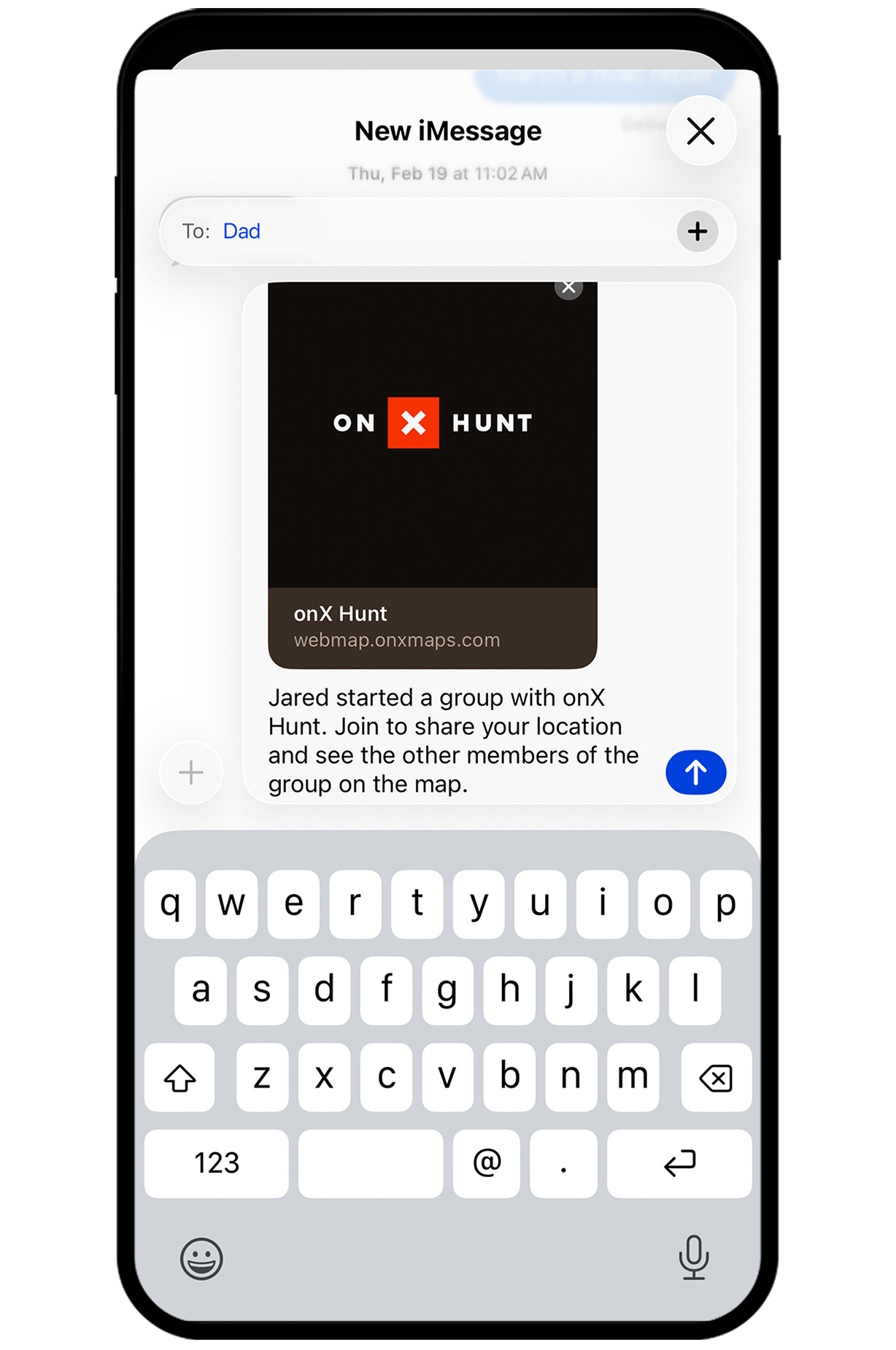
Step 3: A unique session link is generated. Share it two ways: tap Copy to paste into an existing group chat, or share via Text to send a new message directly from the App.
Step 4: Send the link to your group. Share the link via your preferred method. Text is recommended. Partners don’t need to be in the same location to join.
Join a Location Sharing Session
Get an invite? Here’s how to get on the map.
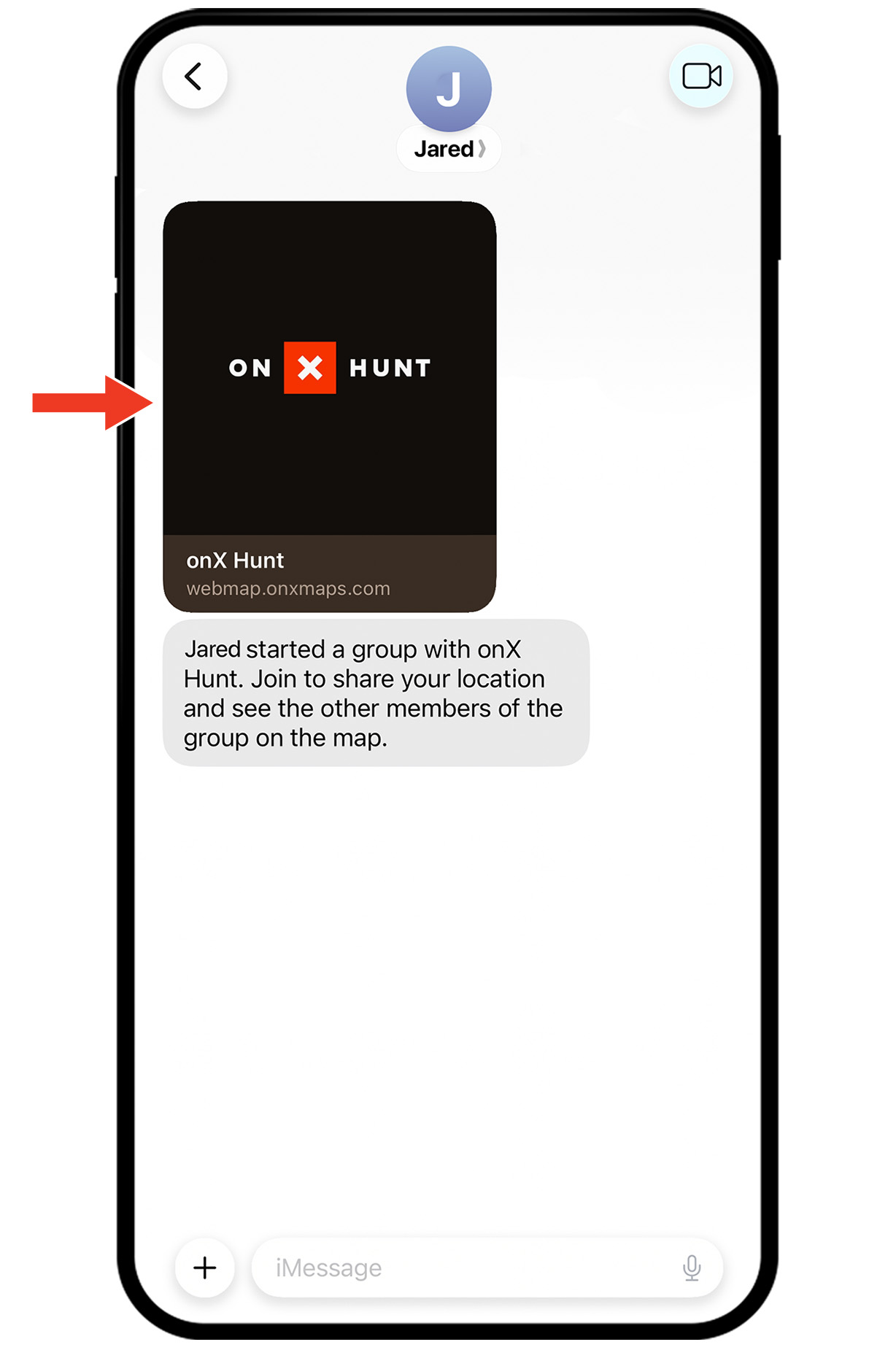
Step 1: Tap the Location Sharing link received via text. It will open in the onX Hunt App.
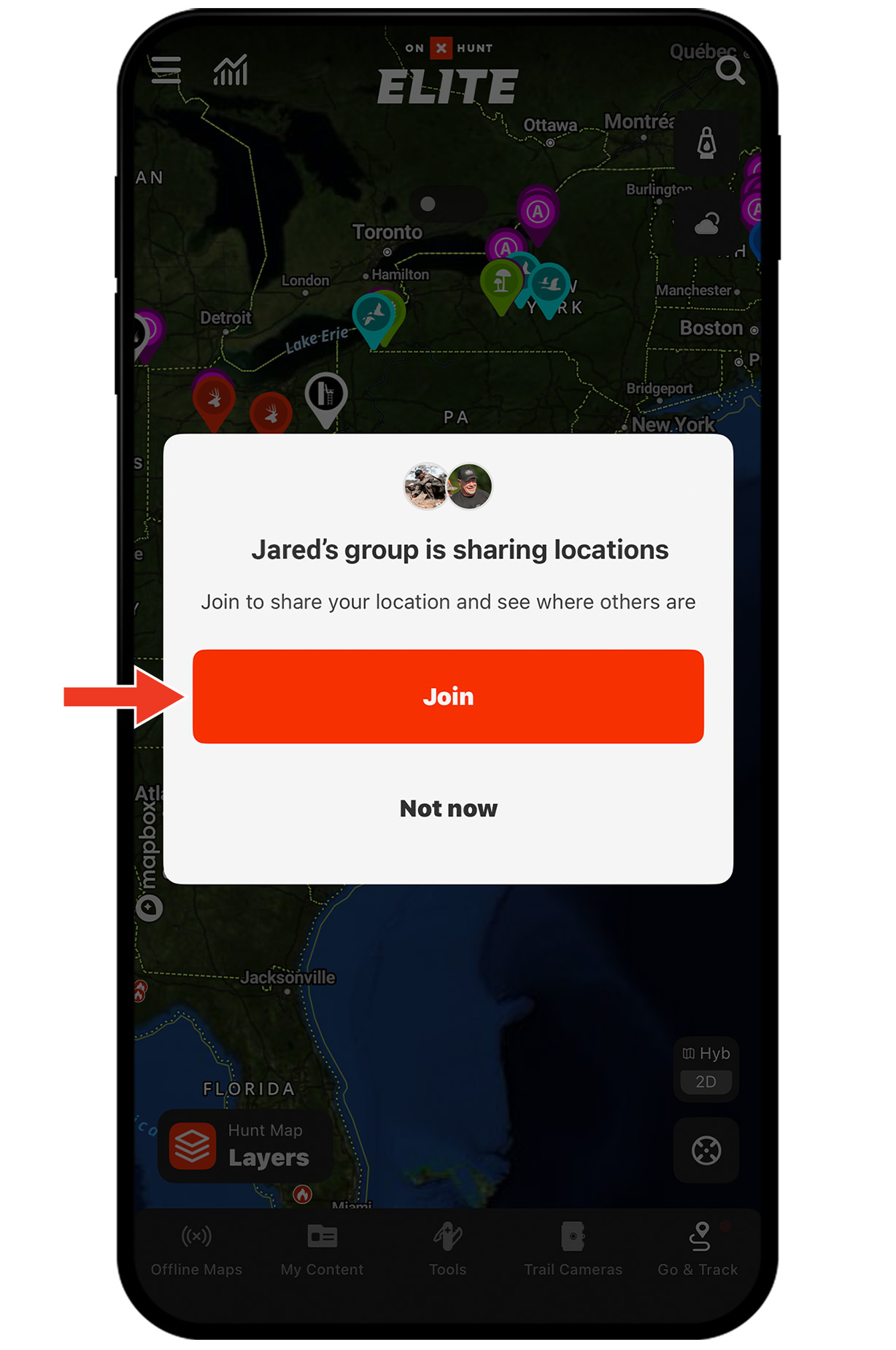
Step 2: Once the link opens in the Hunt App, tap Join to opt into the session.
Not a paid member yet? You’ll need an active onX Hunt Membership to participate and will be guided through getting set up before joining the session.
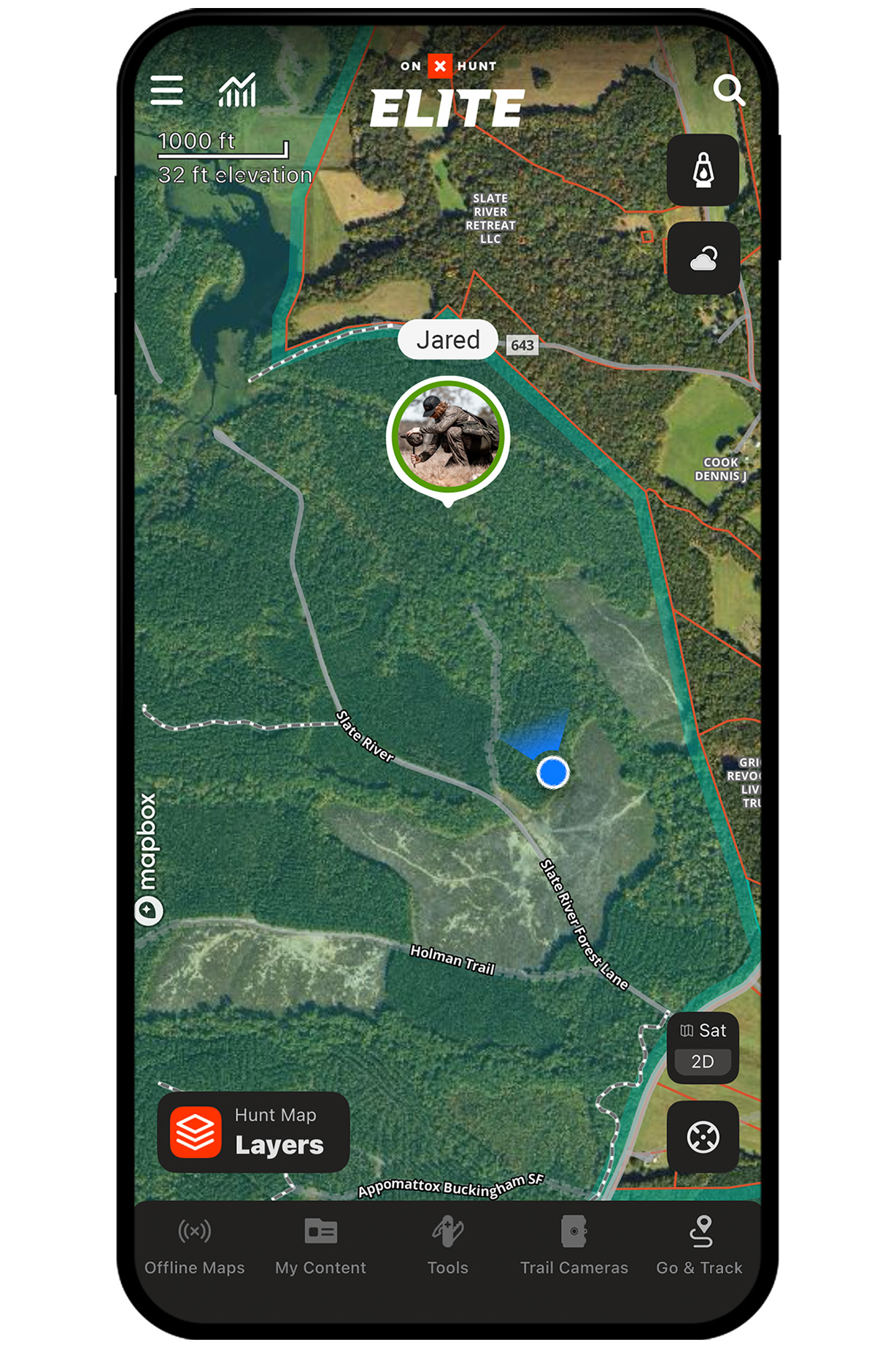
Step 3: Once you join, you’ll see all active session members as circle icons on the Hunt map, updating every five seconds.
Step 1: Tap the Location Sharing link received via text. It will open in the onX Hunt App.
Step 2: Once the link opens in the Hunt App, tap Join to opt into the session.
Not a paid member yet? You’ll need an active onX Hunt Membership to participate and will be guided through getting set up before joining the session.
Step 3: Once you join, you’ll see all active session members as circle icons on the Hunt map, updating every five seconds.
Manage Your Session in the Field
Once your session is live, it runs in the background so you can focus on the hunt. Requires cell service.
– Online status: A green ring around an avatar means that individual is actively sharing. If someone loses service, the ring around their avatar will turn grey, and you’ll see their last known location and a timestamp.
– Leaving a session: Any member can leave at any time. When they do, their location is removed from the map immediately.
– Session ends: When you end the session, all location data is cleared. Nothing is saved or stored after the hunt.
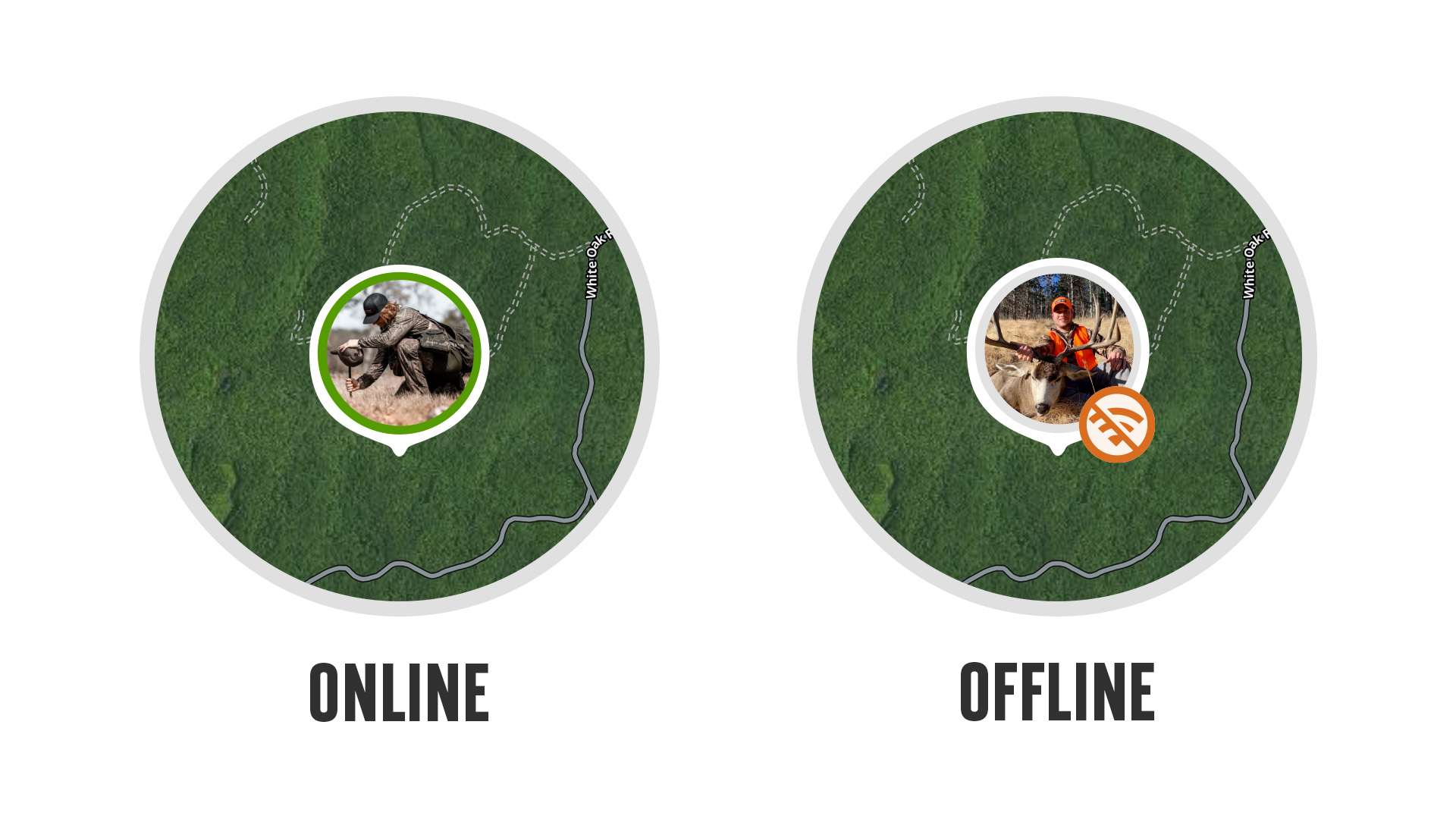
– Online status: A green ring around an avatar means that individual is actively sharing. If someone loses service, the ring around their avatar will turn grey, and you’ll see their last known location and a timestamp.
– Leaving a session: Any member can leave at any time. When they do, their location is removed from the map immediately.
– Session ends: When you end the session, all location data is cleared. Nothing is saved or stored after the hunt.
Unlock Location Sharing Today
Location Sharing is available to Premium and Elite Members.